Managing Service Requests
Service Requests are designed to help manage, monitor, and review your request for maintenance and subsequent courses of action on an ongoing basis.
Use K2 Portal to:
To open a service request:
Click the Service Requests option in the left-hand panel.
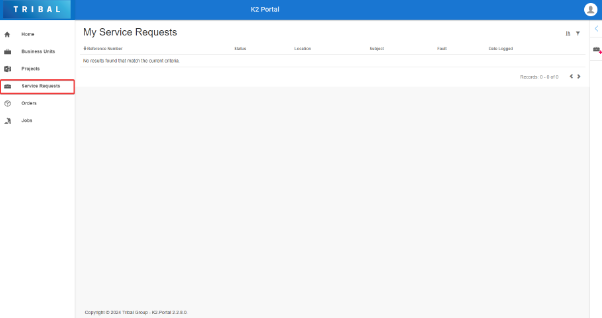
The My Service Requests grid is displayed.
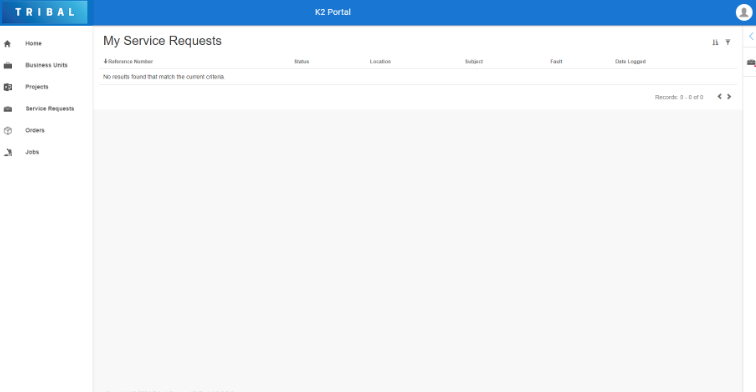
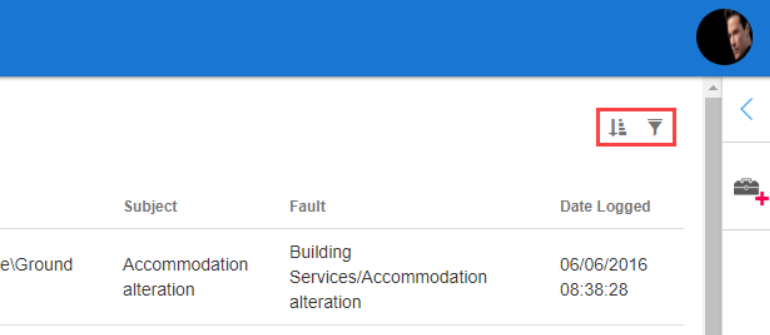
Use the sort and filter options in the top right-hand corner of the screen to sort and narrow the results, if required.
The fields on the Service Request Details screen are described in the following table:
This field… | Holds this information... |
|---|---|
Reference Number | A unique reference number for the service request. |
Business Unit Name | The business unit to which the service request belongs. |
Contact Name | The person who raised the request. |
Call Category | The category of the request. |
Location | The location of the request. |
Asset Name | The asset associated with the service request. |
Status | The status of the request. You can Close and Cancel the request as required. |
Fault Path | The maintenance request and its categories. |
Subject | The subject describes the maintenance request. |
Description | A description of the maintenance request. |
Priority | The importance of the request. |
Physical | The physical address of the location. |
Postal | The postal address of the location. |
Invoice | The invoice address of the location. |
Trade | The trade address of the location. |
Trade | The trade type. These can be defined in Trade Reference Data (accessed by navigating to Functions > Core > Reference Data > Core in K2). |
Number Of People Required | The number of individuals required to complete the request. |
Estimated Time | The estimated time it takes to carry out the request. |

To add a new service request:
Click the Service Requests option in the left-hand panel, and then click the New Service Request option in the right-hand panel.
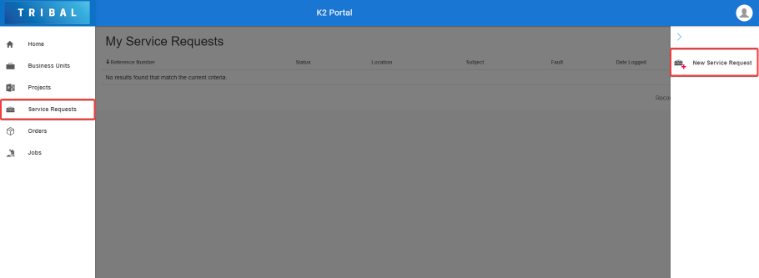
Or
Click the New Request button in the Service Requests panel on the Dashboard.
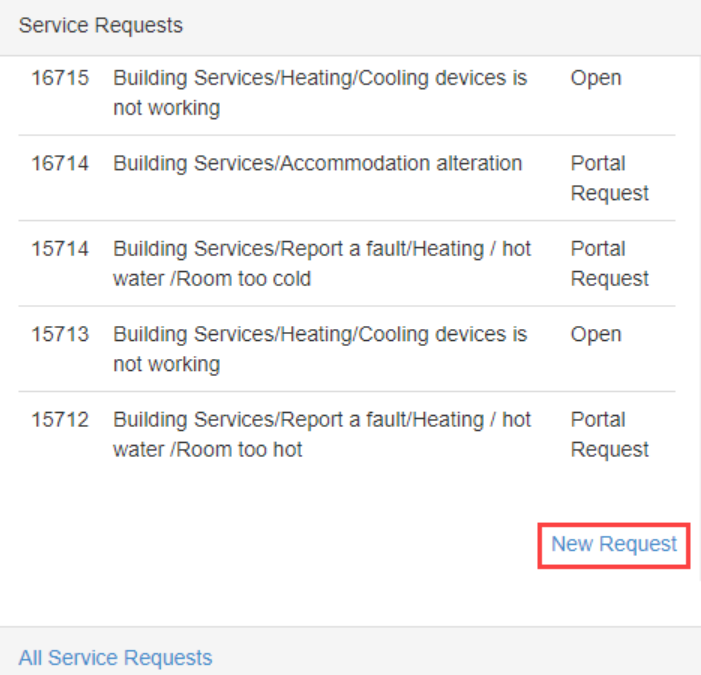
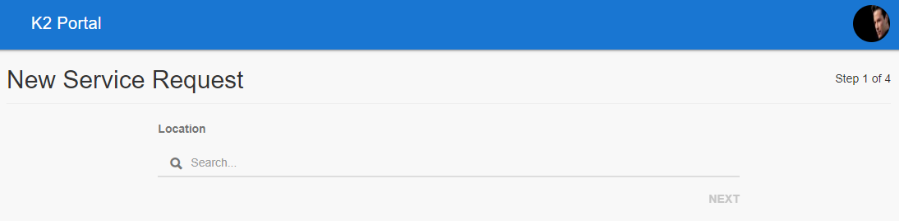
The New Service Request screen is displayed.
The Location will be auto-populated if a New Service Request is selected from a location and the first screen to appear with be the Fault screen.
New Service Request only appears on a business unit detail page when Allow Business Unit as Maintenance Location (accessed by navigating to Tools > System Options > Service Options > Maintenance) system option has been set.
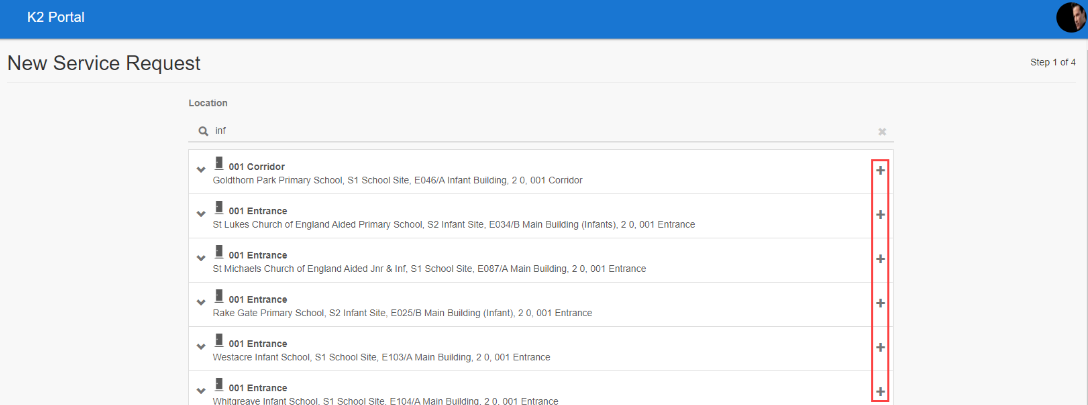
Search for and select the relevant location by clicking the + button adjacent to the record.
Click Next.
The Fault screen is displayed.
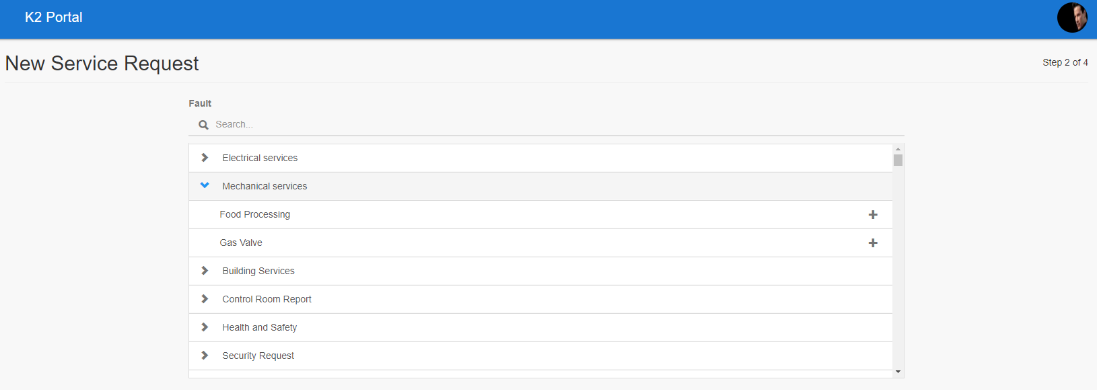
Select the relevant fault by clicking the + button adjacent to the record.
Click Next.
Enter a description of the service request, and then click Next.
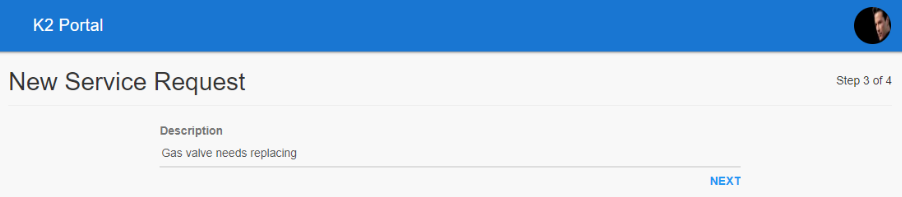
The field may be populated automatically but can be edited. It can also be left blank.
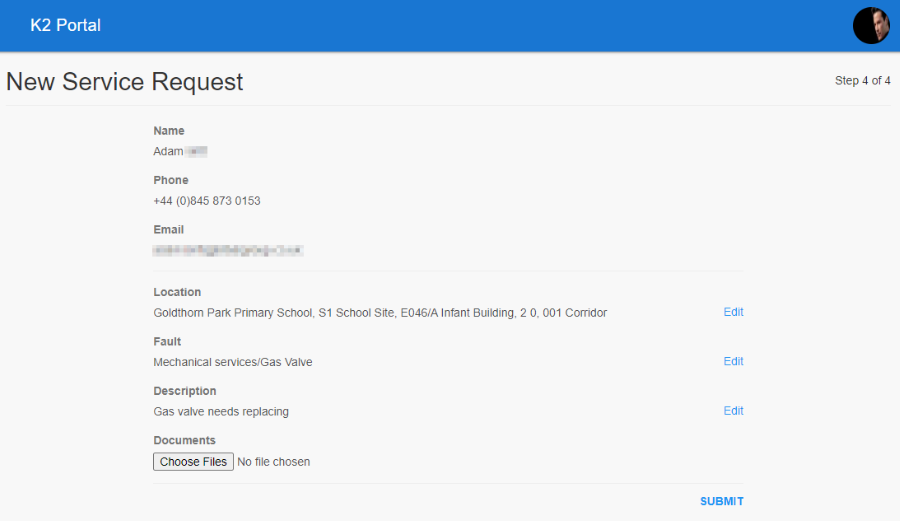
A summary of the service request is displayed.
Service Request information can be edited and documents can be attached before it is submitted.
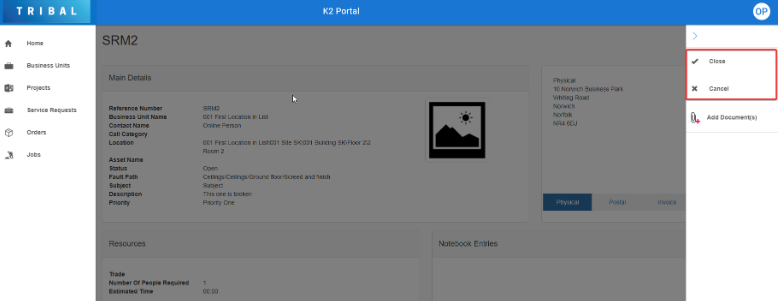
To close or cancel a service request:
Search for and open the relevant service request. Refer to Open and View a Service Request for further information.
Click the Close or Cancel button in the right-hand panel.
A message similar to the following is displayed.

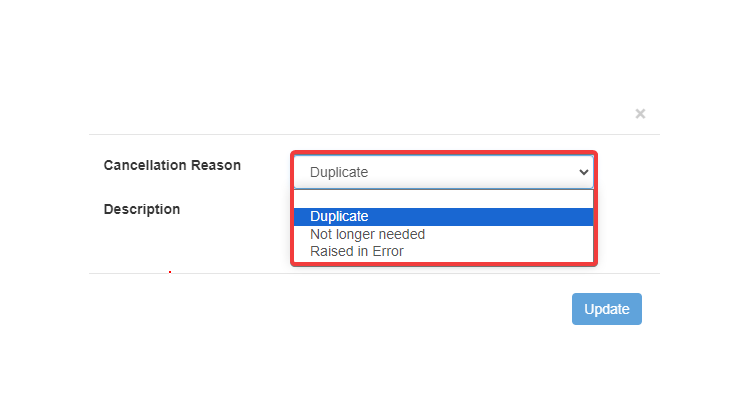
Where the Enable Cancellation Reason setting has been selected the user will be asked for a reason.
Select a reason from the Cancellation Reason drop-down.
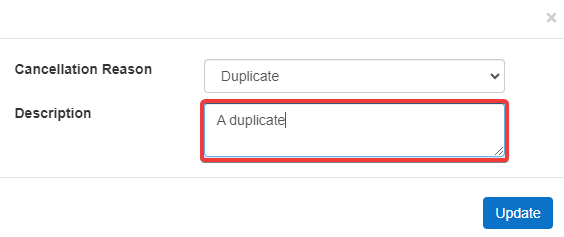
Add a description in the Description field.
Click on Update.
A message similar to the following is displayed.
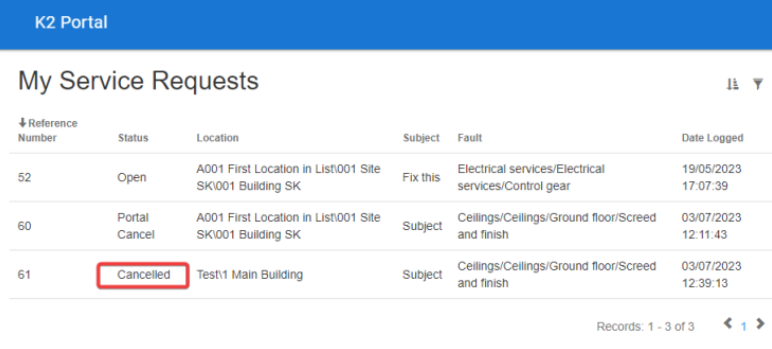
The service request's status is updated to 'Cancelled' or 'Closed'.
Use the Notebook Entries panel to add notes or reminders by entering text and clicking the Add button.
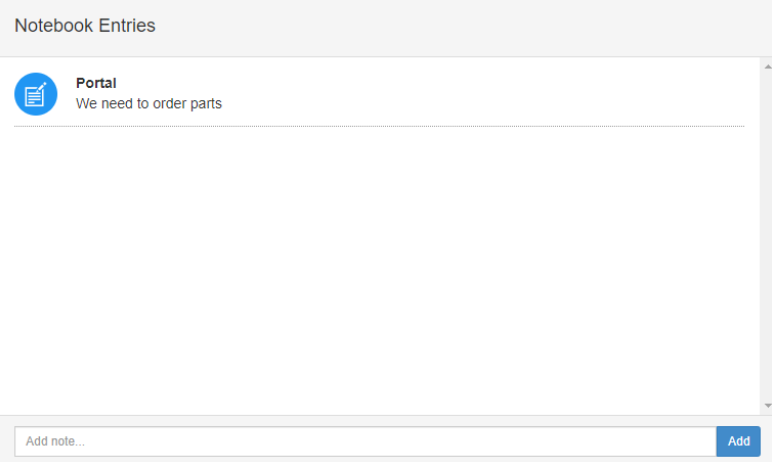
You can also view existing notebook entries (unless they are archived).
The Documents panel lists all documents attached to the record.
The document protection level set against their user record limits the user's view of documents. There are three levels – Public, Restricted and Confidential. If a user is set to 'Restricted', they cannot view confidential documents.
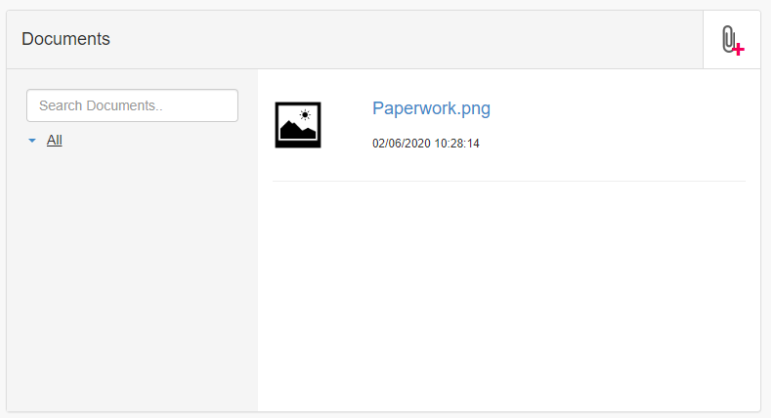
Use the panel to do the following:
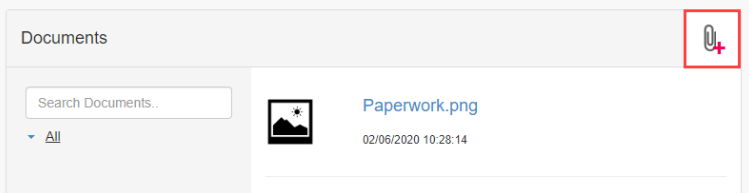
Click the Add Document button to upload a new document.
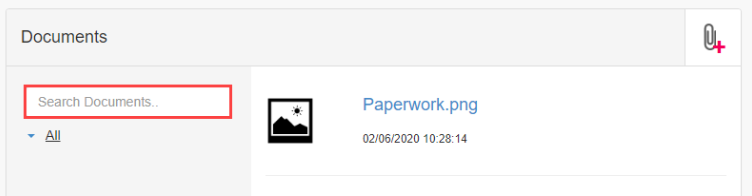
Use the Search Documents field to locate an existing document.
Click a document file name link to open the file.