
Adding or Editing Financial Asset
The Financial Asset Editor allows you to add a new Financial Asset or edit an existing one.
To create a new Financial Asset:
Navigate to Finance > Fixed Asset Register > New Financial Asset.
Alternatively, search for and open the relevant Financial Asset.
The Financial Asset Editor is displayed.
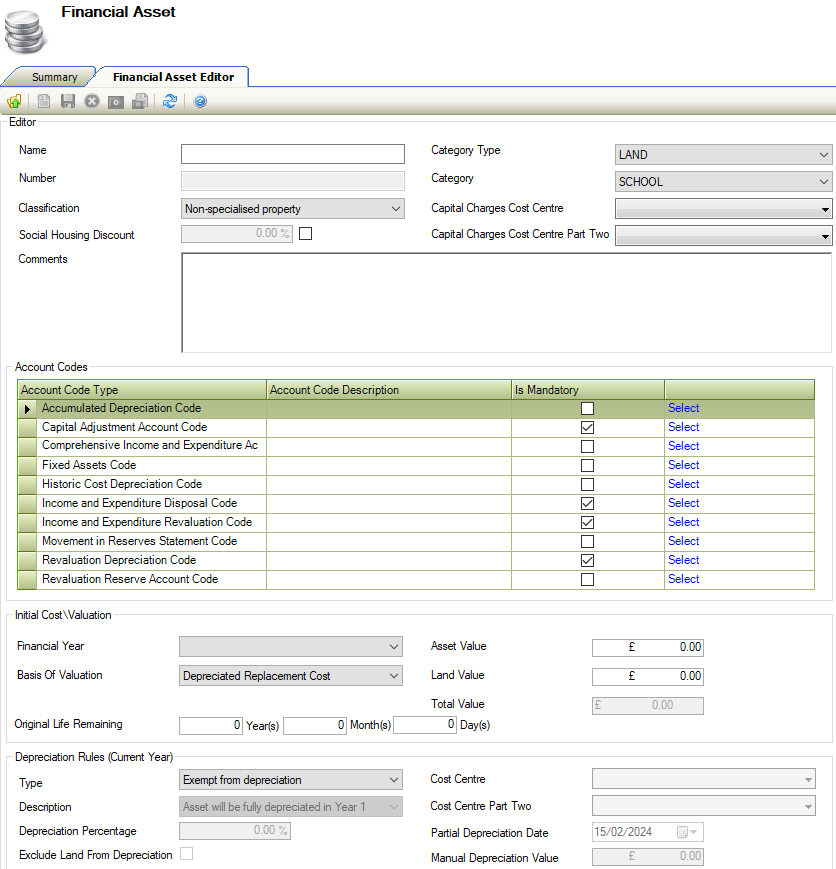
Enter details of the financial asset.
The fields on the Financial Asset Editor tab are described in the following table:
This field… | Holds this Information… |
|---|---|
Name | The name of the financial asset. This field is mandatory. |
Number | The number of the financial asset. This field is mandatory. |
Classification | The classification of the financial asset. Select from the drop-down list. These can be defined in Financial Asset Classification reference data (accessed by navigating to Finance > Fixed Asset Register > Fixed Asset Register). |
Social Housing Discount | Whether a social housing discount is applied to the financial asset. The relevant percentage applied to the fincial asset. |
Comments | Comments about the financial asset |
Category Type | The category type. Select from the drop-down list. These can be defined in Financial Asset Category Type reference data (accessed by navigating to Finance > Fixed Asset Register > Fixed Asset Register). |
Category | The category Select from the drop-down list. These can be defined in Financial Asset Category Reference Data (accessed by navigating to Finance > Fixed Asset Register > Fixed Asset Register). |
Capital Charges Cost Centre | The capital charges cost centre. Select from the drop-down list. These can be defined in Cost Centre Reference Data (accessed by navigating to Functions > Core > Reference Data > Core). |
Name | The name of the financial asset. This field is mandatory. |
Number | The number of the financial asset. This field is mandatory. |
Classification | The classification of the financial asset. Select from the drop-down list. These can be defined in Financial Asset Classification Reference Data (accessed by navigating to Finance > Fixed Asset Register > Fixed Asset Register). |
Accumulated Depreciation Code | The relevant account code description. Whether the account code is mandatory. |
Capital Adjustment Account Code | The relevant account code description. Whether the account code is mandatory. |
Comprehensive Income and Expenditure Account Code | The relevant account code description. Whether the account code is mandatory. |
Fixed Assets Code | The relevant account code description. Whether the account code is mandatory. |
Historic Cost Depreciation Code | The relevant account code description. Whether the account code is mandatory. |
Income and Expenditure Disposal Code | The relevant account code description. Whether the account code is mandatory. |
Income and Expenditure Revaluation Code | The relevant account code description. Whether the account code is mandatory. |
Movement in Reserves Statement Code | The relevant account code description. Whether the account code is mandatory. |
Revaluation Depreciation Code | The relevant account code description. Whether the account code is mandatory. |
Revaluation Reserve Account Code | The relevant account code description. Whether the account code is mandatory. |
Accumulated Depreciation Code | The relevant account code description. Whether the account code is mandatory. |
Capital Adjustment Account Code | The relevant account code description. Whether the account code is mandatory. |
Financial Year | The financial year. Select from the drop-down list. This field is mandatory. These can be defined in Financial Years Reference Data (accessed by navigating to Functions > Core > Reference Data > Core). |
Basis of Valuation | The basis of valuation. Select from the drop-down list. These can be defined in Financial Asset Basis of Valuation Reference Data (accessed by navigating to Finance > Fixed Asset Register > Fixed Asset Register). |
Original Life Remaining | The remaining lifespan of the financial asset in years, months and days. The remaining original life must be greater than 0. |
Asset Value | The asset value in pounds sterling. |
Land Value | The land value in pounds sterling. |
Total Value | The total value in pounds sterling. |
Financial Year | The financial year.
These can be defined in Financial Years Reference Data (accessed by navigating to Functions > Core > Reference Data > Core). |
Type |
|
Description |
|
Depreciation Percentage | The depreciation percentage. |
Exclude Land From Depreciation | Whether to exclude land fro the depreciation. |
Cost Centre |
These can be defined in Cost Centre Reference Data (accessed by navigating to Functions > Core > Reference Data > Core). |
Residual Life | The remaining lifespan of the financial asset in years, months and days. |
For Financial Year | The financial year.
These can be defined in Financial Years Reference Data (accessed by navigating to Functions > Core > Reference Data > Core). |
Financial Lease | Whether there is a financial lease. |
Lease In Date | The lease in date.
|
Tenure | The tenure of the lease. These can be defined in Tenure Reference Data (accessed by navigating to Functions > Core > Reference Data > Core). |

Click Save.
To add a Child Financial Asset:
Search for an existing Financial Asset.
Click on the Tasks tab, and select Add Child Financial Asset.
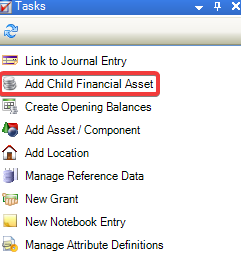
The Financial Asset Picker is displayed.
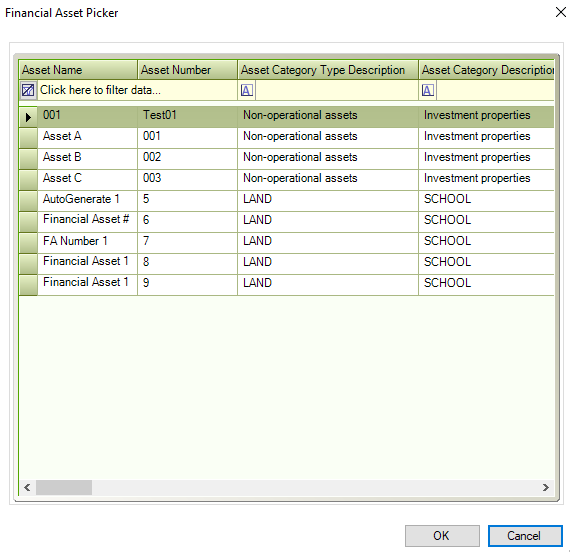
The fields on the Financial Asset Picker are described in the following table:
This field… | Holds this Information… |
|---|---|
Asset Name | Displays the asset name. |
Asset Number | Displays the asset number. |
Asset Category Type Description | Displays the description of the Asset Category Type. |
Asset Category Description | Displays the Asset Category Description. |
Select a Financial Asset.
Click on OK.
The Child Asset(s) tab displays a child financial asset.

Click on New.
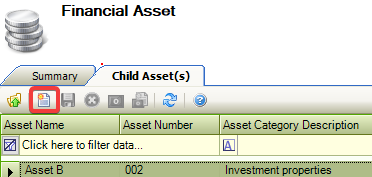
The Financial Asset Picker is displayed.
Select a Financial Asset.
Click on OK.
The Child Asset (s) tab displays a child financial asset.

To create an Opening Balance
Select a new or existing Financial Asset.
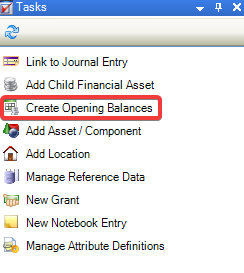
Click on the Tasks tab, and select Create Opening Balances
The Opening Balance field is displayed.
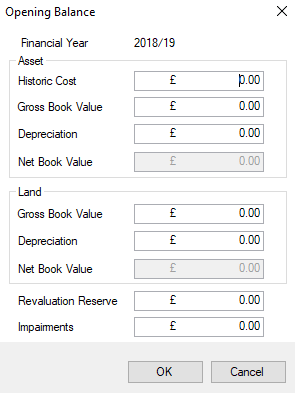
The fields on the Opening Balance field are described in the following table:
This field… | Holds this Information… |
|---|---|
Financial Year | Displays the Financial Year for the Opening Balance. |
Historic Cost | Displays the Historical Cost of the Opening Balance. |
Gross Book Value | Displays the Book Value (Gross). |
Depreciation | Displays the depreciation value. |
Net Book Value | Displays the net book value. This displays the net book value and cannot be edited. |
Gross Book Value | Displays the Book Value (Gross). |
Depreciation | Displays the depreciation value. |
Net Book Value | Displays the net book value. This displays the net book value and cannot be edited. |
Revaluation Reserve | Displays the amount in reserve for Revaluation. |
Impairments | Displays the amount for impairments. |
Add the relevant details.
Click on OK.
Navigate to Finance > Fixed Asset Register
The Opening Balance is displayed on the Fixed Asset Register tab.

To create a Depreciation Write-Off.
Select a new or existing Financial Asset.
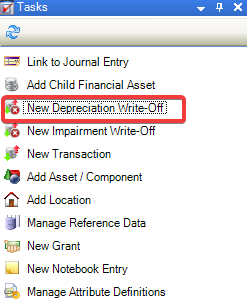
Click on the Tasks tab, and select New Depreciation Write-Off.
The Edit Transaction field is displayed.
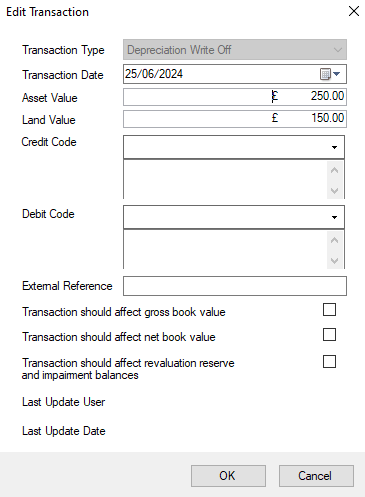
The fields on the Edit Transaction field are described in the following table:
This field… | Holds this Information… |
|---|---|
Transaction Type | Displays the Transaction Type. This field is set by default and cannot be edited. |
Transaction Date | Displays the date of the transaction. |
Asset Value | Displays the asset value. This defaults to the figure created in the Fixed Asset Register record and can be edited. |
Land Value | Displays the land value. This defaults to the figure created in the Fixed Asset Register record and can be edited. |
Credit Note | Displays an account code selected to be used for the Credit Note. |
Debit Code | Displays an account code selected to be used for the Debit Code. |
External Reference | Displays the External Reference number. The External Reference number can be made up of alphanumerical characters. |
Transaction should affect gross book value | When selected the Gross Book Value will either be increased or decreased. |
Transaction should affect net book value | When selected the Net Book Value will either be increased or decreased. |
Transaction should affect revaluation reserve and impairment value. | When selected the Revaluation Reserve and Impairment Value either be increased or decreased. |
Last Update User | Displays the name of the user who created\updated the record. |
Last Update Date | Displays the date the record was created\updated. |
Add the relevant details.
Click on OK.
The New Depreciation Write-Off record is displayed on the Transactions List tab.

A New Depreciation Write-Off record can be created by clicking New in the Transactions List.
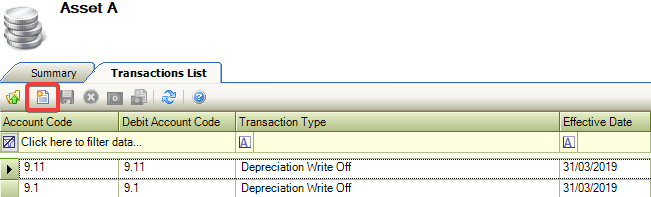
Navigate to Associated Items > Opening Balance(s)
The Opening Balance field is displayed.
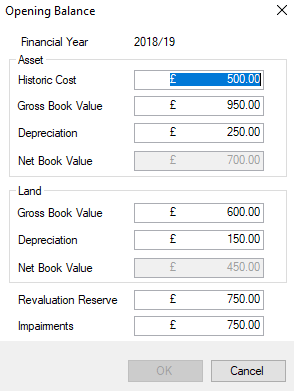
The Net Book Value displays the new Opening Balance value.
To create an Impairment Write-Off.
Select a new or existing Financial Asset.
Click on the Tasks tab, and select Impairment Write-Off.
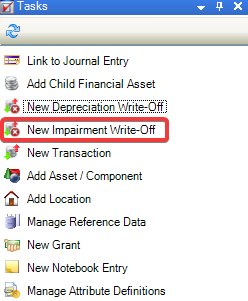
The Edit Transaction field is displayed.
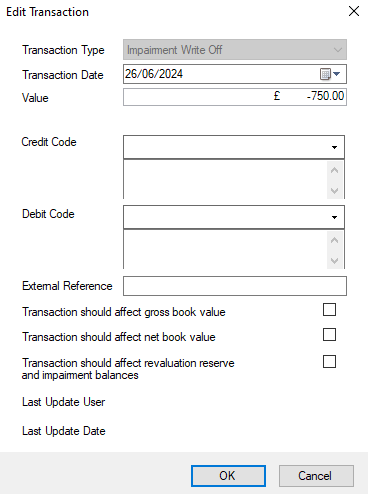
The fields on the Edit Transaction field are described in the following table:
This field… | Holds this Information… |
|---|---|
Transaction Type | Displays the Transaction Type. This field is set by default and cannot be edited. |
Transaction Date | Displays the date of the transaction. |
Asset Value | Displays the asset value. This defaults to the figure created in the Fixed Asset Register record and can be edited. |
Land Value | Displays the land value. This defaults to the figure created in the Fixed Asset Register record and can be edited. |
Credit Note | Displays an account code selected to be used for the Credit Note. |
Debit Code | Displays an account code selected to be used for the Debit Code. |
External Reference | Displays the External Reference number. The External Reference number can be made up of alphanumerical characters. |
Transaction should affect gross book value | When selected the Gross Book Value will either be increased or decreased. |
Transaction should affect net book value | When selected the Net Book Value will either be increased or decreased. |
Transaction should affect revaluation reserve and impairment value. | When selected the Revaluation Reserve and Impairment Value either be increased or decreased. |
Last Update User | Displays the name of the user who created\updated the record. |
Last Update Date | Displays the date the record was created\updated. |
Add the relevant details.
Click on OK.
The Impairment Write-Off record is displayed on the Transactions List tab.

An Impairment Write-Off record can be created by clicking New in the Transactions List.
Navigate to Associated Items > Opening Balance(s)
The Opening Balance field is displayed.
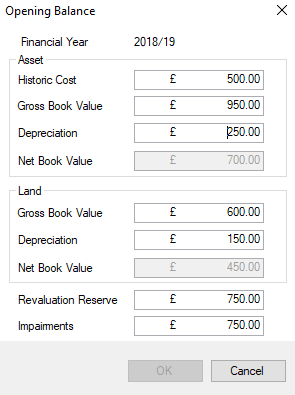
The Impairments Write-Off is displayed in the new Opening Balance field.
To create a New Transaction.
Select a new or existing Financial Asset.
Click on the Tasks tab, and select New Transaction.
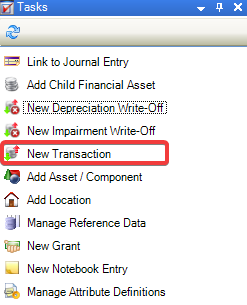
The Edit Transaction field is displayed.
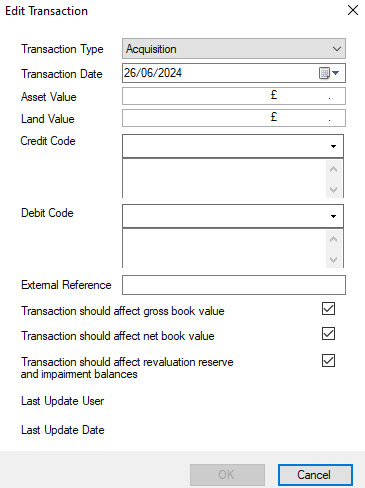
The fields on the Edit Transaction field are described in the following table:
This field… | Holds this Information… |
|---|---|
Transaction Type | Displays the Transaction Type. This field is set to Aquisition by default and can be edited. |
Transaction Date | Displays the date of the transaction. |
Asset Value | Displays the asset value. Allows the user to add an Asset Value amount for the Transaction. |
Land Value | Displays the land value. Allows the user to add a Land Value amount for the Transaction. |
Credit Note | Displays an account code selected to be used for the Credit Note. |
Debit Code | Displays an account code selected to be used for the Debit Code. |
External Reference | Displays the External Reference number. The External Reference number can be made up of alphanumerical characters. |
Transaction should affect gross book value | When selected the Gross Book Value will either be increased or decreased. This is ticked by default for a Transaction. |
Transaction should affect net book value | When selected the Net Book Value will either be increased or decreased. This is ticked by default for a Transaction. |
Transaction should affect revaluation reserve and impairment value. | When selected the Revaluation Reserve and Impairment Value either be increased or decreased. This is ticked by default for a Transaction. |
Last Update User | Displays the name of the user who created\updated the record. |
Last Update Date | Displays the date the record was created\updated. |
Add the relevant details.
Click on OK.
The New Transaction record is displayed on the Transactions List tab.

To create a New Grant
Select a new or existing Financial Asset.
Click on the Tasks tab, and select New Grant.
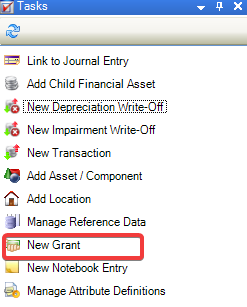
The Edit Financial Asset Grant field is displayed.
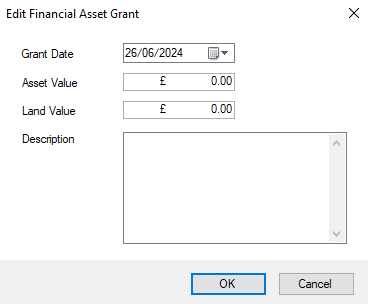
The fields on the Edit Financial Asset Grant field are described in the following table:
This field… | Holds this Information… |
|---|---|
Grant Date | Displays the Date in which the grant was created. |
Asset Value | Displays the asset value. |
Land Value | Displays the land value. |
Description | Description give to the reason for the grant. |
Add the relevant details.
Click on OK.
The New Grant record is displayed on the Grants List tab.
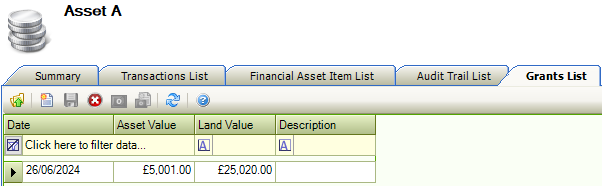
To link a Journal Entry.
Select a new or existing Financial Asset.
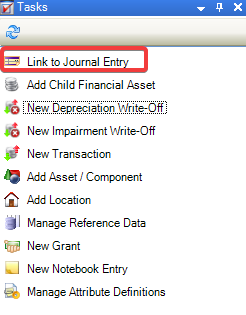
Click on the Tasks tab, and select Link to Journal Entry.
The Add Journal Entry field is displayed.
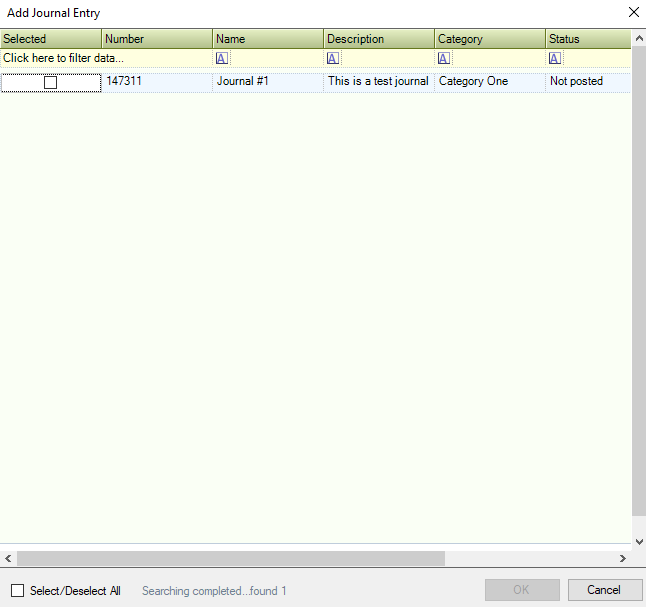
Select the journal record to be linked.
Click on OK.
The record is displayed in the Journal Entry List.

To link a Journal Entry.
Select a new or existing Financial Asset.
Check that the Financial Asset Links window is displayed.
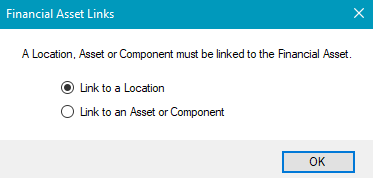
The Financial Asset Links window will only be displayed if Enforce Financial Asset Link (found in Tools > Options > Financial Options > General) has been selected.
Select the Link to a Location.
Click OK.
Check that the Select Location window is displayed.
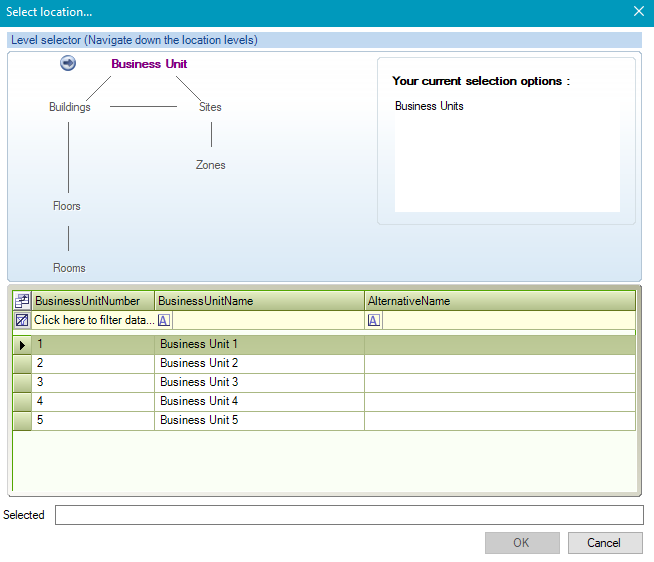
Use the level selector to select the relevant room, floor, zone, building, site or business unit.
Click OK.
Click on Associated Items.
Select Financial Asset Item(s).
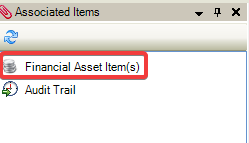
Check that the Financial Asset Item List tab is opened.
Check that the Linked Location details are displayed.

To link a Journal Entry.
Select a new or existing Financial Asset.
Check that the Financial Asset Links window is displayed.
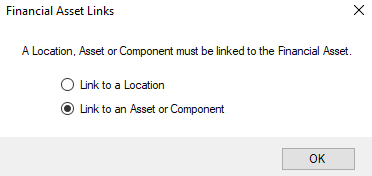
The Financial Asset Links window will only be displayed if Enforce Financial Asset Link (found in Tools > Options > Financial Options > General) has been selected.
Select the Link to an Asset or Component.
Click OK.
Check that the Asset Selector window is displayed.
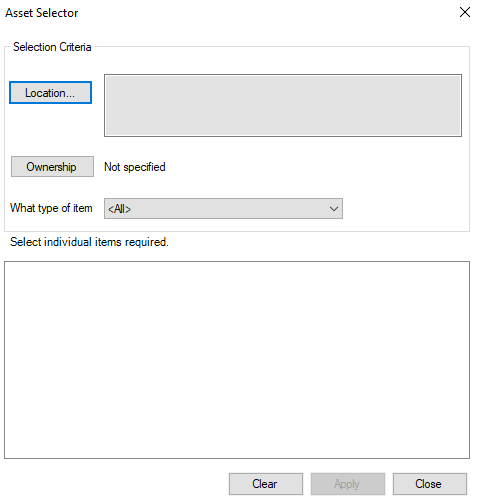
Refer to Linking a Financial Asset to a Location to add a new Location.
Click on Ownership.
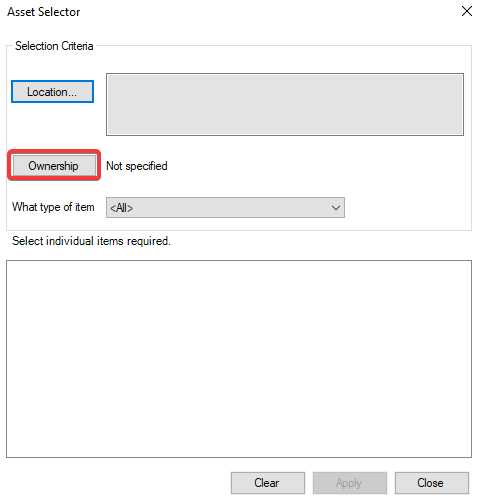
Select a Business Unit from the Select Business Unit window.
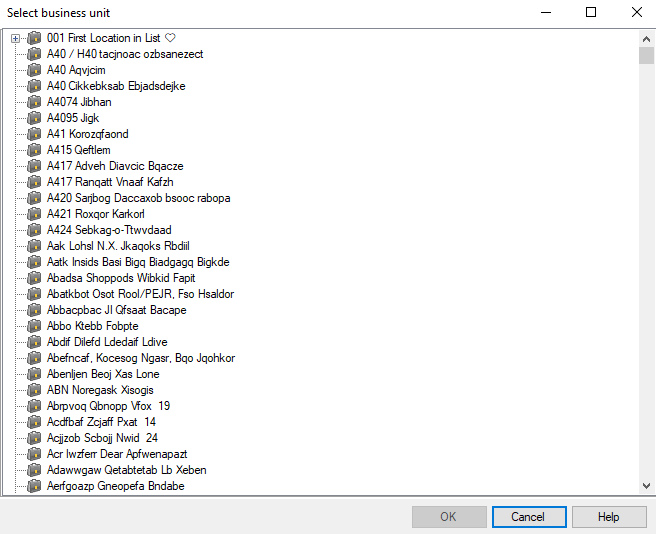
Use the level selector to select the relevant business unit.
Use the drop-down list to specify What type of item.
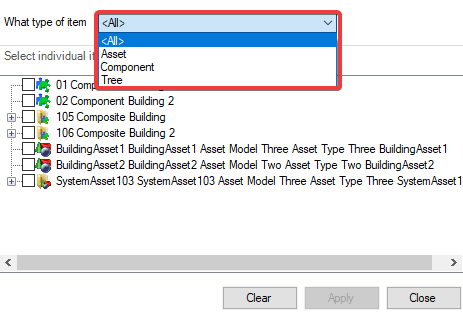
Select a record from Select Individual Items Required.
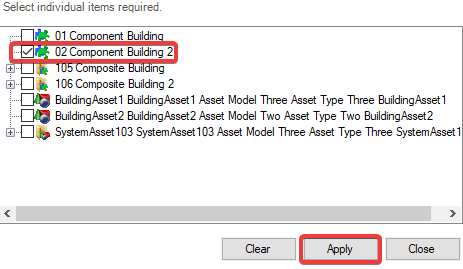
Click Apply.
Click Close.
Click on Associated Items.
Select Financial Asset Item(s).
Check that the Financial Asset Item List tab is opened.
Check that the Component, Asset, or Tree details are displayed.

Related Topics
Click the links below to navigate to the following related topics: