
Select from the following to view information on managing bookings:
Adding or Editing a Booking
Use the Resource Booking module to add or edit booking records.
To add or edit a booking:
-
Navigate to Resource Booking > New Booking.
Alternatively, search for an existing Resource Booking.
You can also view a list of resource items by selecting Resource Booking Item(s) from the Associated Items panel of a saved booking record.
The Booking Editor is displayed.
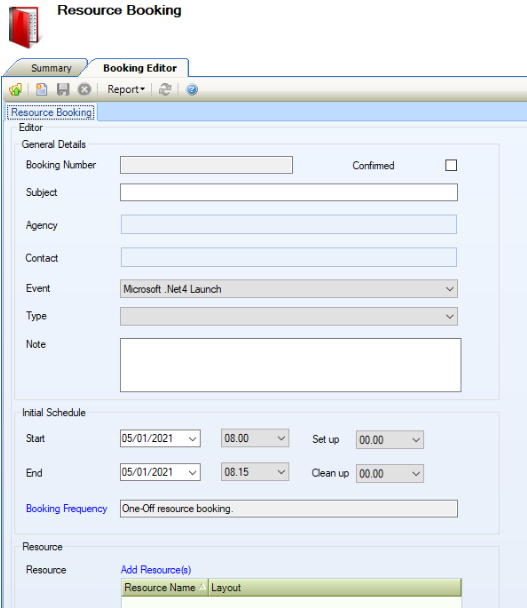
-
Enter or edit the relevant details.
The fields on the Booking Editor are described in the following table:
|
This field… |
Holds this information... |
|---|---|
|
Booking Number |
The booking number. This is generated automatically on saving and cannot be edited. |
|
Confirmed |
Whether the booking has been confirmed. |
|
Subject |
A description of the booking. This field is mandatory. |
|
Agency |
The agency making the booking. |
|
Contact |
The contact making the booking. This is filtered based on the Agency field and is only enabled when an agency has been selected. |
|
Event |
The event type. These can be defined in Events Reference Data (accessed by navigating to Resource Booking > Resource Booking). |
|
Type |
The booking type. These can be defined in Booking Type Reference Data (accessed by navigating to Resource Booking > Resource Booking). |
|
Note |
Any notes on the booking. |
|
Start |
The start time and date of the booking. |
|
End |
The end time and date of the booking. |
|
Set up |
The time allocated for setting up the room, if required. |
|
Clean up |
The time allocated for cleaning up the room, if required. |
|
Booking Frequency |
The frequency of the booking.
|
|
Resource |
The resource items required.
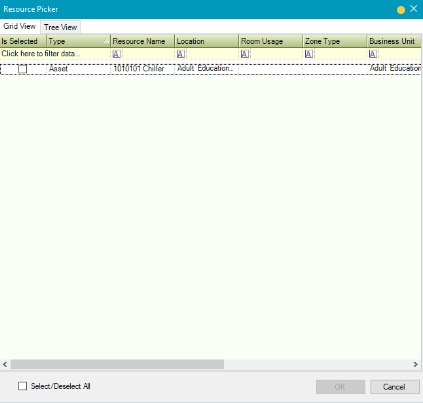
You can also view a list of resource items by selecting Resource Booking Item(s) from the Associated Items panel of a saved booking record. |
|
Cost Centre |
The cost centre that the charges will be billed to. |
|
Address |
The address. This is populated automatically with the agency's address. |
-
Click Save.
Adding or Editing a Charge
A charge record is automatically created for a booking when it is saved. The charge is calculated based on the data assigned to the room or zone. If the resource is an asset, a charge is created with zero value.
To add or edit a charge:
-
Search for and open the relevant resource booking.
-
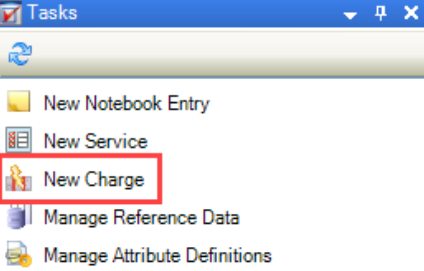
Click the New Charge option in the Tasks panel.
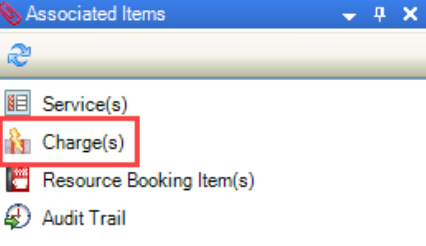
Alternatively, click the Charge(s) option in the Associated Items panel and then double-click an existing record.
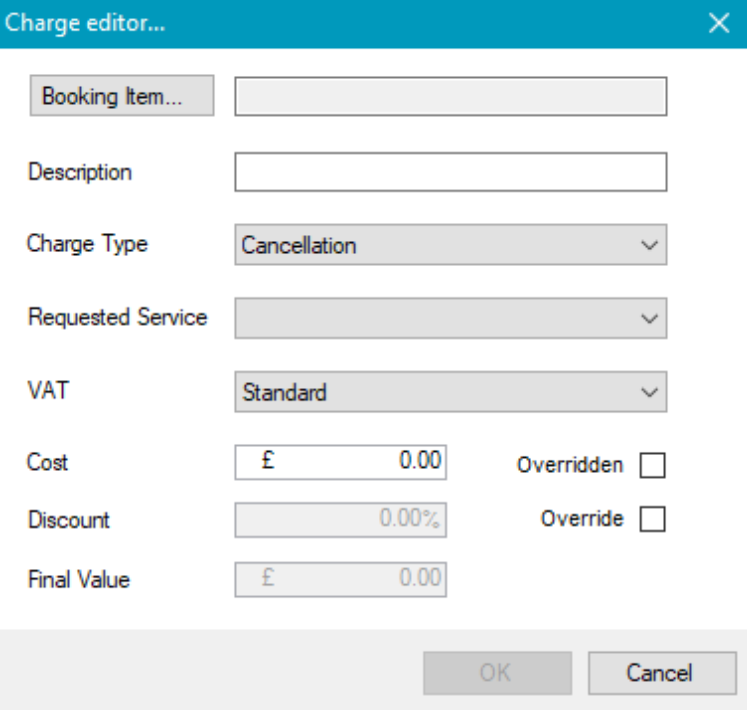
The Charge editor window is displayed.
-
Enter or edit the relevant details.
The fields on the Charge Editor window are described in the following table:
|
This field |
Holds this information... |
|---|---|
|
Booking Item |
The booking item that the charge applies to. Click the Booking Item button to display the Select window, where you can select the relevant item. 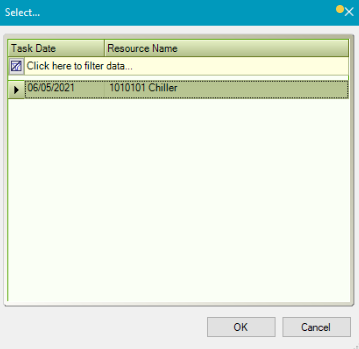
|
|
Description |
A description of the charge. This field is mandatory. |
|
Charge Type |
The type of charge. These can be defined in Charge Types Reference Data (accessed by navigating to Resource Booking > Resource Booking). |
|
Requested Service |
The requested service. This is only applicable to service charges. |
|
VAT |
The VAT (Value Added Tax) or GST (Goods and Services Tax) rate that applies. |
|
Cost |
The cost of the charge. This can only be overridden if the charge is automatically generated. |
|
Discount |
The discount percentage. This is populated automatically based on the Discount Rate field on the selected agency's record, but can be edited by selecting the Override check box. |
|
Final Value |
The total charge. This is calculated automatically. |
-
Click OK.