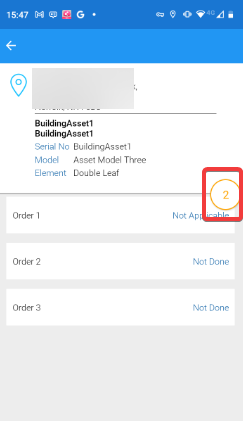
Details can be viewed, but the status of a Job Item can only be progressed once a job has been started.
Job Items
To start a new job from the Work List:
-
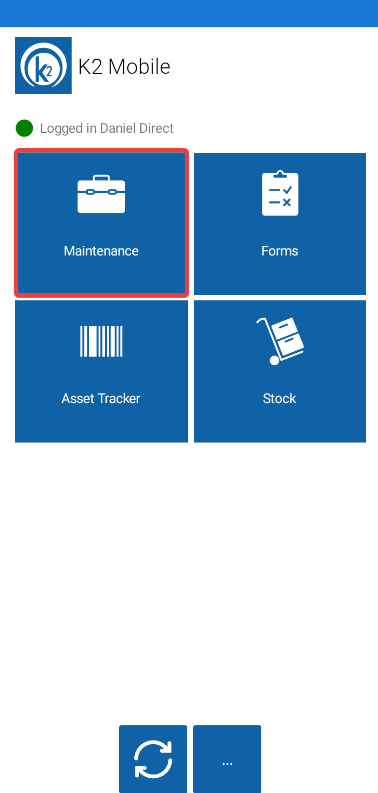
Tap the Maintenance tile on the K2 Mobile screen.
-
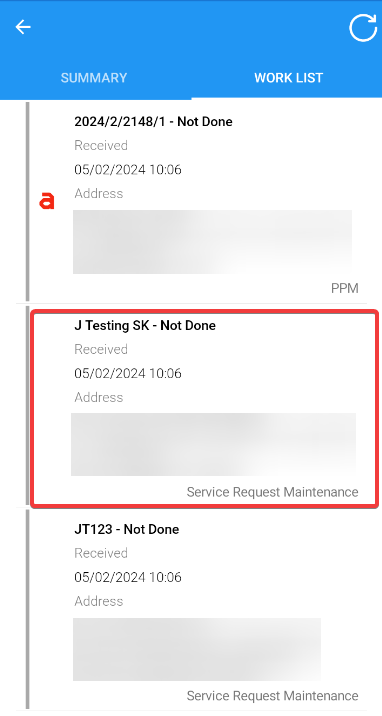
Select a job from the Work List tab.
-
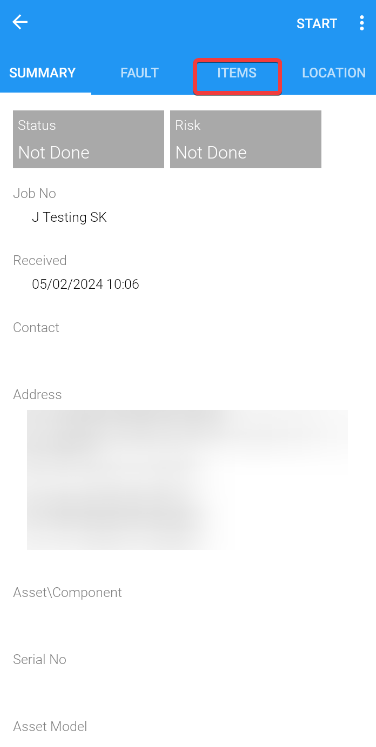
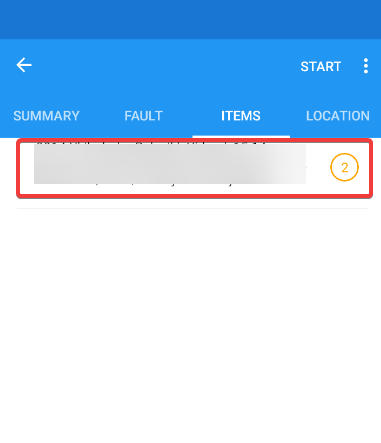
Click on the Items tab.
-
Check that the selected Item details are displayed.
-
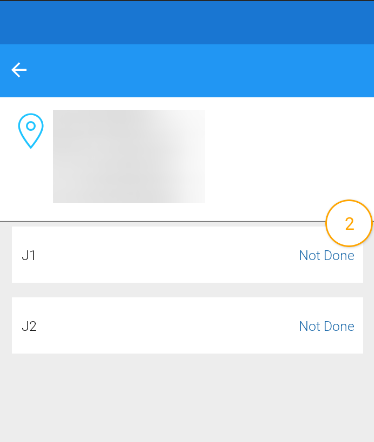
Check that the correct number of Items has been displayed.
Updating Job Items
To update a Job Item:
-
Tap on an existing Job Item.
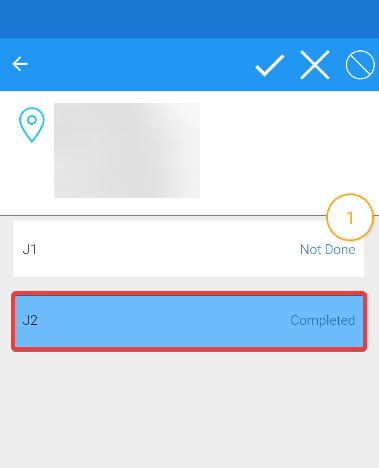
Start a job to enable a job item to be updated.
-
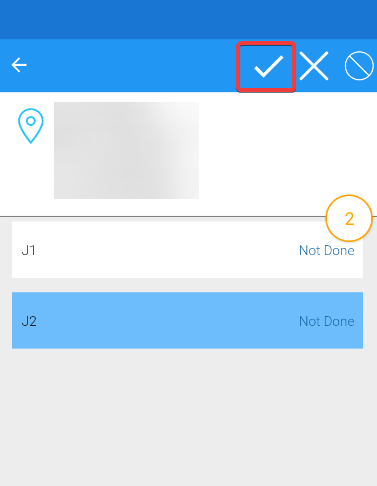
Click on the Tick icon in the top right corner.
-
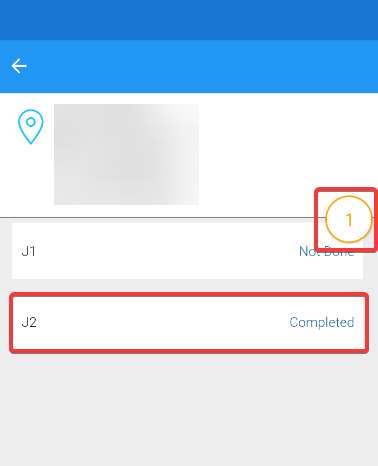
Check that the Job Item now shows as completed and the Item count has been reduced.
-
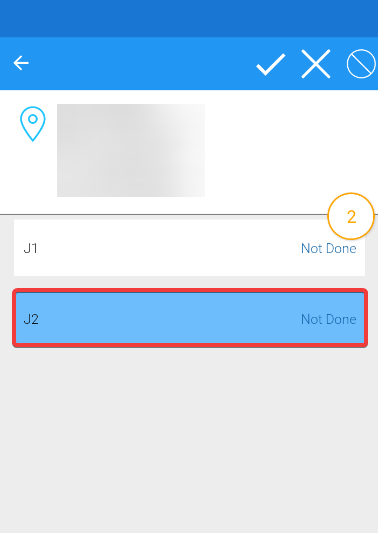
Select a completed job item.
-
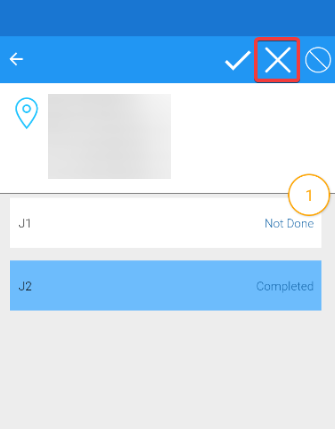
Select the Cross icon in the top right corner.
-
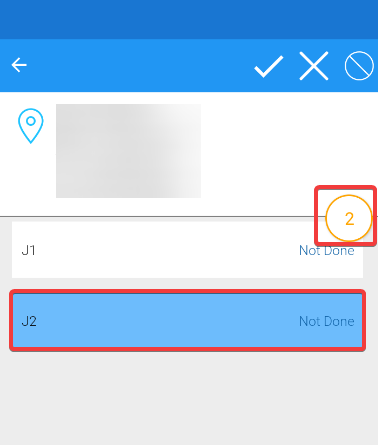
Check that the Job Item now shows as Not Done and the Item count has been increased.
-
Select the Stop icon in the top right corner.
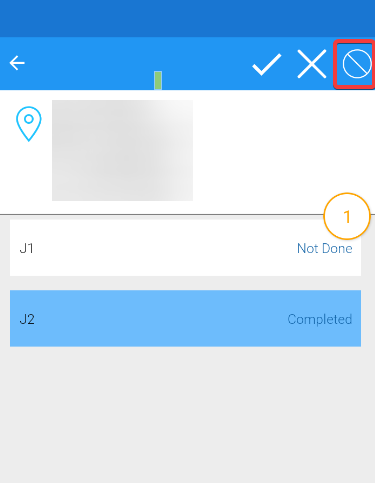
-
Check that the Job Item now shows as Not Applicable and the Item count has been increased.