
The forms module is used to view and complete forms (for example: the drivers log) created in the Authoring Tool (accessed by navigating to Tools > Authoring Tool).
Using the Forms Module
You can use the Forms module to view, complete surveys and check your submission history.
To access the Forms module:
-
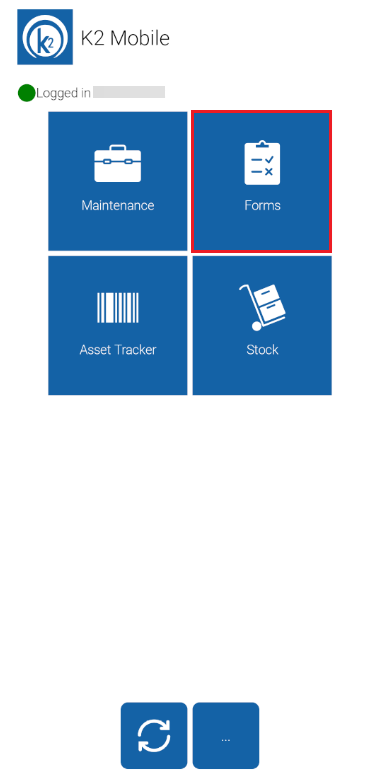
Tap the Forms tile on the K2 Mobile screen.
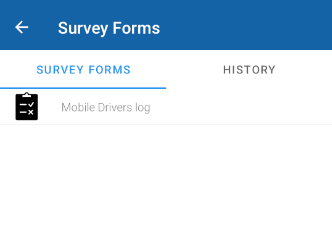
The Forms screen with 2 tabs is displayed where you can view:
-
Survey Forms: active forms.
-
History: completed forms.
Viewing Survey Forms
To view Survey Forms:
-
Select the Survey Forms Tab.
-
Tap the relevant survey.
The survey screen is displayed.
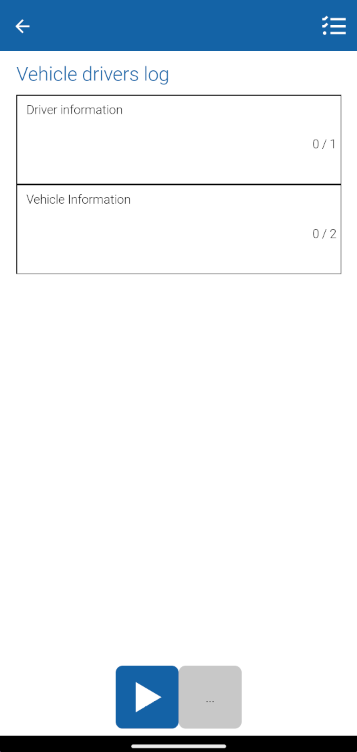
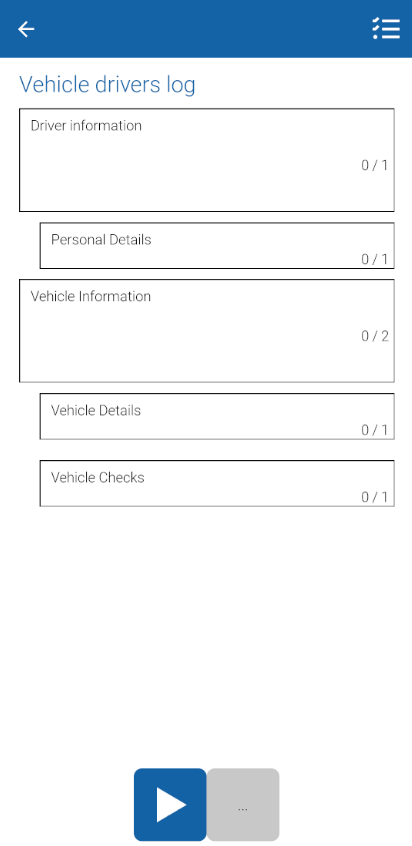
You can tap on the survey questions to view its sections.
To view Survey History:
-
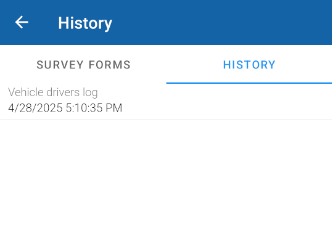
Select the History Tab.
The Survey History screen is displayed.
Applying Applicable or Not Applicable to multiple questions
To mark multiple questions as Not Applicable or Applicable:
-
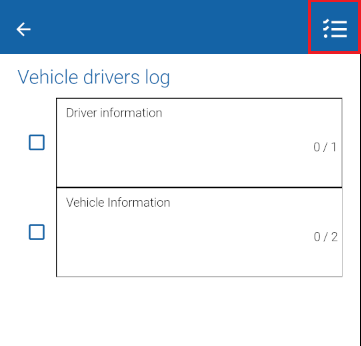
Tap the button located at the top right corner of the screen to display checkboxes.
-
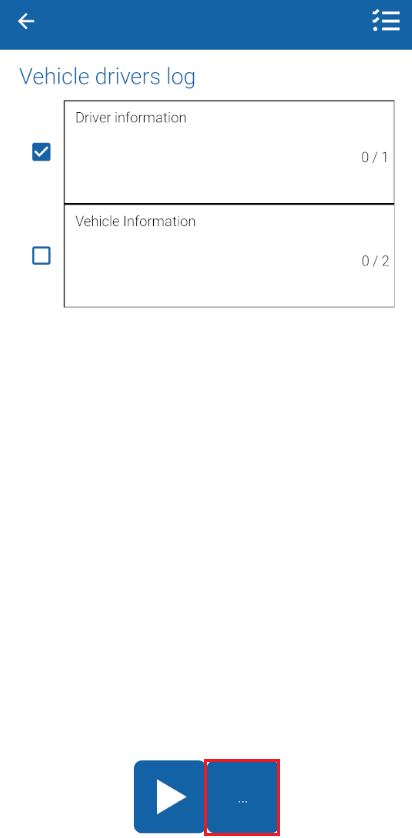
Select or deselect the relevant survey questions.
-
Tap the ellipsis button at the bottom of the K2 Mobile screen.
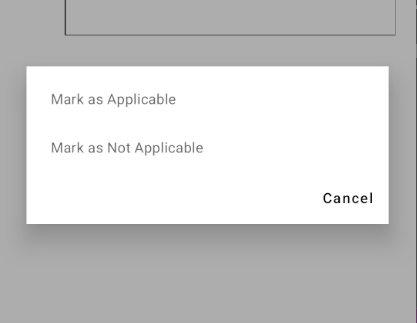
The dialog box is displayed:
-
Tap Mark as Applicable to apply to selected questions.
-
Tap Mark as Not Applicable to apply to selected questions.
To close the dialog box tap on the Cancel button.
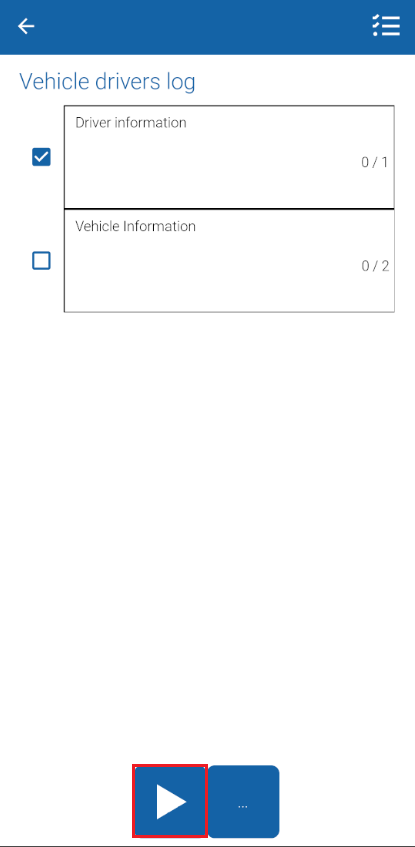
Starting a survey
To start the survey:
-
Tap the Next button.
To navigate between questions:
-
Tap the left and right arrows located at the top right of the screen.
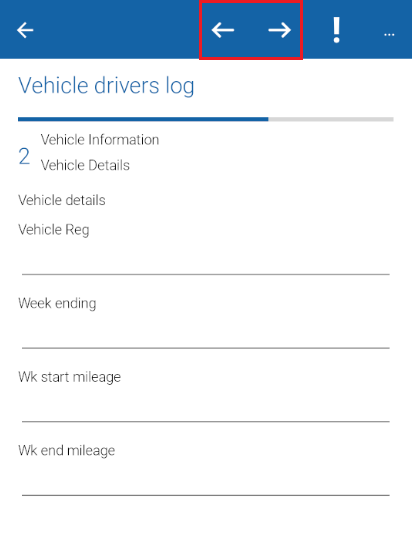
The questions are displayed with a progress bar to indicate your position within the survey process.
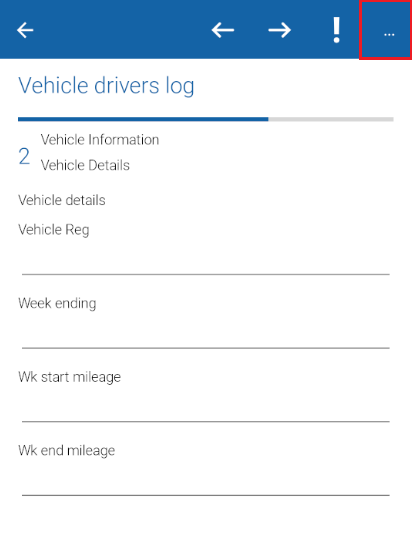
To mark a question as Not Applicable:
-
Tap the ellipsis button at the top right corner.
-
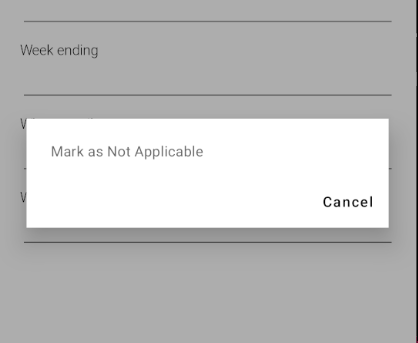
Tap Mark as Not Applicable from the dialog box.
To close the dialog box tap Cancel.
To skip to next unanswered question:
-
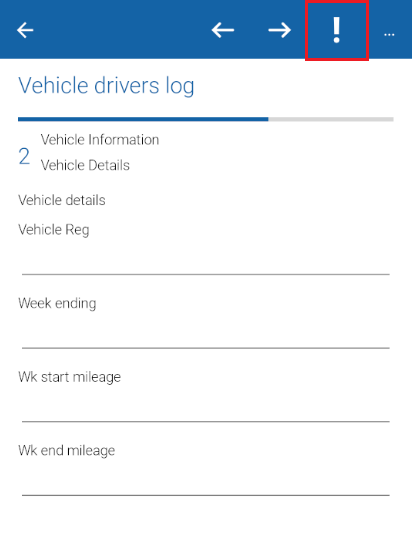
Tap the exclamation mark (!) button to skip to the next unanswered question.
Submitting a survey
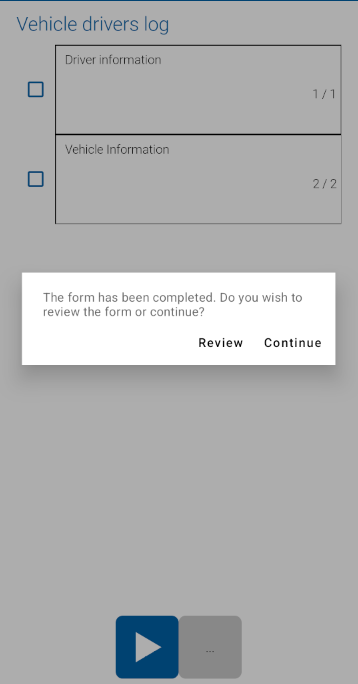
On completion, the confirmation window is displayed.
-
Tap Review to review your responses.
-
Tap Continue to submit the survey.
All Forms saved are logged against the Contact in the ‘Forms’ associated item.