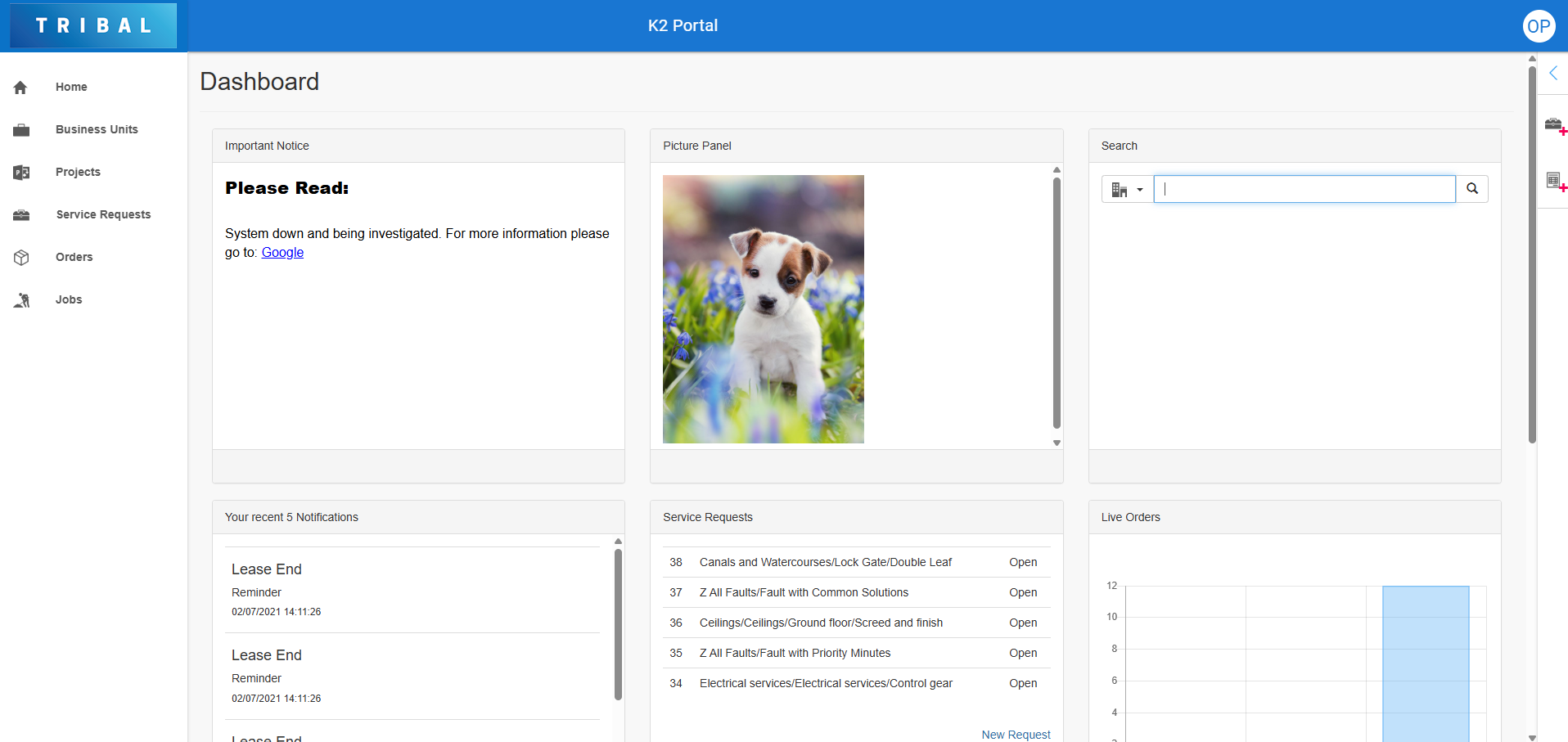
The Dashboard is the home page in K2 Portal. The contents of this page are personalised to your settings and preferences.
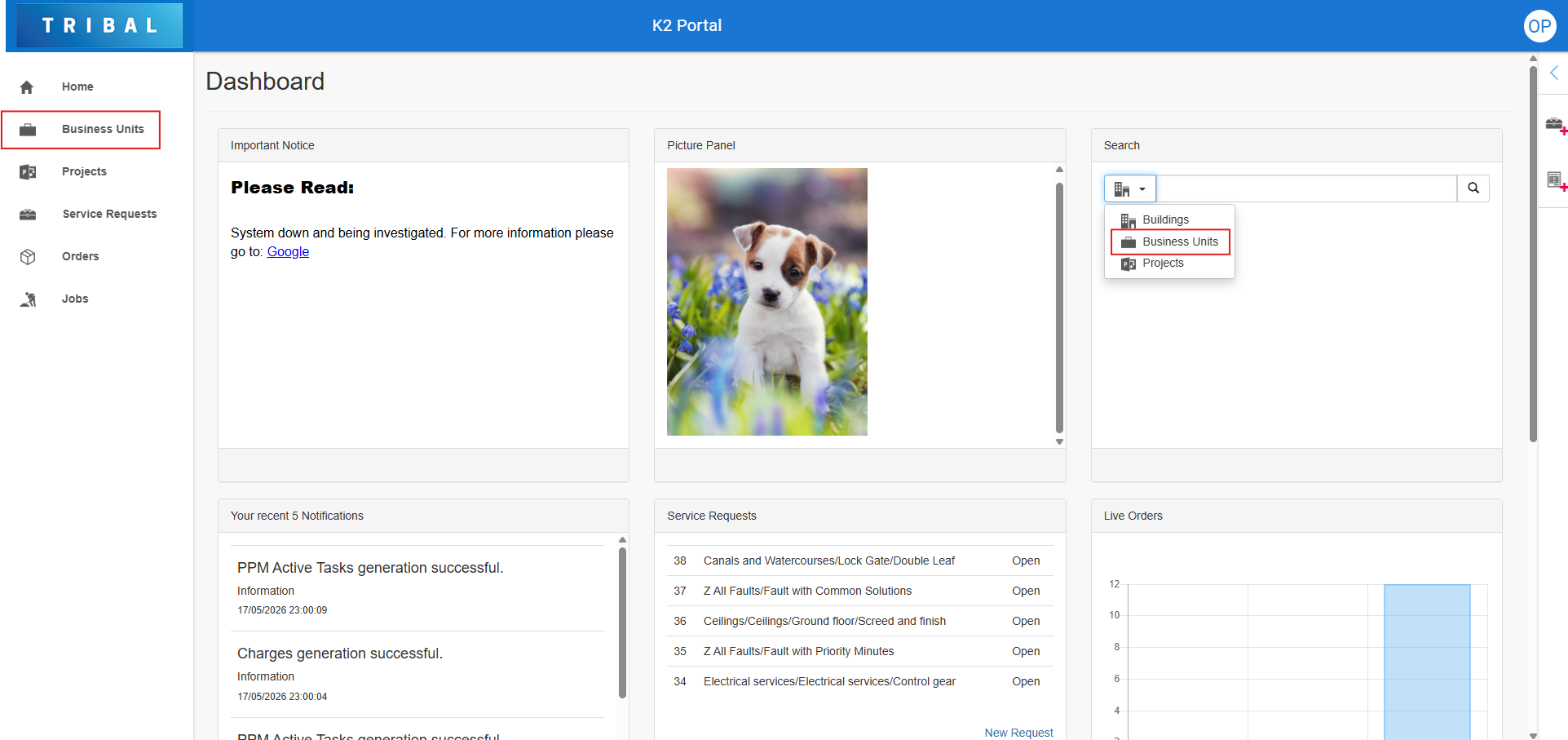
When using the Administrator Utility to update the Business Unit text, the Token_BusinessUnits should be used to show the correct pluralisation of the Token_BusinessUnit. Both tokens need to be updated.
The Dashboard can contain the following panels:
Search
Use the Search panel to search for buildings, business units, projects or sites linked to your account. Select the relevant search from the drop down.
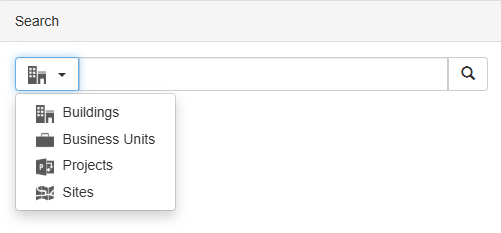
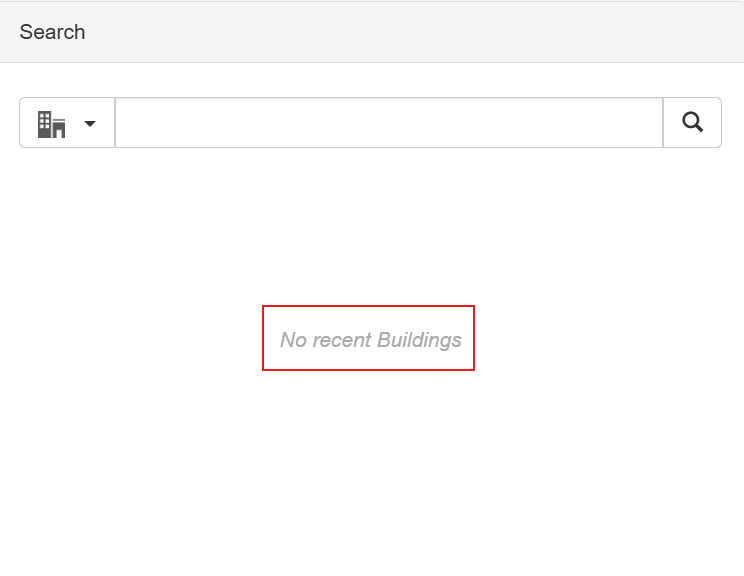
Recent searches will also be displayed in this panel for each search type. When there have been no recent searches the panel will look like this:
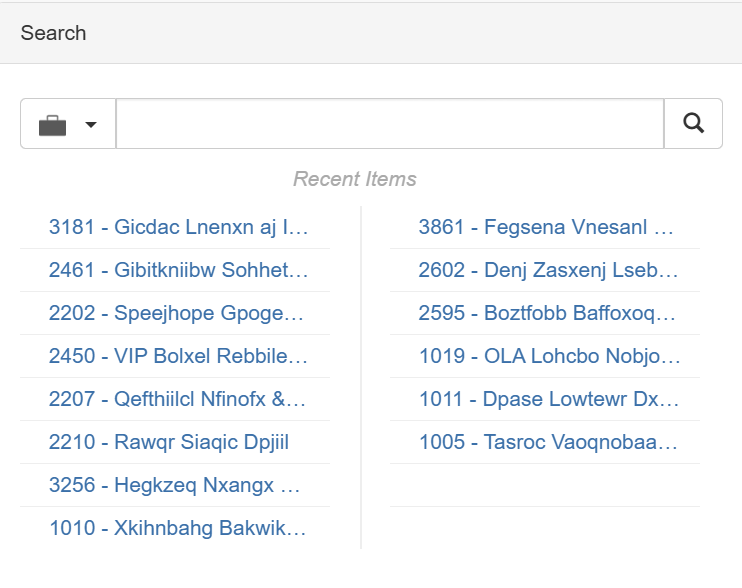
Recent Items is only populated when a detail page has been opened from a search. The list will show up to sixteen of the most recent detail pages viewed for each search type.
Recent Items for business units shows Business Unit Number and Business Unit Name, if there is no Business Unit Number then Internal Reference will be shown instead.
Refer to the following for further information:
Custom Panels
Up to two custom panels can be added to the Dashboard.
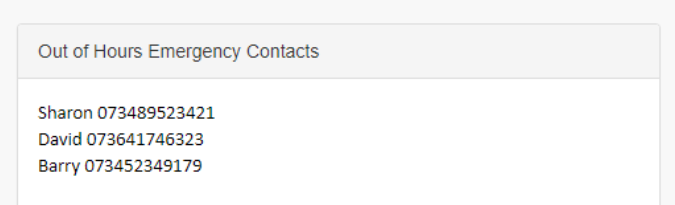
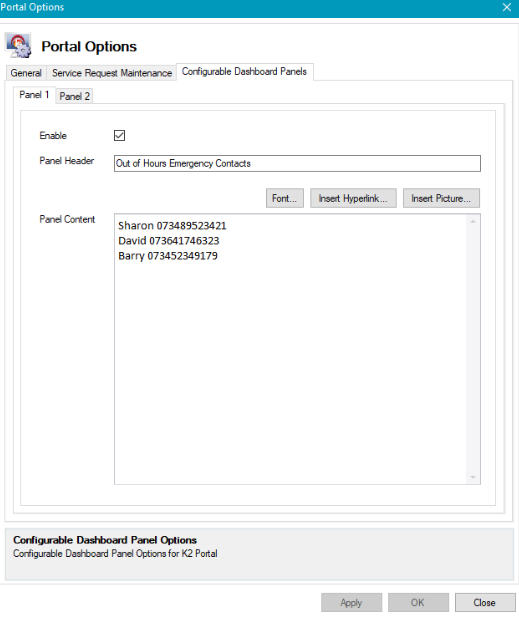
They can be managed on the Configurable Dashboard Panels tab in Portal Options (accessed by navigating to Tools > System Options and clicking the Portal Options button).
The Enable check box must be selected for the panel to display.
Live Orders
When a contractor signs into the Portal, the Live Orders chart is displayed. This displays the number of all live (not completed) orders by priority.
The colours and levels of priority are defined in Priorities Reference Data (accessed by navigating to Service > Service Request in K2).
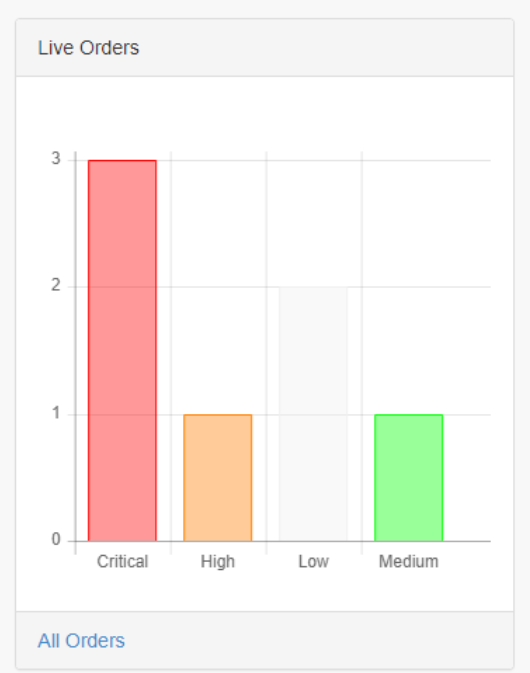
Click the All Orders button to display the Orders screen, where you can view further information on managing orders. Refer to Managing Orders in K2 Portal for further information.
Service Requests
Use the Service Requests panel to:
-
View the latest five requests you have made.
-
Add a new service request by clicking the New Request button (under the latest five requests).
-
View all service requests by clicking the All Service Requests button.
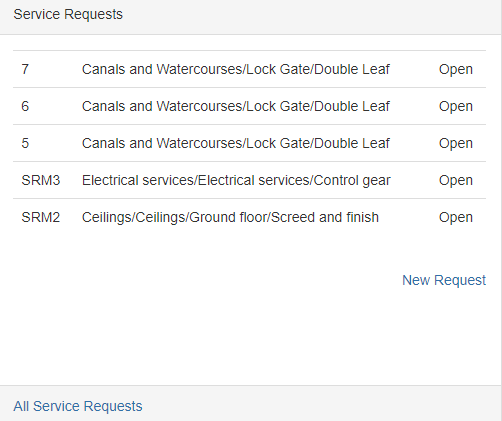
Refer to Managing Service Requests in K2 Portal for further information.
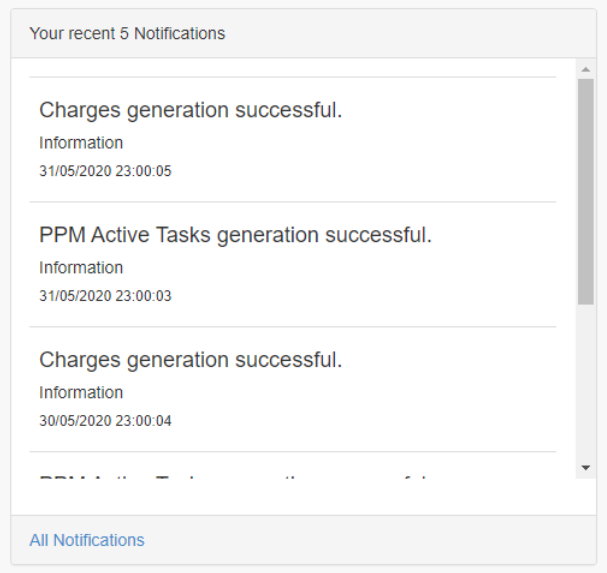
Your Recent 5 Notifications
Use the Your recent 5 Notifications panel to:
-
View your latest five notifications.
-
View all of your notifications by clicking the All Notifications button.