
The Goods Receipt functionality allows you to record goods received into K2.
Select from the following:
Record Goods Received
To record goods received:
-
Navigate to Stock Control > New Goods Receipt.
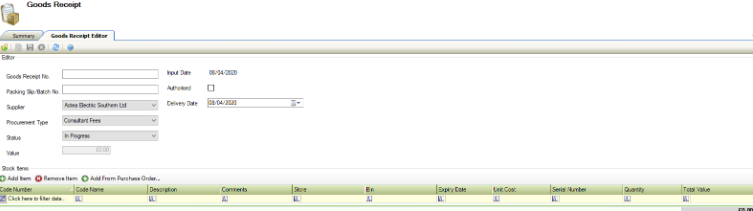
The Goods Receipt Editor tab is displayed.
-
Enter or edit the relevant details.
The fields on the Goods Receipt Editor tab are described in the following table:
|
This field… |
Holds this information... |
|---|---|
|
Goods Receipt No. |
The unique number that identifies the goods. This field is mandatory. |
|
Packing Slip/Batch No. |
The number associated with the delivery. Usually located on the packaging slip or invoice and so on. |
|
Supplier |
The name of the supplier providing the goods. Suppliers are defined in the Agency Editor (accessed by navigating to Functions > Core > New Agency). Refer to Adding or Editing an Agency for more information. |
|
Procurement Type |
The method used to procure the goods. These can be defined in Procurement Type Reference Data (accessed by navigating to Finance > Accounts Payable > Order). |
|
Status |
The status of the receipt of goods (for example: partially received, fully received). These can be defined in Order Status Reference Data (accessed by navigating to Finance > Accounts Payable > Order). |
|
Value |
The value of the goods received. |
|
Input Date |
The date the good receipt record was created. |
|
Authorised |
Whether the goods receipt is authorised. |
|
Delivery Date |
The delivery date of the goods. |
-
Add any Stock Items.
-
Click Save.
Adding a Stock Item
To add an item:
-
Click the Add Item button in the Stock Items section.

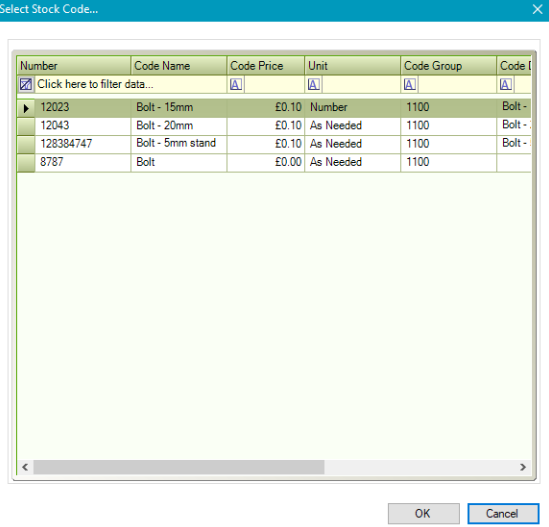
The Select Stock Code window is displayed.
-
Select the relevant item.
-
Click OK.
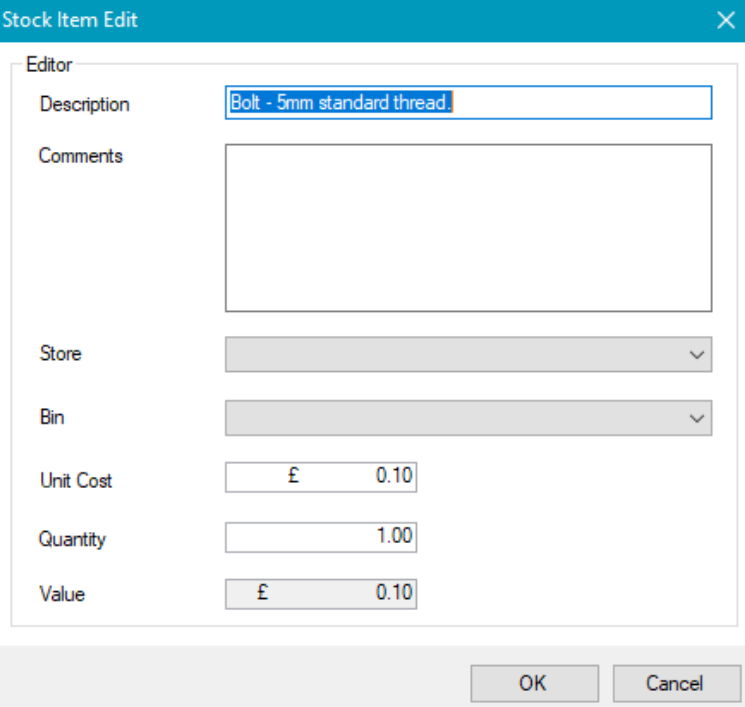
The Stock Item Edit window is displayed.
-
Enter details of the stock.
The fields on the Stock Item Edit window are described in the following table:
|
This field… |
Holds this information... |
|---|---|
|
Description |
The description of the item. |
|
Comments |
Any comments about the item. |
|
Store |
The store that the item is associated with. This field is mandatory. |
|
Bin |
The name for the bin, associated with the chosen store. This field is mandatory. Refer to Adding or Editing a Bin for further information on managing bins. |
|
Unit Cost |
The cost per unit. |
|
Quantity |
The quantity of the unit. |
|
Value |
The value of the unit. |
-
Click OK.
The item is added to the Stock Items list.
-
Click Save.
Remove a Stock Item
Items can be deleted from the list of stock items recorded.
To remove a stock item:
-
Select the relevant item and
-
Click the Remove Item button in the Stock Items section.

-
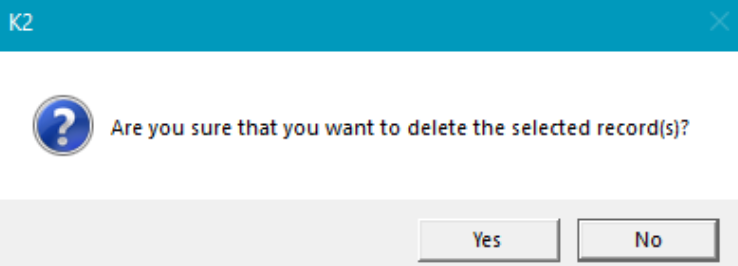
Click Yes.
-
Check that the item has been removed from Stock Control.
-
Click Save.
Adding a Stock Item From an Existing Purchase Order
To add an item from an existing purchase order to the stock item list:
-
Click Add from Purchase Order.

The Edit Purchase Order Stock For Goods Receipt window is displayed.
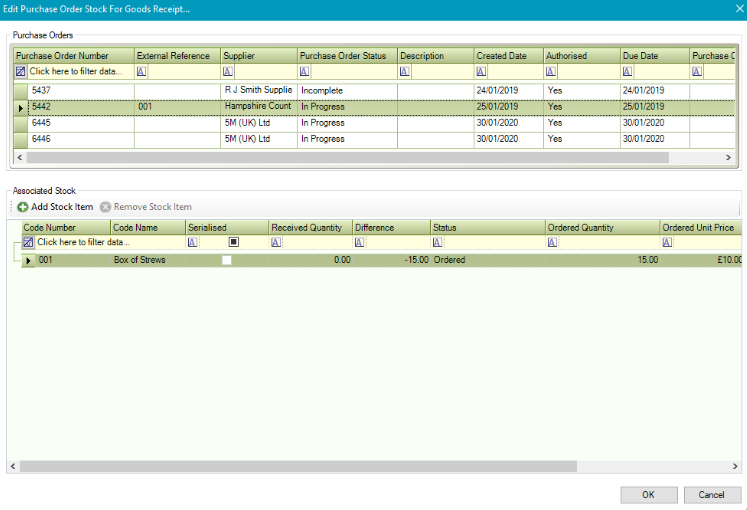
The Purchase Orders section displays all open purchase orders.
-
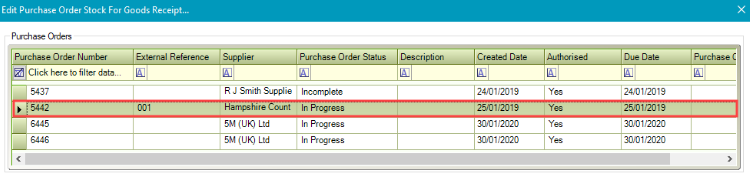
Select the relevant purchase order to view all related stock codes in the Associated Stock section.
To add an item to the Purchase Order:
-
Select the relevant stock item.
-
Click the Add Stock Item button.

To remove an item from the Purchase Order:
-
Click the Remove Stock Item button to remove a stock item.
-
Enter the quantity and the price of the stock received into the expanded section.

-
Click OK.
The stock item is added.

-
Click Save.