
You can record the return of any unused items from a completed job to stock.
Select from the following:
Add a Stock Return
To record a new stock return:
-
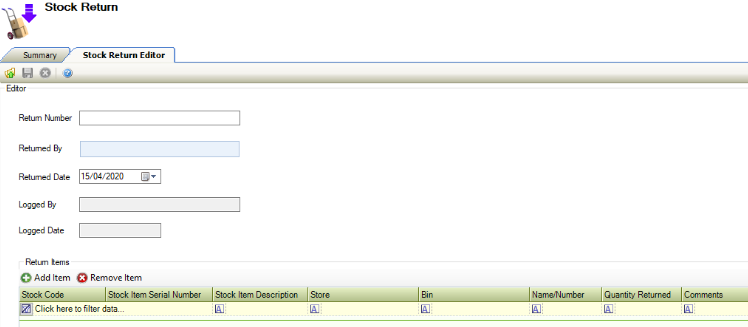
Navigate to Stock Control > New Stock Return.
The Stock Return Editor screen is displayed.
-
Enter details of the stock return.
The fields on the Stock Return Editor Tab are described in the following table:
|
This field… |
Holds this information... |
|---|---|
|
Return Number |
The unique number that identifies the stock return. This field is mandatory. |
|
Returned By |
The contact returning the items to stock. This field is mandatory. |
|
Returned Date |
The date that the items are returned to stock. |
|
Logged By |
The user recording the stock return. |
|
Logged Date |
The date the stock return record was created. |
-
Click Save.
Add Items to a Stock Return
To add items to the return:
-
Click the Add Items button
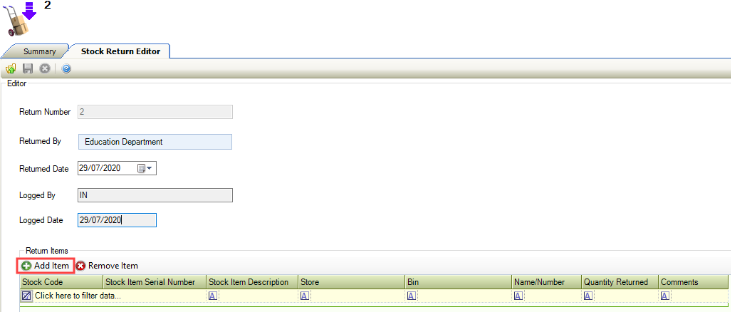
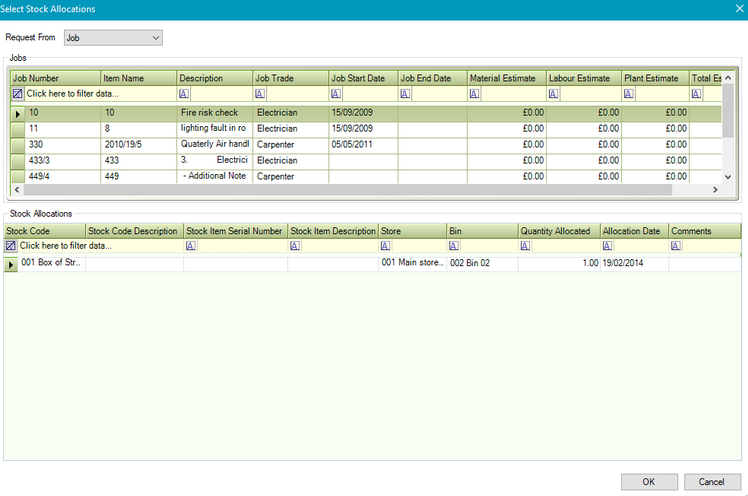
The Select Stock Allocations window is displayed.
-
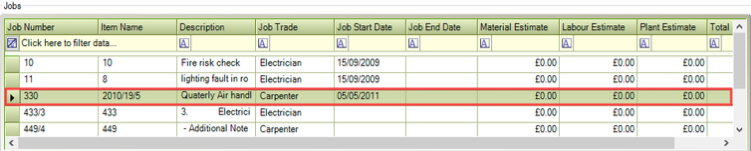
Select the relevant job that the stock was originally allocated to from the Jobs section.
-
Select the relevant stock code to be returned from the Stock Allocations section.

-
Click OK.
The Return Items section is updated to display the stock items.

-
Click Save.
Remove Items From a Stock Return
To remove items from the return:
-
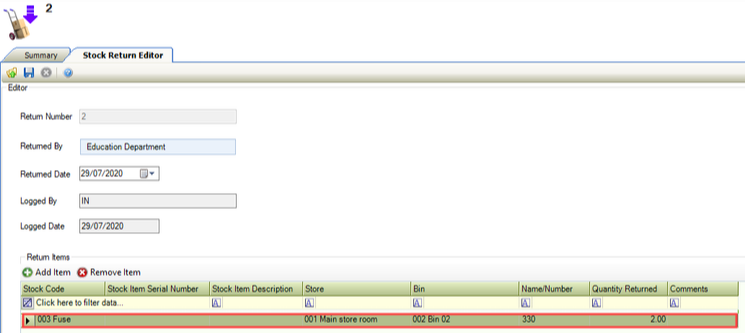
Select the relevant job from the Return Items grid.
-
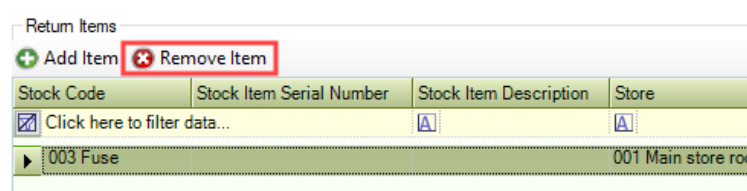
Click the Remove Item button.
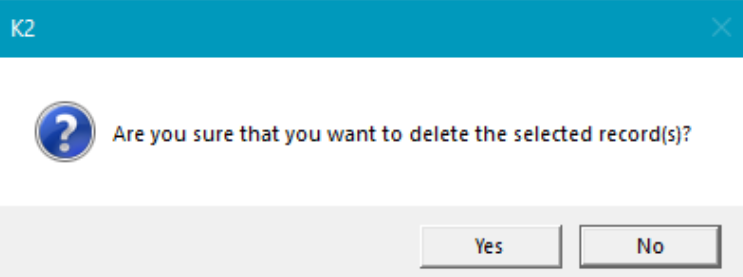
A confirmation message is displayed.
-
Click Yes.
The Return Items section is updated.
-
Click Save.