
You can use the Deeds module to add a new deed and associate it with a location, unit, asset, acquisition or disposal.
Select from the following to help manage deed records:
Adding or Editing a Deed
To add a new deed:
-
Navigate to Estates > Deed > New Deed.
Alternatively, search for and open an existing deed record.
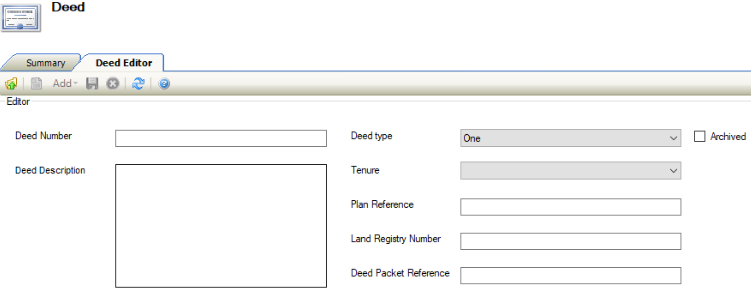
The Deed Editor is displayed.
-
Enter or edit the relevant details.
The fields on the Deed Editor are described in the following table:
|
This field… |
Holds this information... |
|---|---|
|
Deed Number |
A unique reference number for the deed. This is populated automatically if the Deed Record Auto Unique Number system setting (accessed by navigating to Tools > System Options and then clicking the System Options button) is set to 'True'. |
|
Deed Description |
A description of the deed. This field is mandatory. |
|
Deed type |
The type of deed. Select from the drop-down list. |
|
Tenure |
Whether the deed is for a freehold or leasehold property. Select from the drop-down list. |
|
Terrier Reference |
The terrier reference number for the deed. This field is mandatory. |
|
Land Registry Number |
The Land Registry Number for the deed. |
|
Deed Packet Reference |
The Deed Packet Number the deed is being created for. |
|
Archived |
Whether the deed record has been archived. Selecting this check box signifies that the deed record is archived. |
-
Click Save.
Other Tasks/Associated Items
Adding a Location to a Deed Record
To add a location to a deed record:
-
Search for and open the relevant deed record.
-
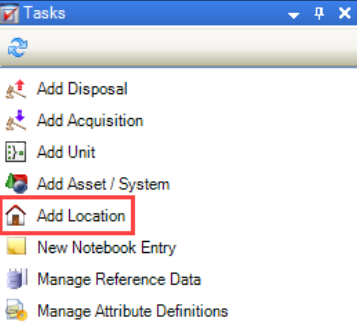
Click the Add Location option in the Tasks panel.
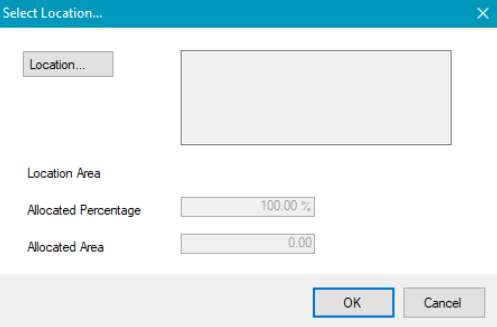
The Select Location window is displayed.
-
Enter the relevant details.
The fields on the Select Location window are described in the following table:
|
This field… |
Holds this information... |
|---|---|
|
Location |
The location of the deed. Click the Location button to display the Select location window, and then navigate to the relevant location. |
|
Location Area |
The area of the location. This is taken from the location record and cannot be edited. |
|
Allocated Percentage |
The percentage of the location area to be allocated to the deed. The number of decimal places in this field is specified in the Deed Item Allocated Percentage - Decimal Places setting (accessed by navigating to Tools > System Options and then clicking the System Options button). Editing this field changes the Allocated Area field automatically and vice versa. |
|
Allocated Area |
The area of the location area to be allocated to the deed. Editing this field changes the Allocated Percentage field automatically and vice versa. |
-
Click OK.
Adding an Acquisition to a Deed Record
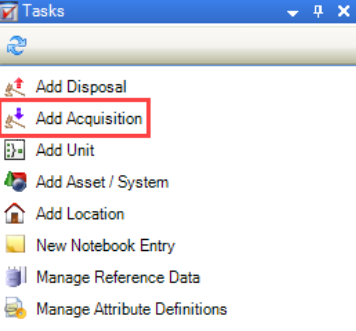
To add an acquisition to a deed record, search for and open the relevant deed record and then click the Add Acquisition option in the Tasks panel.
Refer to Adding or Editing an Acquisition for further information.
Adding an Asset or System to a Deed Record
To add an asset or system to a deed record:
-
Search for and open the relevant deed record.
-
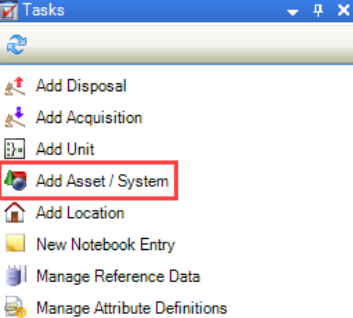
Click the Add Asset/System option in the Tasks panel.
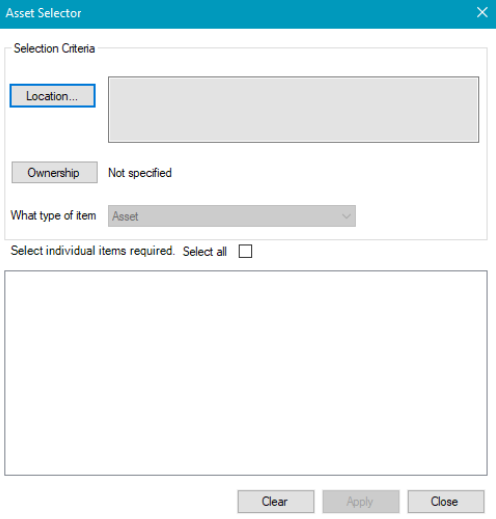
The Asset Selector window is displayed.
-
Enter the relevant details. All fields are optional, but at least one must be populated to display any results.
The fields on the Asset Selector window are described in the following table:
|
This field… |
Holds this information... |
|---|---|
|
Location |
The location of the asset/system.
|
|
Ownership |
The owner of the asset/system.
|
|
What type of item |
The type of item. This defaults to Asset and cannot be edited. |
-
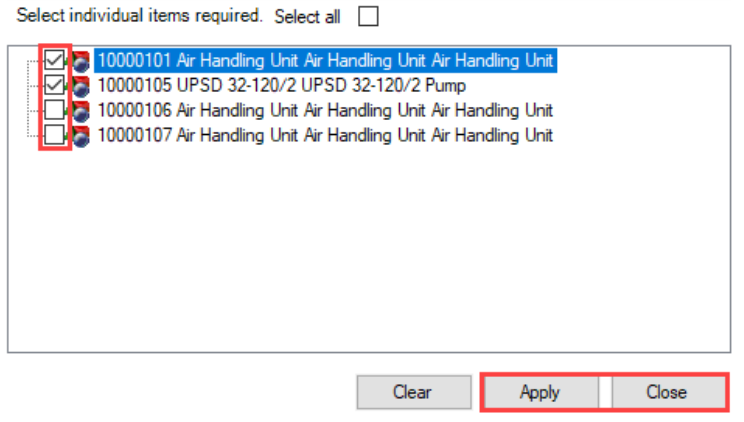
Select the relevant check box(es) and then click Apply then Close.
The Deed Item List is displayed and the asset(s) are included.
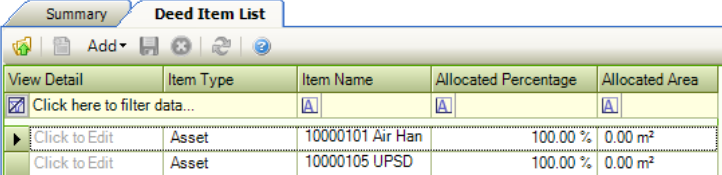
You can delete a record by selecting it and clicking the Delete button.
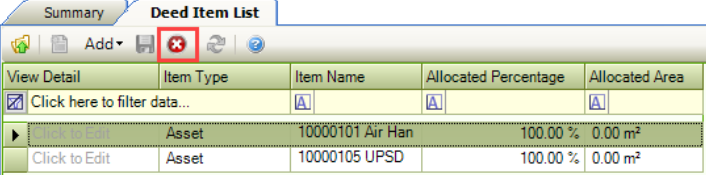
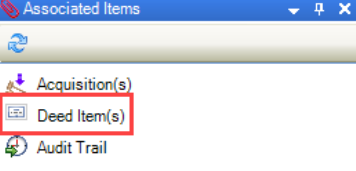
This screen can also be accessed by clicking the Deed Item(s) option in the Associated Items panel.
Adding a Unit to a Deed Record
To add a unit to a deed record:
-
Search for and open the relevant deed record.
-
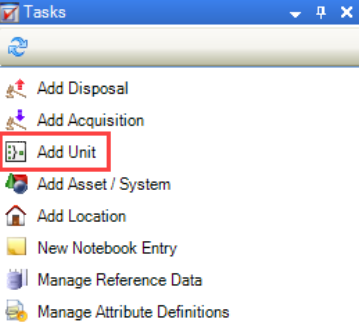
Click the Add Unit option in the Tasks panel.
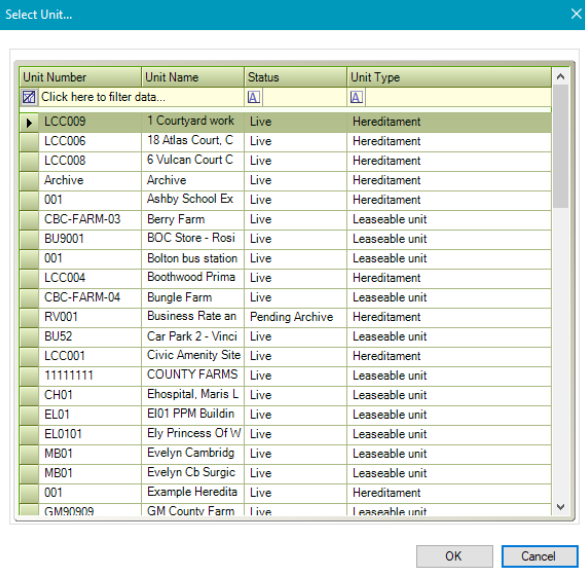
The Select Unit window is displayed.
-
Select the relevant unit and then click OK.
The unit is then added.
Adding a Disposal to a Deed Record
To add a disposal to a deed record, search for and open the relevant deed record and then click the Add Disposal option in the Tasks panel.
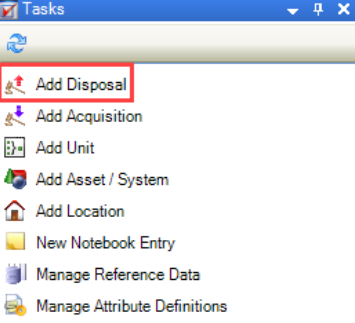
Refer to Adding or Editing Disposal for further information.
Related Topics
Click the links below to navigate to the following related topics: