
Fire Risk Surveys are used to ensure that fire safety procedures, fire prevention measures, and fire precautions (plans, systems, and equipment) are all in place and working properly in a Business Unit.
The Fire Risk Survey allows you to add a new record or edit an existing one.
Adding or Editing a Fire Risk Survey
To add a new Fire Risk Survey:
Navigate to Health and Safety > Fire Risk > New Fire Risk Survey.
Alternatively, search for and open an existing Fire Risk Survey, and then click the Click to edit details button in the Summary tab.
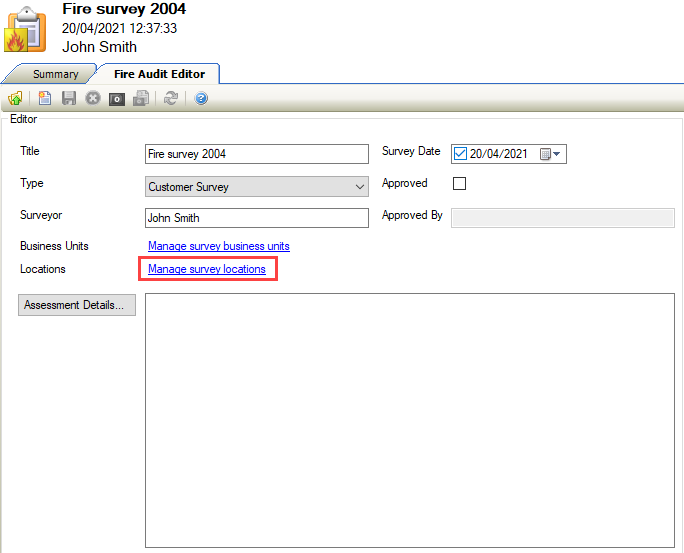
The Fire Audit Editor tab is displayed.
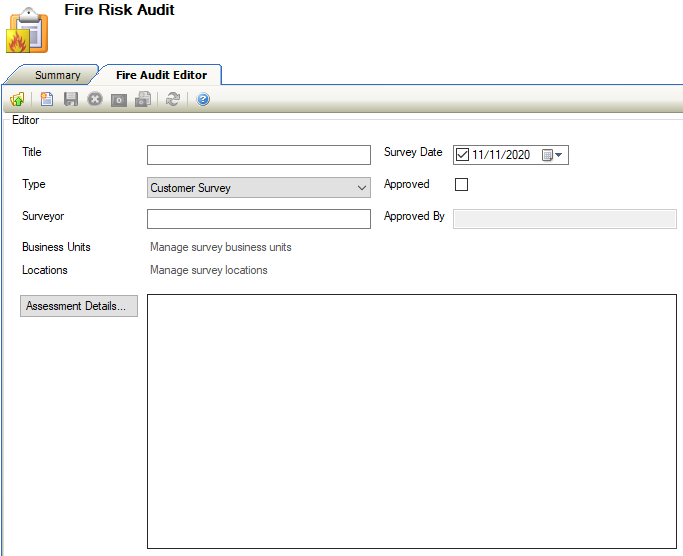
The fields on the Fire Audit Editor tab are described in the following table:
|
This field… |
Holds this information... |
|---|---|
|
Title |
The title of the survey. This field is mandatory. This field must be unique. |
|
Type |
The type of inspection. Select from the drop-down list. This field is mandatory. These can be defined in Survey Type Reference Data (accessed by navigating to Health and Safety > Fire Risk > Fire Risk). |
|
Surveyor |
The surveyor assigned to the task. This field is mandatory. |
|
Business Units |
The Business Unit associated with the survey. Enabled when the record is saved. |
|
Locations |
The location associated with the survey. Enabled when the record is saved. |
|
Assessment Details |
The assessment details.
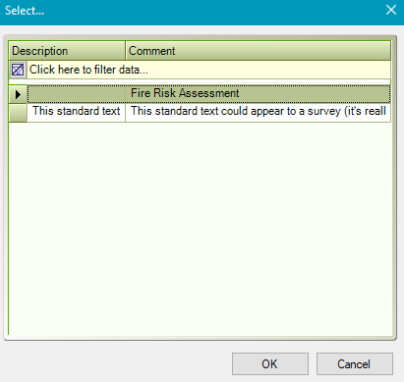
These can be defined in Standard Survey Text Reference Data (accessed by navigating to Health and Safety > Fire Risk > Fire Risk). |
|
Survey Date |
The date that the survey was performed. |
|
Approved |
Whether the survey is approved. |
|
Approved By |
The identity of the survey approver. |
-
Click Save.

The Survey Locations tab is displayed when a new survey is added.
Managing Survey Business Units
To manage survey business units:
-
Click the Manage Survey Business Units link on the Fire Audit Editor.
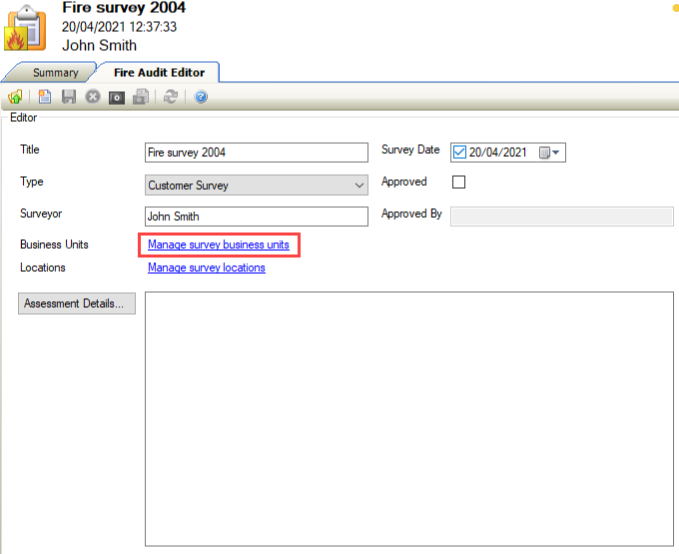
Alternatively, click the Business Units option in the Associated Items panel.
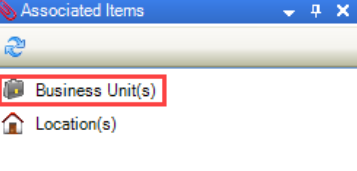
The Survey Business Units screen is displayed.
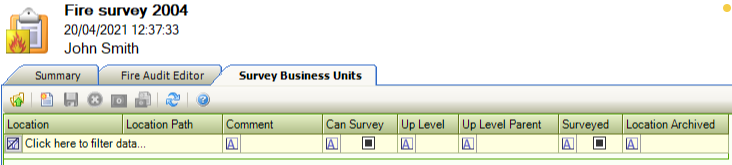
Do one of the following:
-
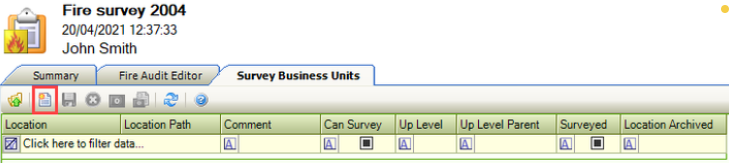
Click the New button to add a business unit.
-
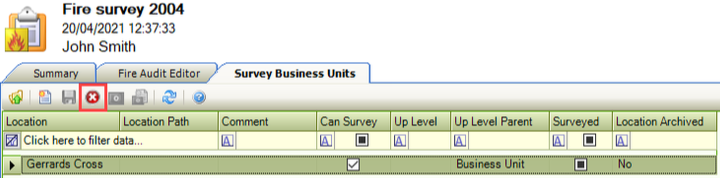
Select a record and then click the Delete button to remove the business unit.
-
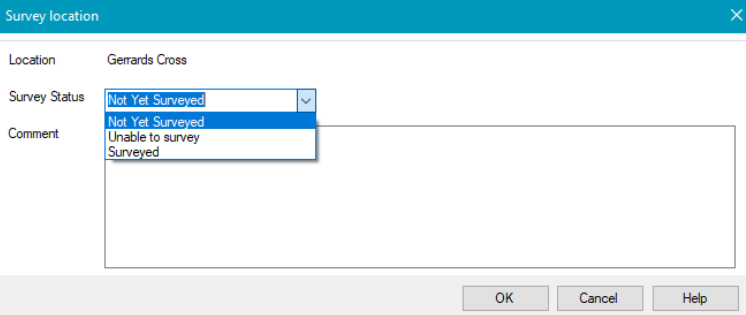
Double-click a record to display the Survey location window, where you can specify the survey status and record any comments.
Managing Survey Locations
To manage survey locations:
-
Click the Manage Survey Locations link on the Fire Audit Editor.
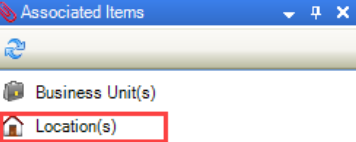
Alternatively, click the Location(s) option in the Associated Items panel.
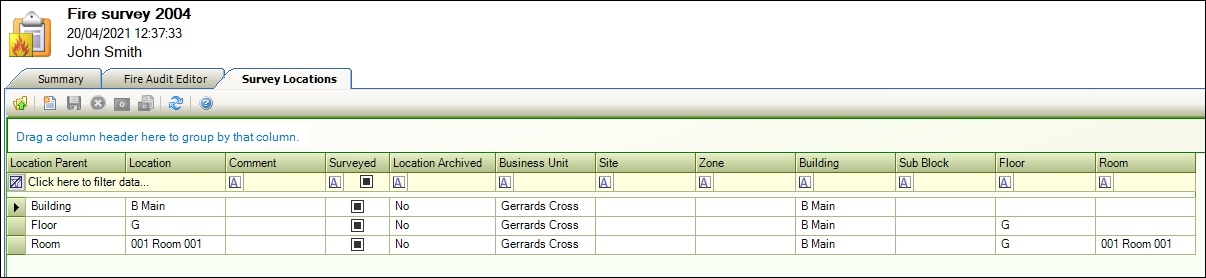
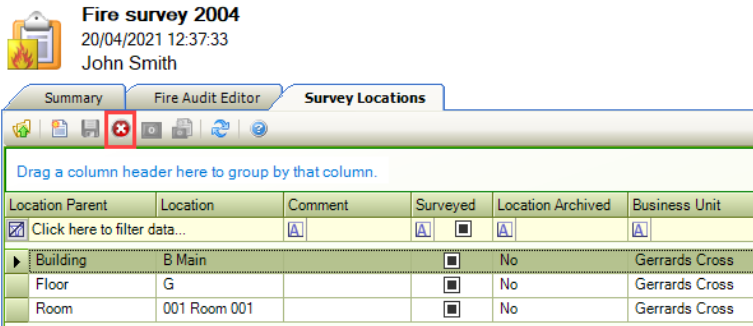
The Survey Locations screen is displayed.
Do one of the following:
-
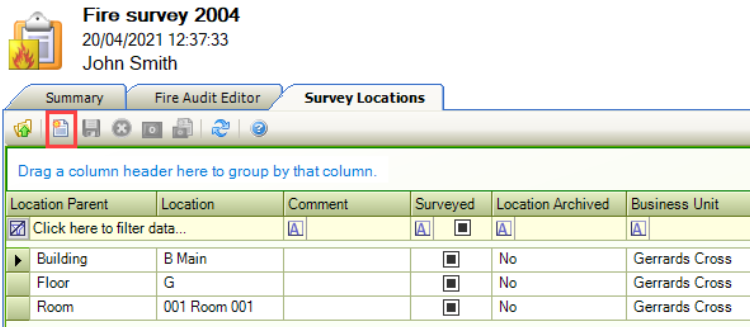
Click the New button to add a location.
-
Select a record and then click the Delete button to remove the location.
-
Double-click a record to display the Survey location window, where you can specify the survey status and record any comments.
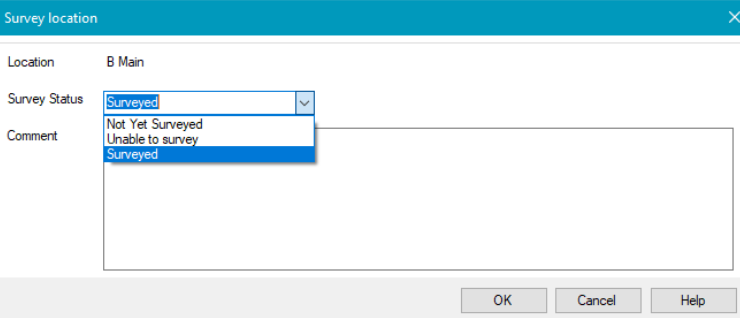
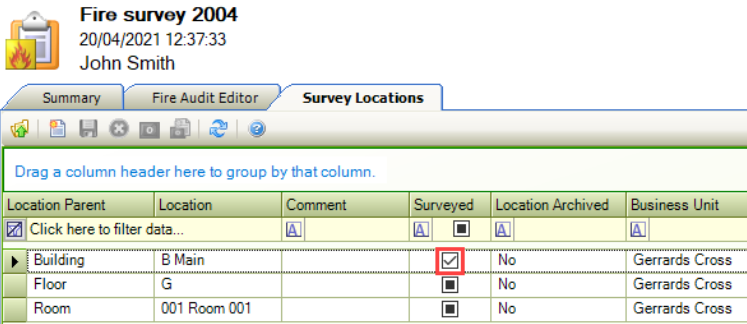
After clicking OK, any locations marked as 'Surveyed' will have a black check box selected, and any marked as 'Unable to survey' will have a blank check box in the Surveyed column.
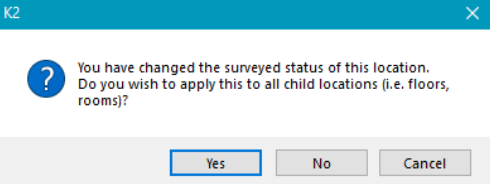
If a location has child items, a window is displayed asking if you want the survey status to cascade to those child items.
Other Tasks/Associated Items:
Managing Findings
You can add findings to a Fire Risk Survey after it has been added.
To add or edit a finding:
-
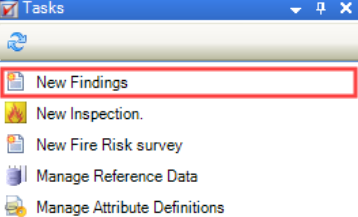
Click the New Findings option in the Tasks panel of a Fire Risk Survey record.
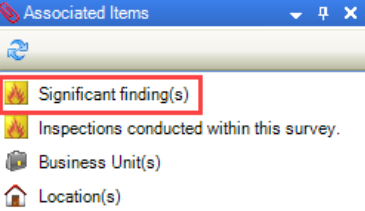
Alternatively, click the Significant finding(s) option in the Associated Items panel and double-click the relevant record to open it.
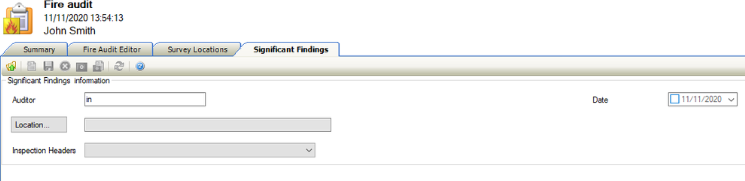
The Significant Findings screen is displayed.
-
Enter or edit the relevant details.
The fields on the Significant Findings screen are described in the following table:
|
This field… |
Holds this information... |
|---|---|
|
Auditor |
The individual recording the findings. |
|
Location |
The location of the findings. This field is mandatory. Click the Location button to display the Select location window. 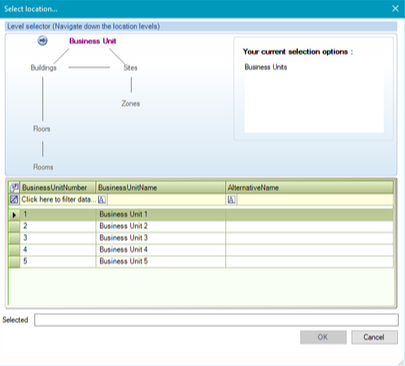
Use the level selector to select the relevant room, floor, zone, building, site or business unit. |
|
Inspection Headers |
Questions about the findings. This field is mandatory.
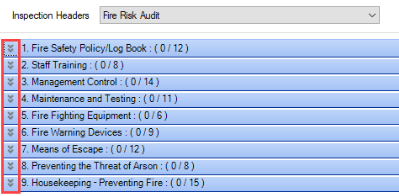
These can be defined in Significant Findings Reference Data (accessed by navigating to Health and Safety > Fire Risk > Fire Risk). |
|
Date |
The date the findings were recorded. |
-
Click Save.
Managing Inspections
You can add details of a new inspection to a Fire Risk Survey after it has been added.
To add or edit an inspection:
-
Click the New Inspection option in the Tasks panel of a Fire Risk Survey record.
Alternatively, click the Inspections conducted within this survey option in the Associated Items panel and double-click an existing record to open it.
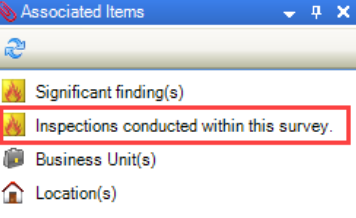
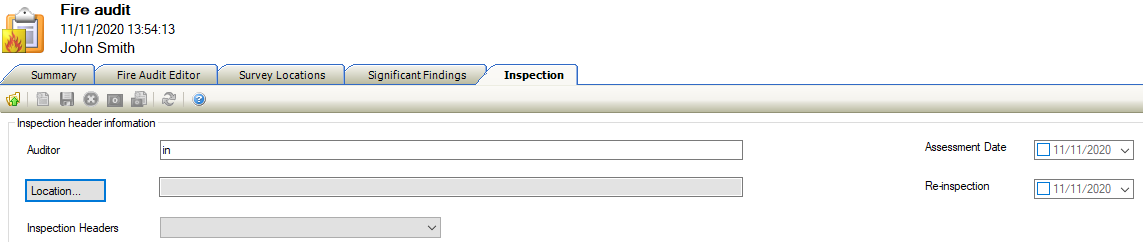
The Inspection screen is displayed.
-
Enter details of the Inspection.
The fields on the Significant Findings tab are described in the following table:
|
This field |
Holds this information... |
|---|---|
|
Auditor |
The individual performing the inspection. |
|
Location |
The location of the inspection. This field is mandatory.
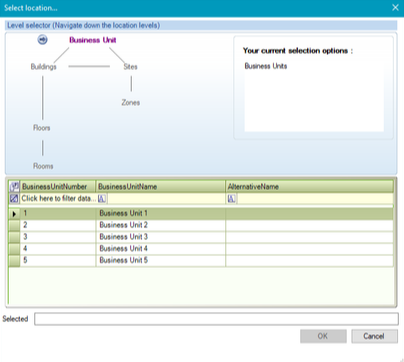
Use the level selector to select the relevant room, floor, zone, building, site or business unit. |
|
Inspection Headers |
Questions about the inspection.
This field is mandatory. 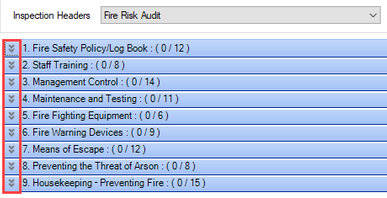
These can be defined in Significant Findings Reference Data (accessed by navigating to Health and Safety > Fire Risk > Fire Risk). |
|
Assessment Date |
The date of the inspection. |
|
Re-inspection |
The date of the re-inspection. |
-
Click Save.
Related Topics
Click the links below to navigate to the following related topics: