
Space on-charging is the mechanism for charging departments for the space that they occupy.
The following diagram shows how space on-charge rates are structured in K2:
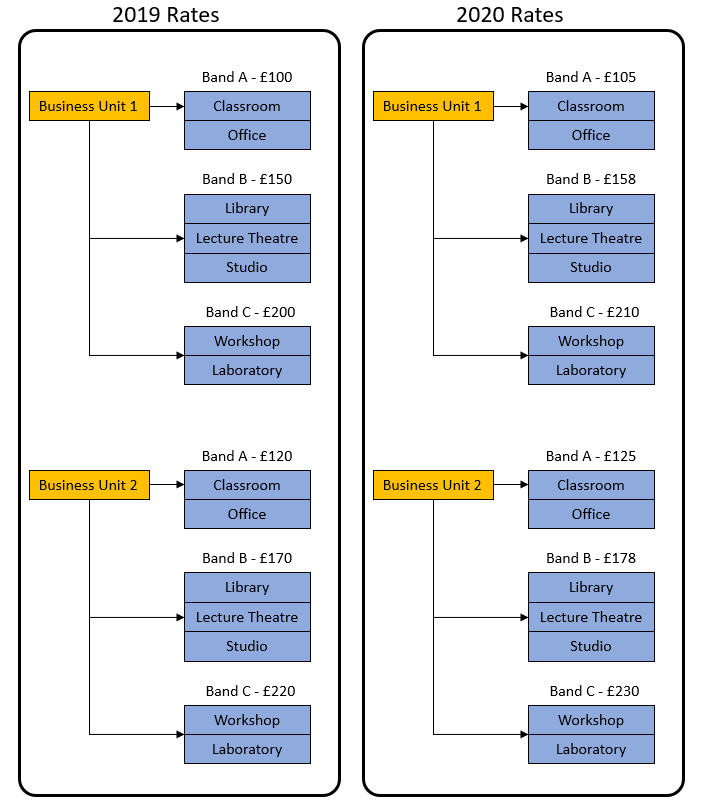
Room usage such as classrooms and offices is assigned to a band. When the band is assigned to the business unit it is given a rate which is used in the calculation for on-charging. Different rates are used for different business units. Each financial year a new set of rates is defined for each business unit.
Generate Space Changes
To generate space charges:
-
Navigate to Organisation > Department > Generate Space Usage Charges.
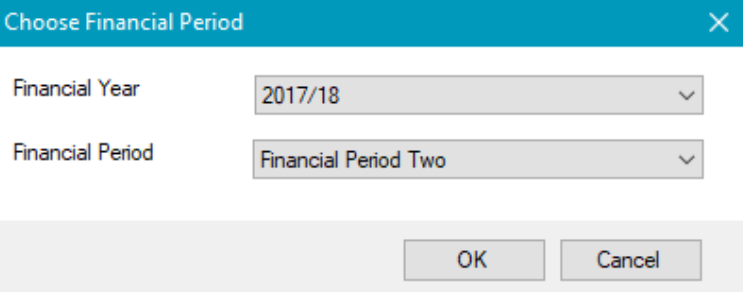
The Choose Financial Period window is displayed.
-
Select the relevant Financial Year and Financial Period from the drop-downs, and then click OK.
To prevent duplicate charges being created, once a charge has been generated for a period, the option can no longer be selected.
This triggers a workflow to calculate the space charges for a given period in a given year.
The charge generation process creates one charge record for each space allocation assigned to the department. The charge records can be edited after they have been created provided the user has the ‘Charge’ permission.
Edit Space Charges
The Charge Generation Process creates one charge record for each space allocation assigned to the department. The charge records can be edited after they have been created provided the user has edit or write access for the ‘Charge’ permission.
To view and edit the charge record:
-
Search for and open the relevant department.
-
Click the Charge option in the Associated Items panel from the department record.
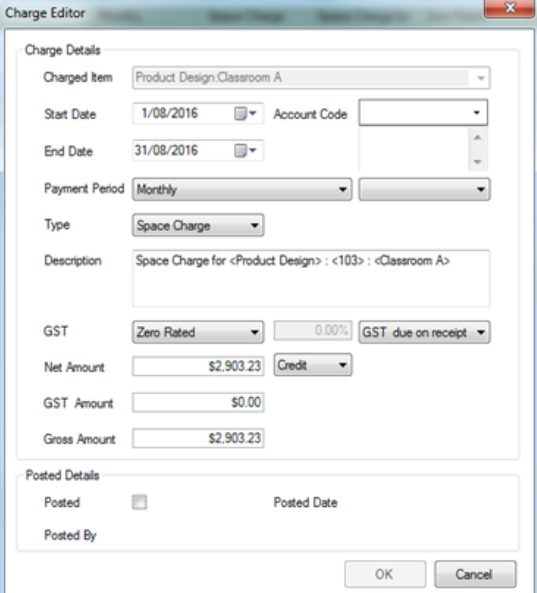
The Charge Editor is displayed. All of the details on the charge record are auto-populated when the record is created, except the 'Posted Details' section, which can be populated by an interface when the records are sent to a third-party system.
-
Edit the relevant details.
The fields on the Charge Editor are described in the following table:
|
This field |
Holds this information... |
|---|---|
|
Charged Item |
The name of the charge in the format '<Department name>:<Room name>'. |
|
Start Date |
The start date for the period that the charge relates to. |
|
End Date |
The end date for the period that the charge relates to. |
|
Account Code |
The account code. This is blank by default but can be edited. |
|
Payment Period |
The payment period. This is set to 'Monthly' by default but can be edited. |
|
Type |
The type of charge (that is: 'Space Charge' for this charge type). |
|
Description |
The description of the charge in the format ‘Space Charge for <Department> : <Room Number> : <Room Name>’. |
|
GST |
The Goods and Services Tax type. This is set to 'Zero Rated'. |
|
Net Amount |
The net amount for the room per department per month. |
|
GST Amount |
The Goods and Services Tax amount. This is set to '0.00' by default. |
|
Gross Amount |
The gross amount for the room per department per department per month. This is set to the same as the Net Amount by default. |
|
Posted |
Whether the charge has been posted to a third-party system. |
|
Posted By |
The user that selected the Posted check box. |
|
Posted Date |
The date it was posted to the third-party system. |
-
Click OK.