
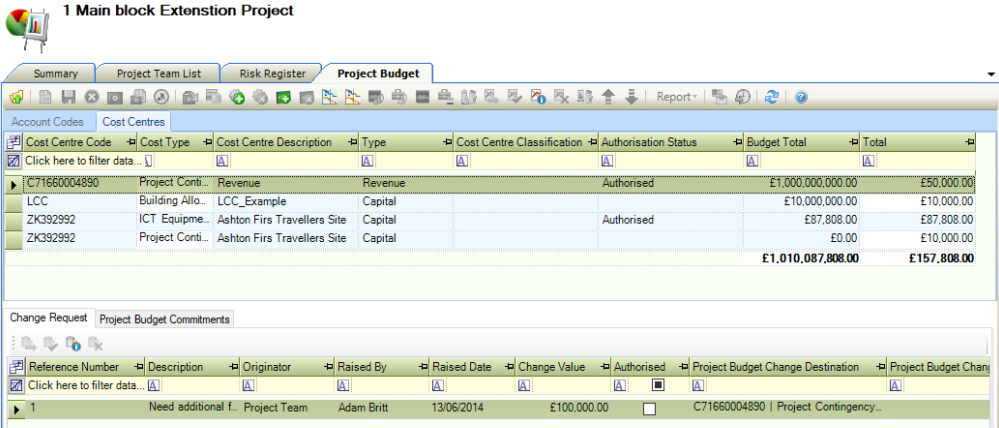
The Project Budget screen allows the storing of figures against each project. These figures can be recorded against Account Codes (using the Chart of Account Reference Data) or Cost Centres.
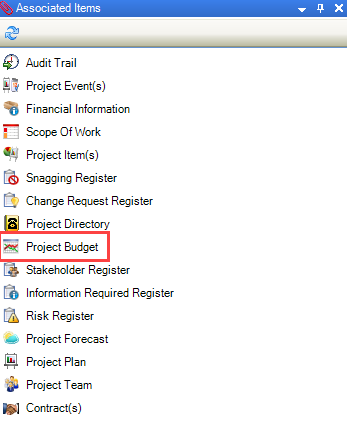
It can be accessed by clicking the Project Budget option in the Associated Items panel of a saved project record.
You can do the following from the Cost Centres tab:
Adding a Cost Centre to the Grid
To add a cost centre to the grid:
-
Click the Add row button on the ribbon.
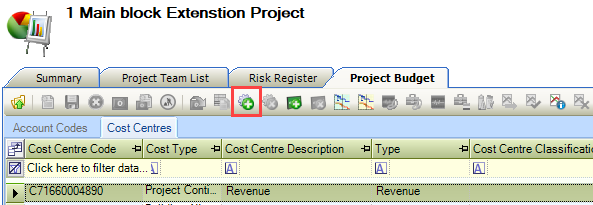
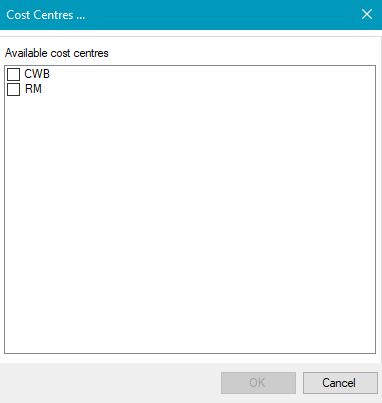
The Cost Centres window is displayed with available cost centres that can be added.
-
Select the relevant cost centre(s) and then click OK.
The row is then added to the grid. -
Select a Cost Type from the drop-down list. You must do this to save the record.
-
Click Save.
Adding a Financial Year Column to the Grid
This only applies if the Cost Centre is set up with a Budget Type of Annual and not Lump Sum.
To add a financial year column to the grid:
-
Click the Add column button on the ribbon.
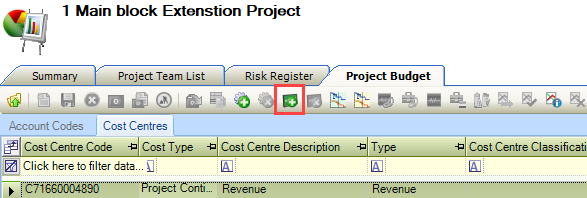
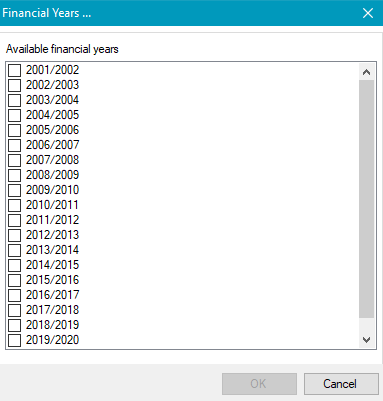
The Financial Years window is displayed.
-
Select the relevant financial year(s) and then click OK.
-
The column is then added to the grid.
Adding a Budget to a Project
To add a Budget to a Project.
-
Double-click on the project record.
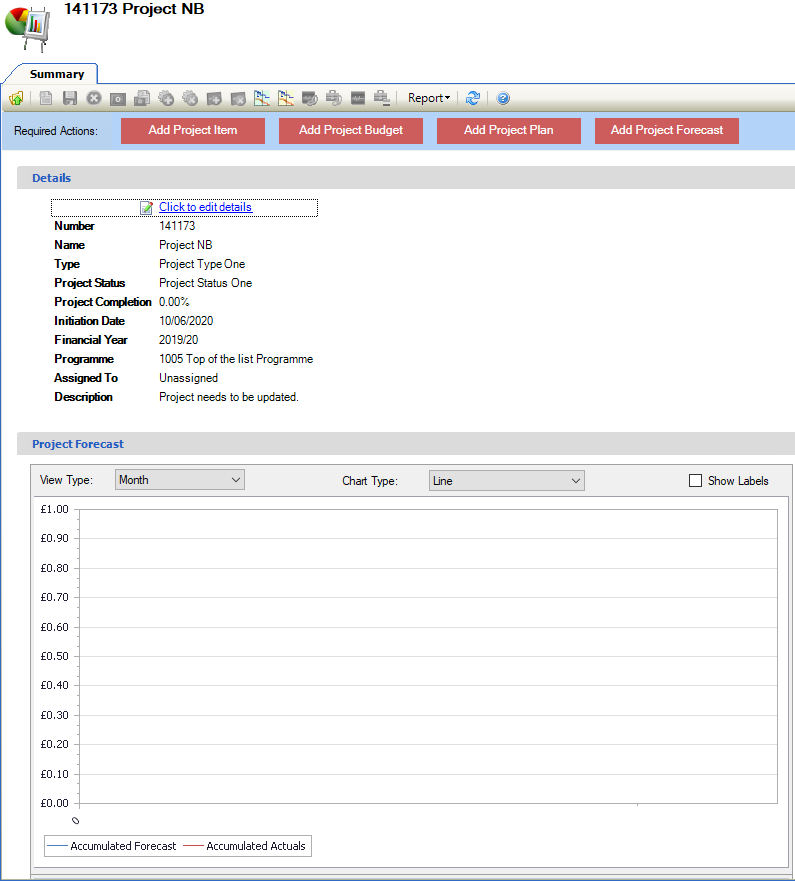
The Project Summary tab is displayed.
-
Click on the Add Project Budget button.

The Project Budget tab has been opened.

The Project Budget tab can be opened from Associated Items > Project Budget,
-
Click on Add Row on the ribbon.

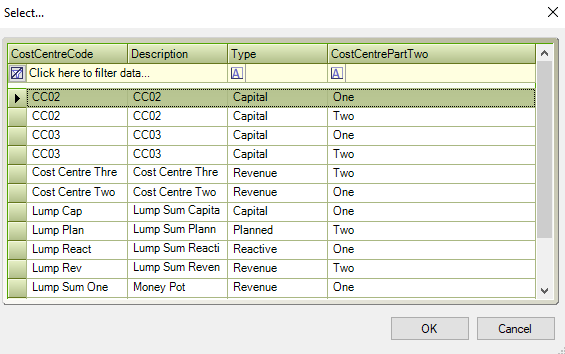
The Select Cost Centre Code field is displayed.
-
Select a Cost Centre Code.
-
Click on OK.
-
Click on Save.

A project budget record has been created in the Cost Centres tab.
-
Click on View > Panels > Notification List.
A Project Budget notification will be displayed.
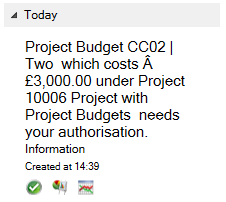
Authorising a Project Budget
To authorise a Project refer to Authorisation Matrix and Authorisation Roles for set up.
To Authorise a Project Budget.
-
Click on the Go To Project icon in the Project Budget notification message.
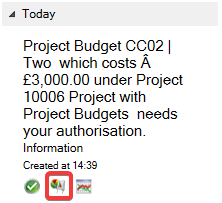
The Project Budget tab is opened.
-
Click on the Authorise icon.

The following message is displayed:
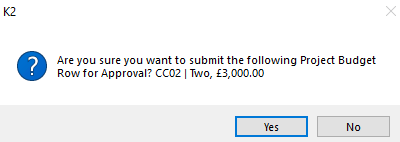
-
Click on Yes.
The Payment has been authorised.

To Reject a Project Budget.
-
Click on the Reject button.

The Payment has been rejected.

Viewing Project Budget Commitments
The Change Request must be authorised to view the Project Budget Commitments.
To view Project Budget Commitments.
-
Select the relevant record.
-
Click on the Project Budget Commitments tab.

The fields on the Project Budget Commitments tab are described in the following table:
|
This field… |
Holds this information... |
|---|---|
|
Total |
The total amount committed to the project budget. |
|
Soft |
The soft amount committed to the project budget. |
|
Hard |
The hard amount committed to the project budget. |
|
Actual |
The actual amount committed to the project budget. |
|
Available |
The available budget. |
|
Financial Year |
The financial year the change is applied. |
Viewing Project Financial Information
Use the Financial Information screen to view financial information about the project.
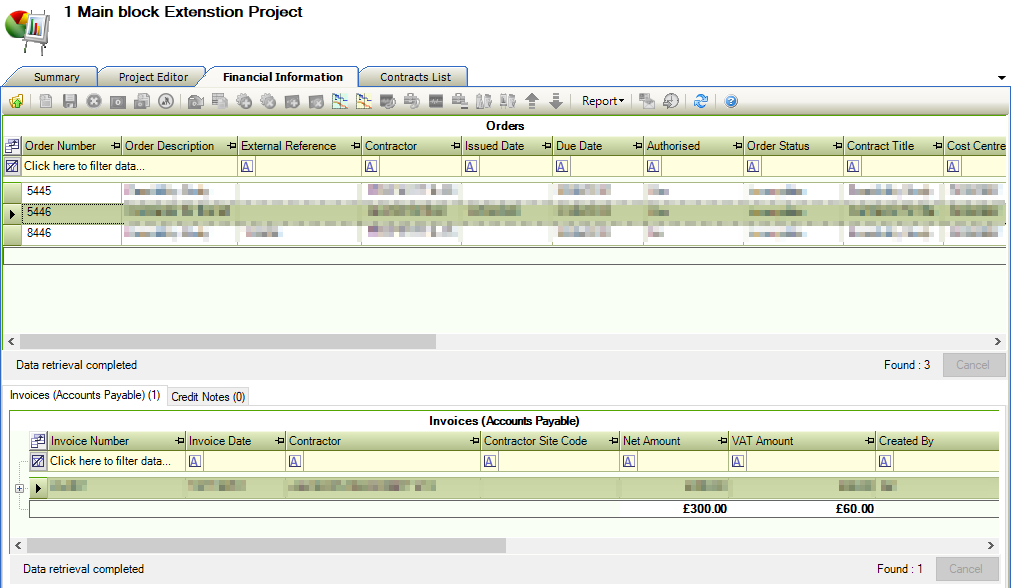
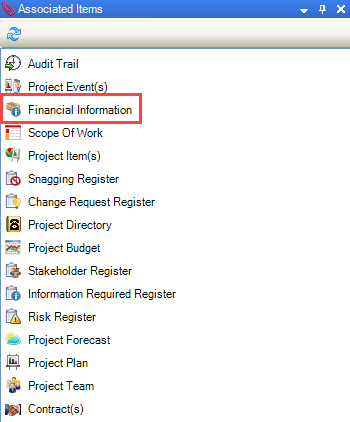
It can be accessed by clicking the Financial Information option in the Associated Items panel of a project record.
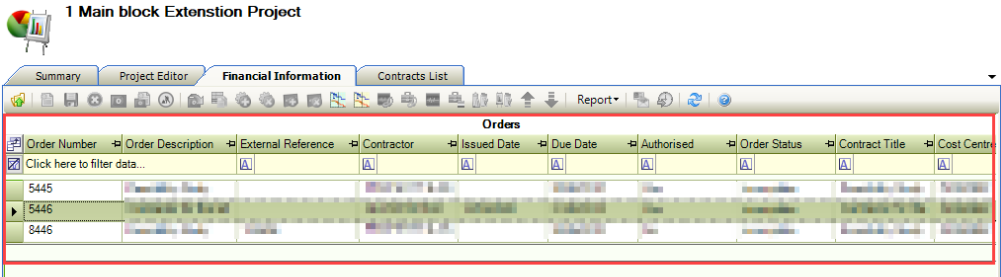
The Orders section displays all the orders linked to the project's contracts.
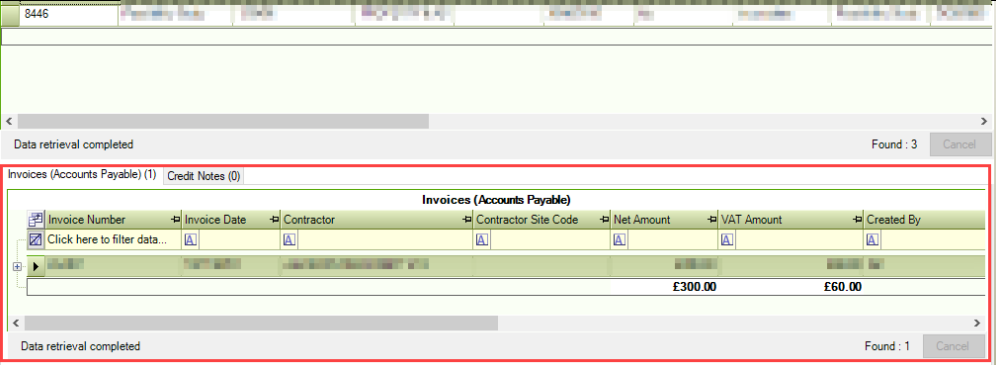
Selecting an order record displays any invoices (accounts payable) and credit notes that are linked to that order in tabs in the panel below.
-
Double-click any order, invoice or credit note record to open it.