
There are two types of contracts within K2, maintenance contracts and project contracts. Maintenance contracts allow maintenance work to be allocated to an internal team or external contractor. Project contracts are used within the projects module to allocate work to the necessary contractor responsible for the delivery of that aspect of the project. These contract types can be used independently of one another within the system and both can be used at the same time.
Managing Maintenance Contracts
This topic refers to maintenance contracts and not project contracts.
Contracts are used to group and define work streams or operational areas that reflect the organisational structure (for example: cleaning, hard FM, portering or linen).
In addition, contracts are used to measure and control external or third-party personnel and companies that provide a specialist service to the organisation.
Contracts may be used to control monitor cost of supplying services to third parties that operate within the organisation (for example: tenanted shops or other tenanted building spaces).
By setting up a maintenance contract, you can define what it covers against the service request. It could be that 'Contractor A' covers jobs between 9am – 4pm, and 'Contractor B' covers jobs outside of that time. It could also be that 'Contractor A' covers certain locations or tasks.
Use K2 to:
Adding or Editing a Maintenance Contract
To add or edit a maintenance contract:
-
Navigate to Maintenance > Contract Management > New Maintenance Contract.
Alternatively, search for and open an existing maintenance contract.
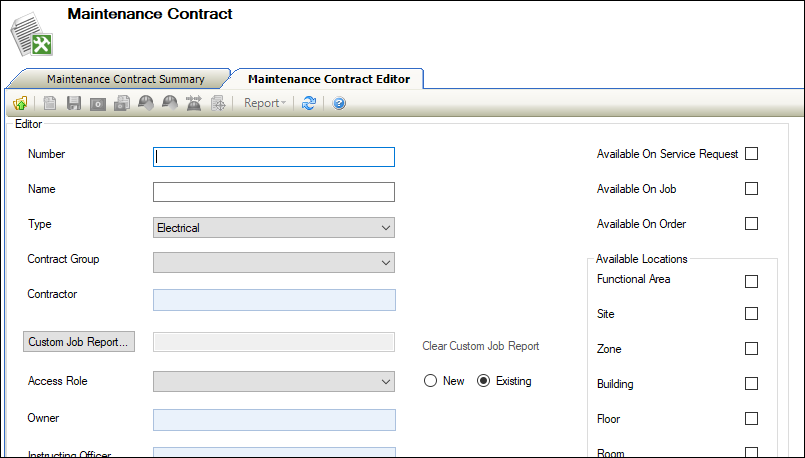
The Maintenance Contract Editor is displayed.
-
Enter or edit the relevant details.
The fields on the Maintenance Contract Editor are described in the following table:
|
This field… |
Holds this information... |
|---|---|
|
Number |
A unique reference number for the contract. |
|
Name |
The name of the contract. |
|
Type |
The type of contract. These can be defined in Maintenance Contract Type reference data (accessed by navigating to Maintenance > Contract Management > Contract Management). |
|
Contract Group |
The contract group. These can be defined in Contract Group reference data (accessed by navigating to Maintenance > Contract Management > Contract Management). |
|
Contractor |
The contractor undertaking the work. Select from the drop-down list. Alternatively, click the New button adjacent to the field to add a new agency. 
Refer to Add or Edit an Agency for further information on recording agencies. |
|
Custom Job Report |
The report that is used to issue jobs to the contractor, if applicable. The report must be available on the report server to be available to select. |
|
Access Role |
The role for the group of people that will be able to edit the contract SLA. Do one of the following:
|
|
Owner |
The contract owner. Select from the list of contacts. |
|
Instructing Officer |
The person responsible for the contract. Select from the drop-down list, which contains contacts with the Is Instructing Officer check box selected. Refer to Add or Edit a Contact for further information. |
|
Start Date |
The date the contract is due to start. |
|
End Date |
The date the contract is due to end. |
|
Review Date |
A review date for the contract, if required. |
|
Task Prefix |
The prefix to append to the job number of any jobs that have been created from a PPM Task and are linked to the maintenance contract. |
|
Contract Value |
The value of the contract. |
|
Service Types |
The service types. Select 'Maintenance' from the drop-down list. |
|
Comments |
Any comments regarding the contract. |
|
Available On Service Request |
Whether the contract can be selected on service requests. This is populated automatically depending on the Services Types field, but can be overridden. |
|
Available On Job |
Whether the contract can be selected on jobs. This is not applicable to PPM contracts. |
|
Available On Order |
Whether the contract can be selected on orders. |
|
Functional Area |
Whether the contract is available against functional areas, sites, zones, floors or rooms. This is not applicable to PPM contracts, but it is mandatory, so select at least one field. |
|
Site |
|
|
Zone |
|
|
Floor |
|
|
Room |
-
Click Save.
Defining the Contract Scope
The contract scope allows you to configure specifically what is managed as part of the contract. The contract scope must be defined before use.
To add or edit a contract scope:
-
Search for and open the relevant contract record.
-
Do one of the following:
-
Click the Define Contract Scope button in the Required Actions section.
-
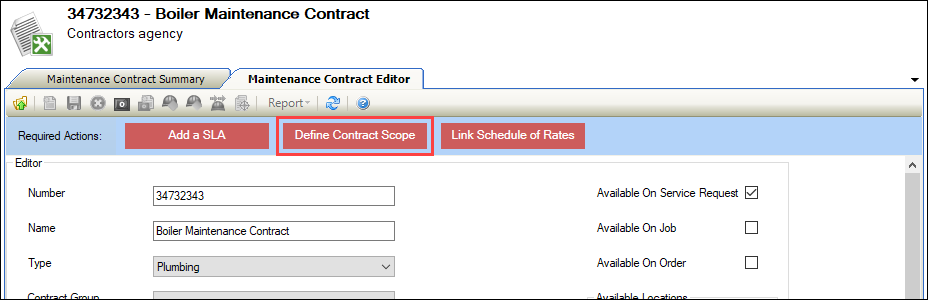
This is only displayed if the contract does not have a contract scope.
-
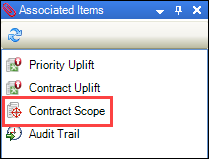
Click the Contract Scope option in the Associated Items panel.
The Contract Scope screen is displayed.
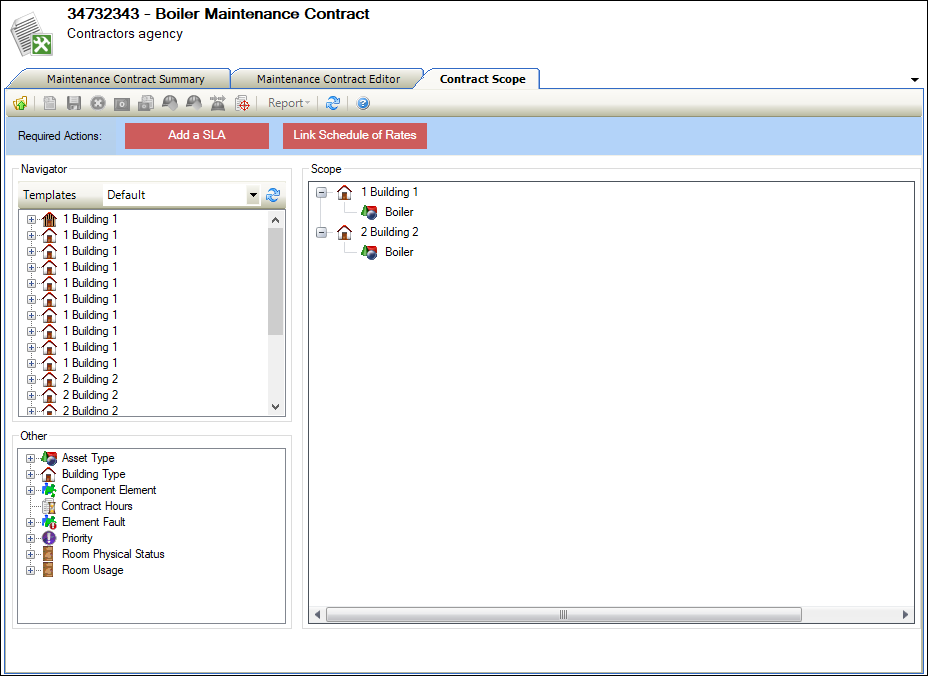
The screen is divided into the following panels:
-
Navigator - displays business units, sites, buildings, floors, rooms and so on
-
Other - displays the following nodes:
-
Asset Type - these can be defined in Types reference data (accessed by navigating to Functions > Asset > Asset).
-
Building Type - these can be defined in Building Type reference data (accessed by navigating to Functions > Core > Reference Data > Buildings).
-
Component Element - these can be defined in Element List reference data (accessed by navigating to Functions > Component > Component).
-
Contract Hours - allows you to enter contract hours for a node entered from the Other section
-
Element Fault - these can be defined in Element List reference data (accessed by navigating to Functions > Component > Component).
-
Priority - these can be defined in Priorities reference data (accessed by navigating to Services > Service Request).
-
Room Physical Status - these can be defined in Physical Status reference data (accessed by navigating to Functions > Core > Reference Data > Core).
-
Room Usage - these can be defined in Usage reference data (accessed by navigating to Functions > Core > Reference Data > Rooms).
-
-
Scope - displays the structure of the maintenance contract scope
-
Drag and drop a node from the Navigator or Other section into the Scope section. Dragging and dropping a node onto another node creates a child node.
-
Click Save.
Adding, editing or defining an SLA
The SLA defines the Service Level Agreement for the contract.
To add or edit an SLA:
-
Search for and open the relevant contract record.
-
Do one of the following:
-
Click the New SLA option in the Tasks panel.
-
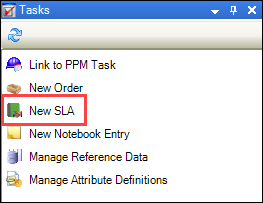
This is only displayed if the contract does not have an SLA assigned.
-
Click the Add a SLA button in the Required Actions section.
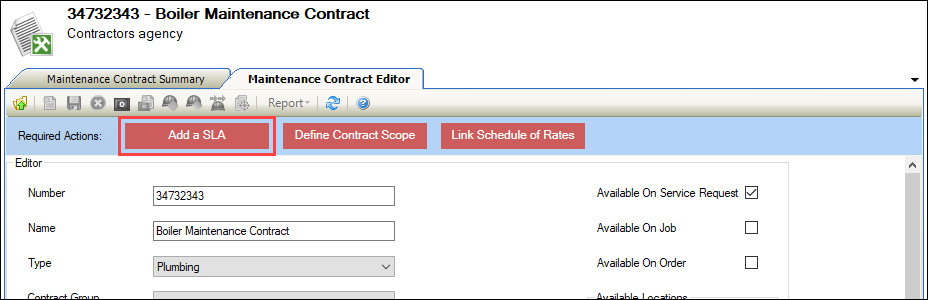
This is only displayed if the contract does not have an SLA assigned.
-
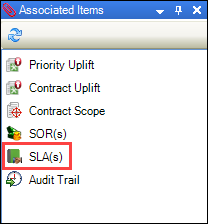
Click the SLA(s) option in the Associated Items panel and then double-click an existing SLA to open it.
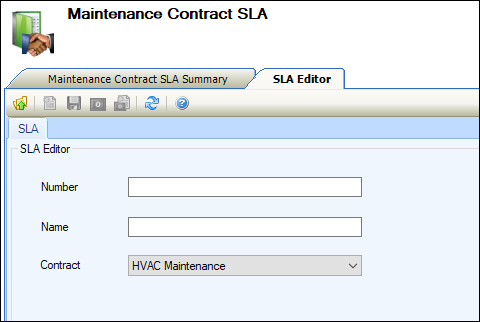
The SLA Editor screen is displayed.
-
Enter the name and number, and select the relevant contract from the drop-down list.
-
Click Save.
Linking Schedule of Rates
You can link a contract to specific Schedules of Rates, as defined in Rate Types reference data (accessed by navigating to Functions > Schedule of Rates > SOR).
To link a schedule of rates to the contract:
-
Search for and open the relevant contract record.
-
Do one of the following:
-
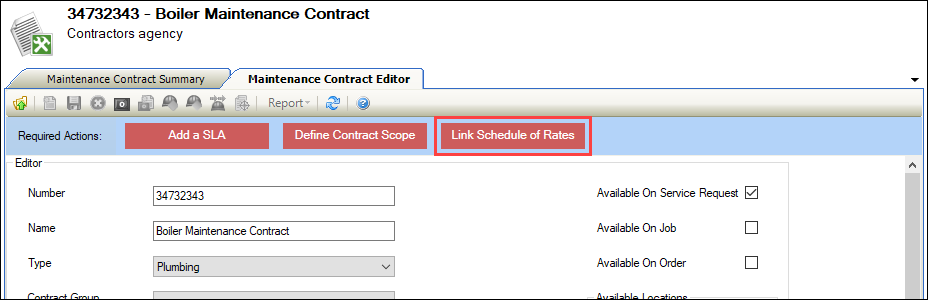
Click the Link Schedule of Rates button in the Required Actions section.
-
Note: This is only displayed if the contract does not have a contract scope.
-
Click the SOR(s) option in the Associated Items panel.
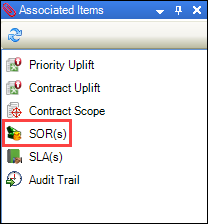
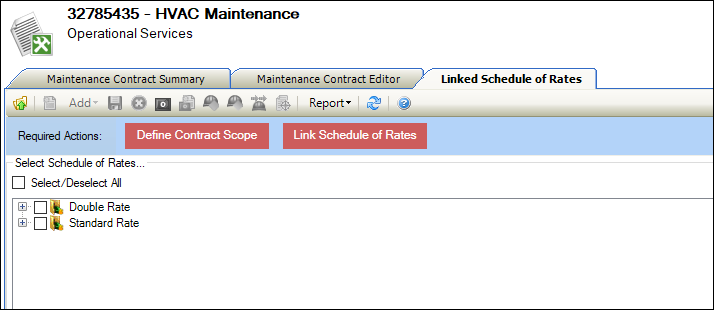
The Linked Schedule of Rates screen is displayed.
-
Select the relevant rates. Alternatively, click the Select/Deselect All check box.
-
Click Save.
Related Topics