
Sufficiency focuses on total areas and the quantity and organisation of places within and across schools in an authority concerning demand.
Sufficiency includes two separate measurements:
-
The number of pupil places available compared to the current and future numbers on a roll
-
The overall areas of buildings and grounds in support of the places available and the current numbers on roll
These measurements will allow a fair and consistent method of identifying any surplus or deficit of pupil places concerning demand. The pupil on roll records how many pupils are in each school year. For each new academic year, a new pupil on roll needs to be created. The data is held against a business unit container and will only be visible if listed as a business unit container school property type.
Adding or Editing Pupil on Roll Records
To add or edit a pupil on roll record:
-
Search for and open the relevant business unit.
-
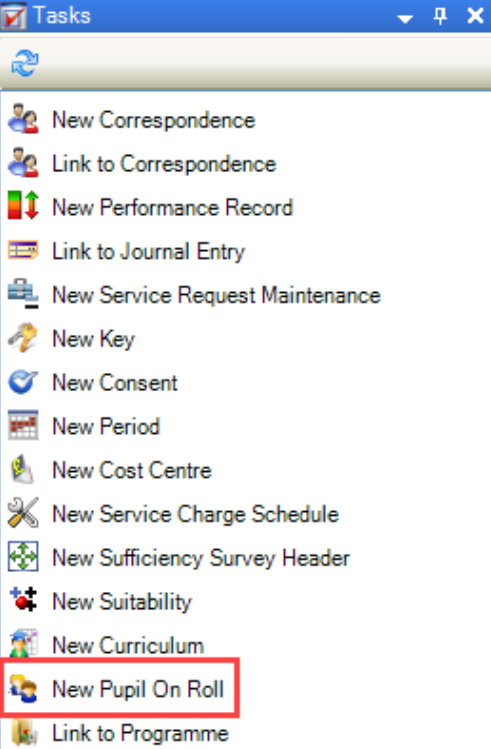
Click the New Pupil On Roll option in the Tasks panel.
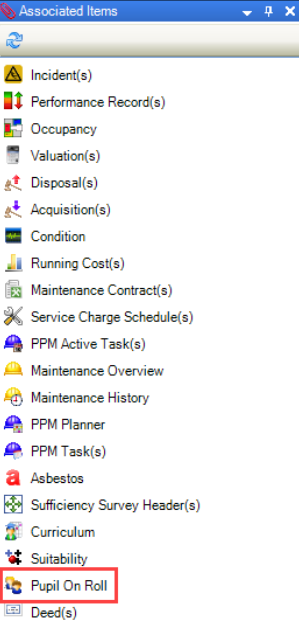
Alternatively, click the Pupil On Roll option in the Associated Items panel and then double-click an existing record to open it.
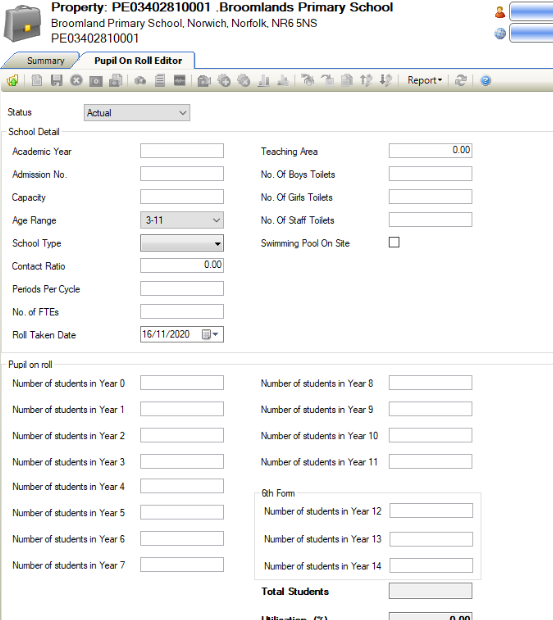
The Pupil On Roll Editor is displayed.
-
Enter or edit the relevant details.
The fields on the Pupil On Roll Editor are described in the following table:
|
This field… |
Holds this information... |
|---|---|
|
Status |
Whether the data is actual or projected. |
|
Academic Year |
The academic year. This field is mandatory. |
|
Admission No./Planned Admission No. |
The number of admissions. This field is mandatory. This field is named Planned Admission No. if the Projected status is selected. |
|
Capacity |
The maximum number of students that the school can manage. This field is mandatory. |
|
Age Range |
The students' age range. |
|
School Type |
The type of school. This field is mandatory. |
|
Contact Ratio |
The total number of teaching periods timetabled for all teachers in the school divided by the total possible number of teaching periods. |
|
Periods Per Cycle |
The number of periods per cycle (for example: per week). This field is mandatory. |
|
No. of FTEs |
The number of full time equivalent teachers. This field is mandatory. |
|
Roll Taken Date |
The date that the roll was recorded. |
|
Teaching Area |
The teaching area. |
|
No. Of Boys Toilets |
The number of boys' toilets. |
|
No. Of Girls Toilets |
The number of girls' toilets. |
|
No. Of Staff Toilets |
The number of staff toilets. |
|
Swimming Pool On Site |
Whether there is a swimming pool on site. |
|
Cohort Retention Rate (%) |
The cohort retention rate. This field is only displayed if the Projected status is selected. |
|
6th Form Retention Rate (%) |
The retention rate of sixth form students. This field is only displayed if the Projected status is selected. |
|
Number of students in year <0 to 14> |
The number of students in each year group. |
|
Total Students/Projected Total Students |
The total number of students in each group. This is calculated automatically based on the Number of students in year <0 to 14> fields. This field is named Projected Total Students if the Projected status is selected. |
|
Utilisation (%) |
The utilisation percentage. This is calculated on saving by calculating the Total Students as a percentage of the Capacity. |
-
Click Save.
Related Topics
Click the links below to navigate to the following related topics: