
The Suitability module is education allows you to assess whether rooms and external spaces are fit for purpose using standard criteria.
General suitability information is stored at the business unit (school) level with individual suitability items stored at the room or zone level.
Using the recorded impacts and number of available rooms against each space classification a suitability summary for the school can be created and exported.
Adding or Editing a Suitability Item Record
To add or edit a room or zone suitability item record:
-
Search for and open the relevant room or zone record.
You can also search for an existing suitability item.
-
Click the New Suitability Record option in the Tasks panel.
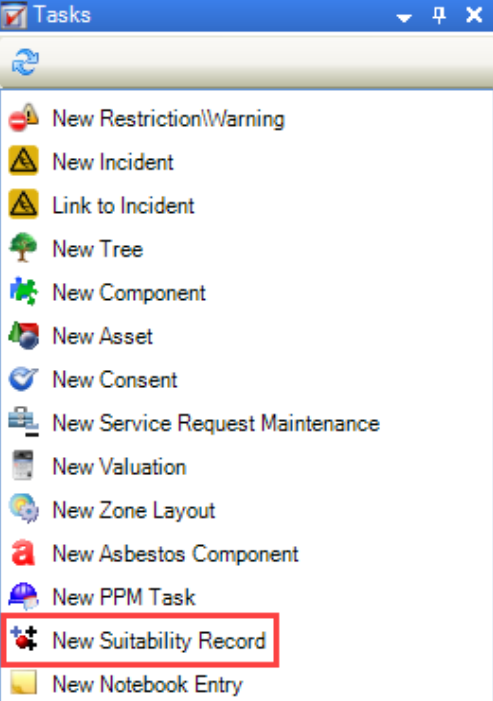
Alternatively, click the Suitability Record(s) option in the Associated Items panel and then double-click an existing record to open it.
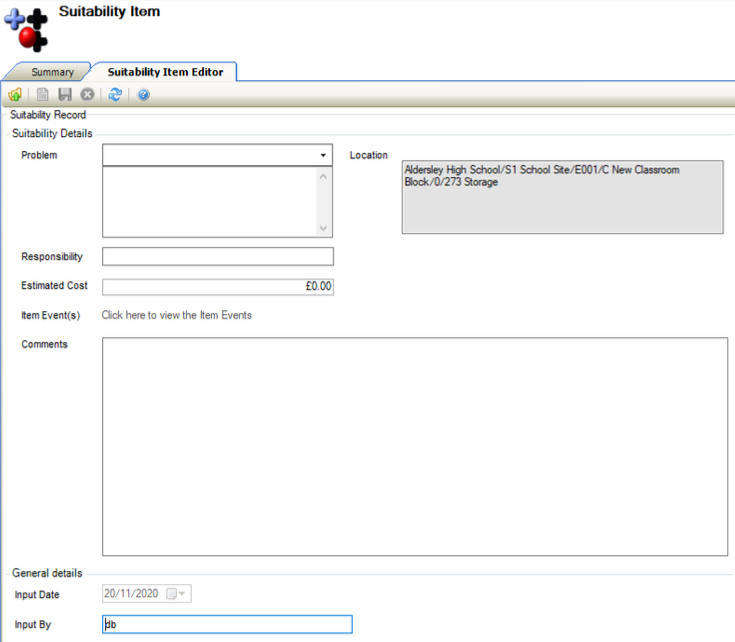
The Suitability Item Editor is displayed.
-
Enter or edit the relevant details
The fields on the Suitability Item Editor are described in the following table:
|
This field… |
Holds this information... |
|---|---|
|
Problem |
The item's problem(s). This field is mandatory. These can be defined in Problem Types Reference Data (accessed by navigating to Education > Suitability > Suitability). |
|
Responsibility |
The person whose responsibility the problem is. |
|
Estimated Cost |
The estimated cost of the problem. |
|
Item Event(s) |
The item events. These can only be added after the record has been saved. Refer to Adding a Suitability Item Event for further information. |
|
Location |
The location of the room or zone. This is populated automatically. |
|
Comments |
Any comments on the item. |
|
Input Date |
The date that the record was created. This defaults to today's date and cannot be edited. |
|
Input By |
The use that input the record. This can be edited. |
-
Click OK
Adding a Suitability Item Event
To add a suitability item event:
-
Open the suitability item record. Refer to Adding or Editing a Suitability Item Record for further information.
-
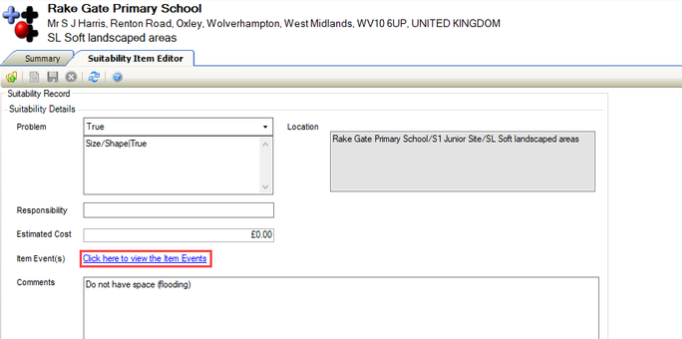
Click the Click here to view the Item Events link.
-
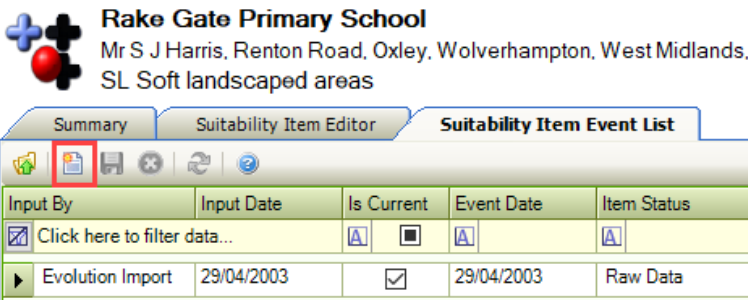
Check that the Suitability Item Event List screen is displayed.

-
Click the New button to add a new event, or double-click an existing record to open it.
-
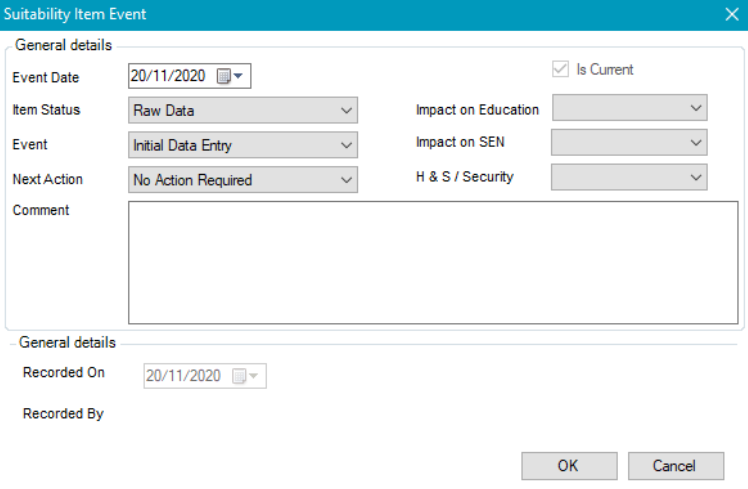
Check that the Suitability Item Event window is displayed.
-
Enter or edit the relevant details.
The fields on the Suitability Item Event window are described in the following table:
|
This field… |
Holds this information... |
|---|---|
|
Event Date |
The date of the event. |
|
Item Status |
The status of the item. These can be defined in Item Status Reference Data (accessed by navigating to Education > Suitability > Suitability). |
|
Event |
The type of event. These can be defined in Events Reference Data (accessed by navigating to Education > Suitability > Suitability). |
|
Next Action |
The action to be taken after the event. These can be defined in Actions Reference Data (accessed by navigating to Education > Suitability > Suitability). |
|
Is Current |
Whether the event is current. |
|
Impact on Education |
The impact on education. This field is mandatory. These can be defined in Impacts Education Reference Data (accessed by navigating to Education > Suitability > Suitability). |
|
Impact on SEN |
The impact on Special Educational Needs. This field is mandatory. These can be defined in Impacts SEN Reference Data (accessed by navigating to Education > Suitability > Suitability). |
|
H&S/Security |
The impact on health and safety or security. This field is mandatory. These can be defined in Impacts HS Reference Data (accessed by navigating to Education > Suitability > Suitability). |
|
Comment |
Any comments on the event. |
|
Recorded On |
The day the event was recorded. |
|
Recorded By |
The user who recorded the event. |
-
Click OK.
Suitability Comparison
Use the Suitability Comparison screen to view the suitability differences between business units.
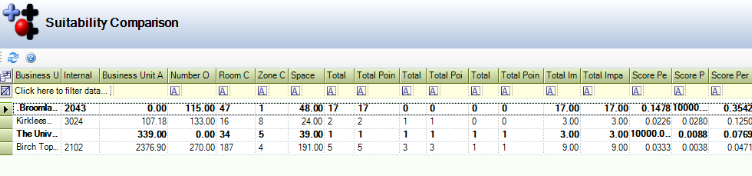
It can be accessed by navigating to Education > Suitability > Suitability Comparison.
The fields on the Suitability Comparison screen are described in the following table:
|
This field… |
Holds this information... |
|---|---|
|
Business Unit Name |
The name of the business unit (school). |
|
Internal Reference |
The internal reference number of the business unit. |
|
Business Unit Area (m2) |
The area of the business unit. |
|
Number On Roll |
The number of learners on roll. |
|
Room Count |
The number of rooms in the business unit. |
|
Zone Count |
The number of zones in the business unit. |
|
Space Count |
The number of spaces in the business unit. |
|
Total EDU |
The total education impact. |
|
Total Points EDU |
The total education impact points. |
|
Total HS |
The total Health and Safety impact. |
|
Total Points HS |
The total Health and Safety impact points. |
|
Total SEN |
The total Special Educational Needs impact. |
|
Total Points SEN |
The total Special Educational Needs impact points. |
|
Total Impacts |
The total impacts. |
|
Total Impact Score |
The total impact points. |
|
Score Per Pupil |
The average impact point per pupil. |
|
Score Per m2 |
The total impact score per square metre. |
|
Score Per Space |
The total impact score per space. |
Related Topics
Click the links below to navigate to the following related topics: