To add a recurring request:
New Recurring Service Request
-
Navigate to Services > New Recurring Service Request.
The Recurring Request tab is displayed.
-
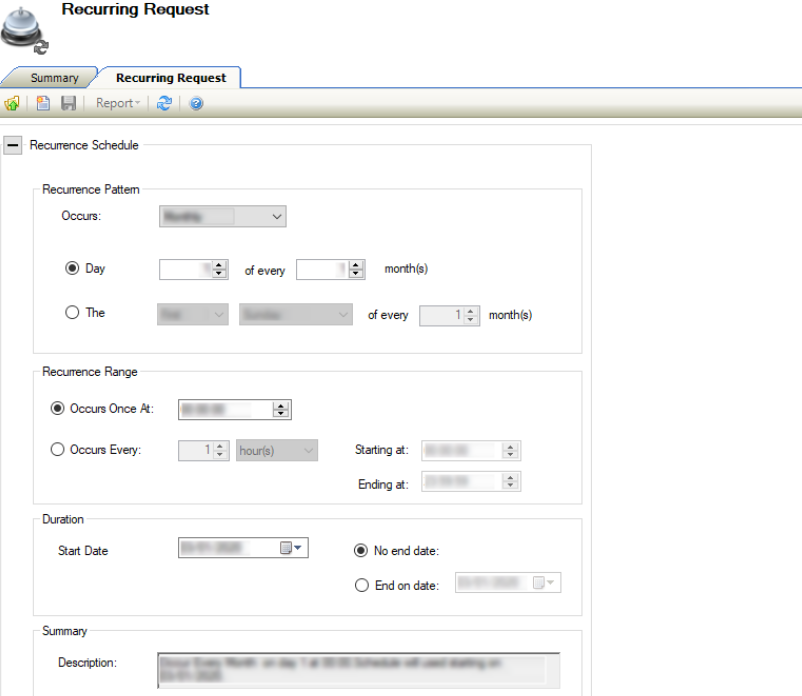
Enter details of the request.
The fields on the Recurring Request tab are described in the following table:
|
This field… |
Holds this information... |
|---|---|
|
Recurrence Pattern |
The pattern of the recurring request.
The date and time of the recurring request, defined in days, weeks, months.
|
|
Recurrence Range |
The recurrence range of the request, defined in hours, minutes, This field is mandatory. |
|
Duration |
The duration of the recurring request. Whether the recurring request ends on a specific date or continues indefinitely. |
|
Summary |
The description of the recurring request. |
|
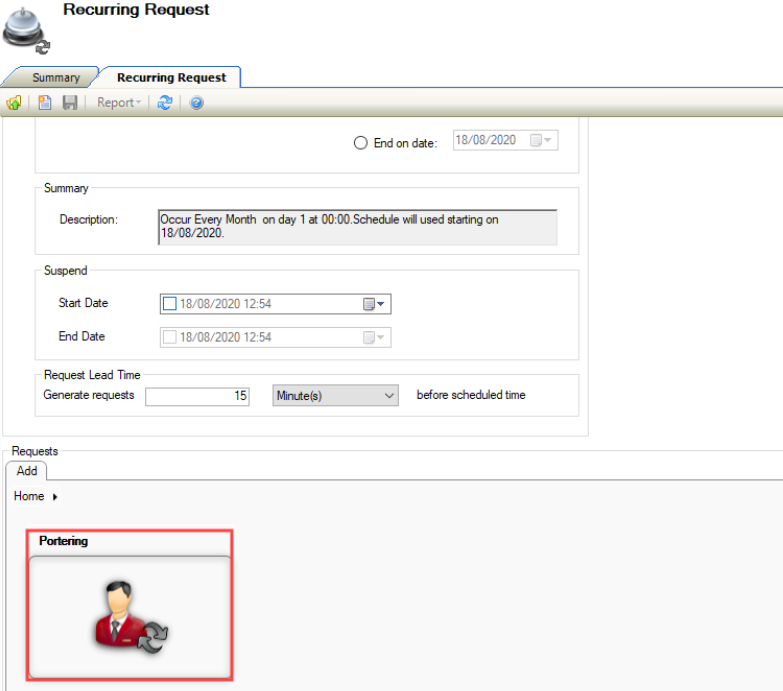
Suspend |
The suspension period for the recurrence request.
|
|
Request Lead Time |
The recurring request lead time, defined in minutes, hours, days, weeks. |
|
Home |
The request type. A Request type is mandatory. |
-
Enter or edit the details as required.
-
Select the Portering request type.
-
Click Save.
Using the Recurring Request Manager
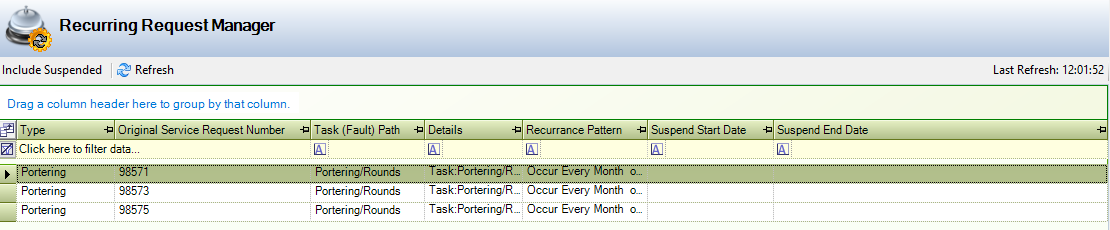
The Recurring Request Manager allows you to view a summary of recurring portering service requests.
To use the Recurring Request Manager, navigate to Services >Recurring Request Manager.
The Recurring Request Manager tab is displayed.
The buttons on the Recurring Request Manager screen are described in the following table:
|
This button |
Does this... |
|---|---|
|
Include Suspended |
Includes suspended requests in the grid. |
|
Refresh |
Refreshes the information displayed in the grid. |
|
Show Field Chooser |
Opens the Field Chooser window, where you can select which fields to display in the grid. 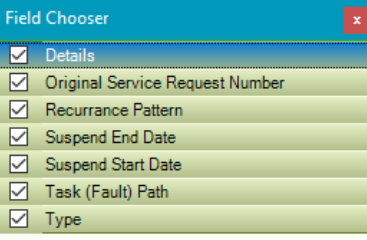
At least one field must be selected. |
|
Clear filter |
Clears all filters applied to the grid. |
The Recurring Request Manager displays all open recurring service requests for the Portering request type within the grid.
You can amend grid data by:
-
Double-clicking the relevant row in the grid to open the Service Request.
-
Dragging a column header into the Drag a column header here to group by that column field to sort by the relevant column field.
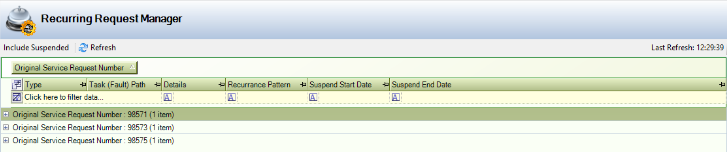
You can export the contents of the grid to Microsoft Excel by right-clicking in the grid and selecting Export to Microsoft Office Excel > Save as Workbook.
Filter data by adding filter information to the relevant column heading in the grid.
-
Select from the following:
-
Custom - opens the Custom Filter window where the filter can be refined.
-
Blanks - displays records with a blank or empty record for the relevant row.
-
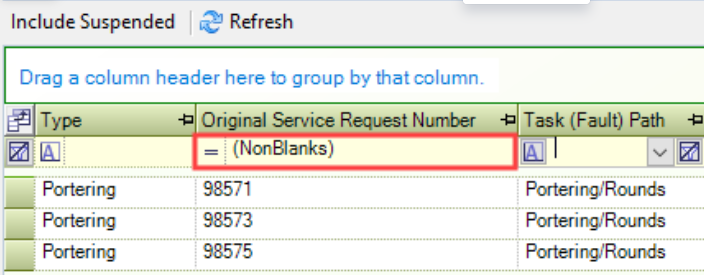
NonBlanks - displays records with any populated record for the relevant row.
-