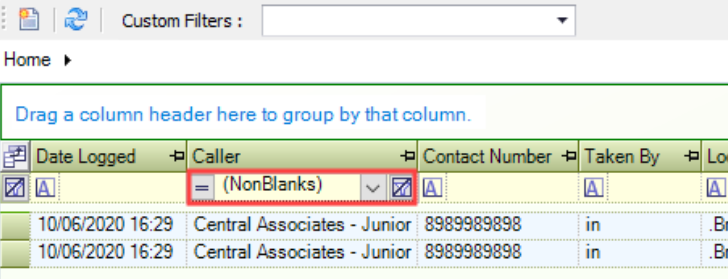
Service Request View allows you to view a summary of requests by service type.
Service Request View
To use Service Request View navigate to Services > Request View.
The Service Request View screen is displayed.

The grid displays unfiltered search results.
Only Service Requests with a Maintenance Contract linked to the Maintenance Contract Role assigned to the user will be returned.
The buttons on the Service Request View screen are described in the following table:
|
This button… |
Does this... |
|---|---|
|
Refresh |
Refreshes the information displayed in the grid |
|
Include Closed |
Includes or excludes service requests with a status of Closed. |
|
Home |
Drop-down field, where you can choose the request type to view. Choose from:
|
|
Show Field Chooser |
Opens the Field Chooser window. You can use the Field Chooser to determine which Fields are displayed in the grid. 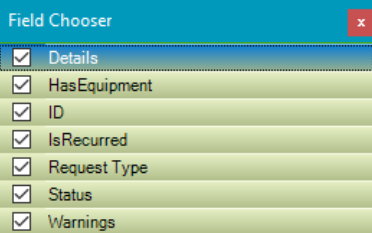
At least one field must be selected. |
|
Clear filter |
Clears all filters applied to the grid. |
The Service Request View displays all open service requests for the chosen request type within the grid.
You can amend grid data by double-clicking the relevant row in the grid to open the Service Request
You can export the contents of the grid to Microsoft Excel. Select the relevant rows and right-click within the grid. Choose Export to Microsoft Office Excel > Save as Workbook.
Filter Data
You can filter data by adding filter information to the relevant column heading in the grid, choose from:
-
Custom - opens the Custom Filter window where the filter can be refined
-
Blanks - displays records with a blank or empty record for the relevant row
-
NonBlanks - displays records with any populated record for the relevant row