Taxi Request Manager allows you to view and filter requests for the Taxi service type.
Taxi Request Manager
To use Taxi Request Manager navigate to Services >Transport > Taxi Request Manager.
The Taxi Request Manager screen is displayed, with the grid displaying unfiltered search results.
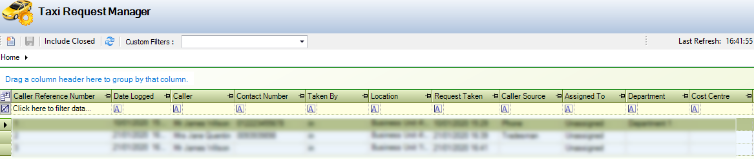
The buttons on the Taxi Request Manager screen are described in the following table:
|
This button |
Does this... |
|---|---|
|
New Taxi Request |
Opens a new Service Request with the Taxi request tab included. |
|
Save |
Saves your changes. |
|
Include Closed |
Includes or excludes service requests with a status of Closed. |
|
Refresh |
Refreshes the information displayed in the grid. |
|
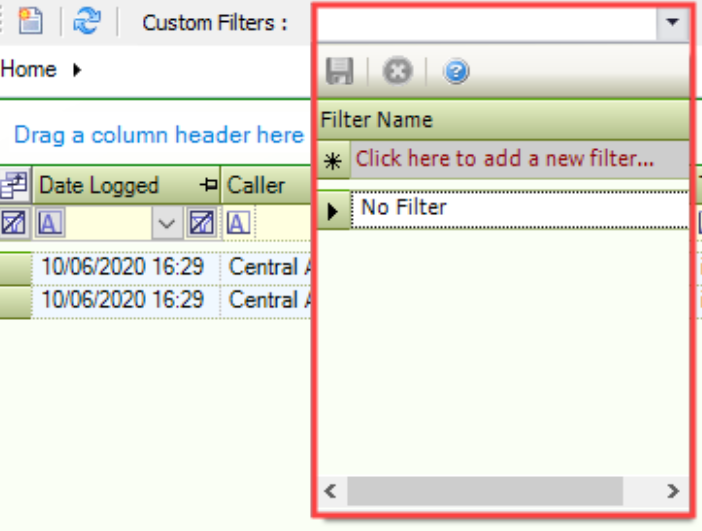
Custom Filters |
Displays a drop-down box where you can manage custom filters. |
|
Home |
Drop-down field, where you can choose the request type to view. |
|
Show Field Chooser |
Opens the Field Chooser window. You can use the Field Chooser to determine which Fields are displayed in the grid. 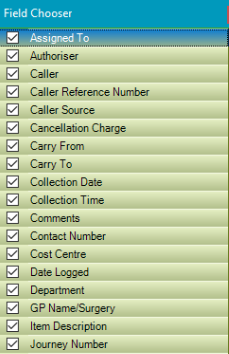
At least one field must be selected. |
|
Clear filter |
Clears all filters applied to the grid. |
The Taxi Request Manager displays all open service requests for the Taxi request type within the grid.
You can amend grid data in the following ways:
-
Double-click the relevant row in the grid to open the Service Request
-
Use the drop-down box in the Journey Status column to update the status
-
Drag a column header into the Drag a column header here to group by that column field to sort by the relevant column field
You can export the contents of the grid to Microsoft Excel. Select the relevant rows and right-click within the grid. Choose Export to Microsoft Office Excel > Save as Workbook.
Filter Data
You can filter data in the following ways:
-
Add filter text to the Custom Filters drop-down field.
-
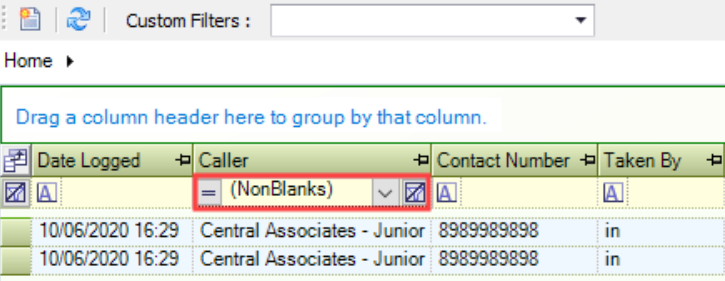
Add filter information to the relevant column heading in the grid
Choose from:
-
Custom - opens the Custom Filter window where the filter can be refined
-
Blanks - displays records with a blank or empty record for the relevant row
-
NonBlanks - displays records with any populated record for the relevant row
-