
Attributes are the fields that can be added to Categories.
Adding or Editing an Attribute
-
Select the section that you want to add the attribute to from the Select section drop-down list.

If you opened the Attribute Manager by clicking the Manage Attribute Definitions option in the Tasks panel, this field is read-only.
-
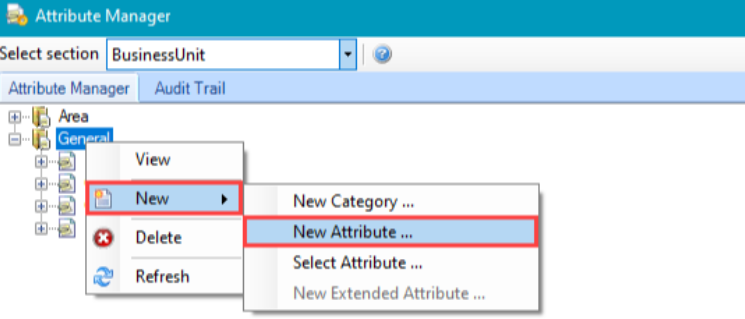
Right-click on the relevant category and then select New > New Attribute to add a new attribute.
-
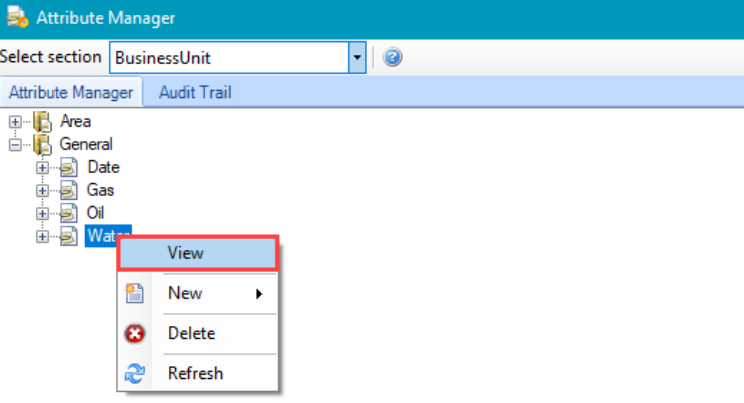
Right-click on an existing attribute and click the View option to edit it.
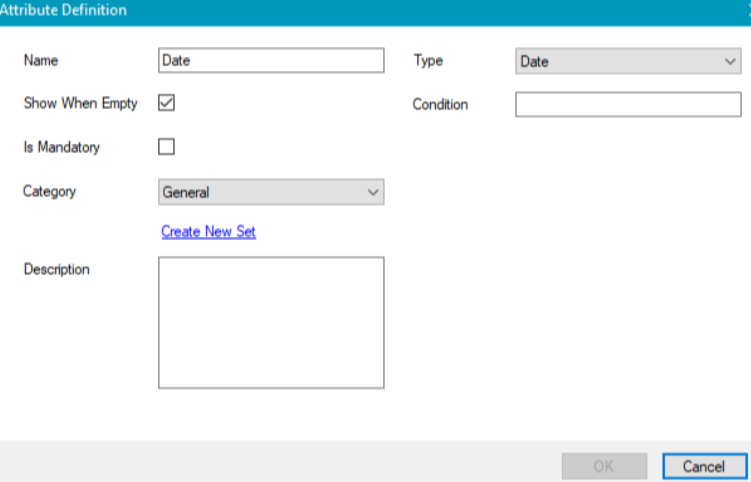
The Attribute Definition window is displayed.
You can also add a pre-existing attribute by right-clicking on the relevant category and then selecting New > Select Attribute. This displays the Select window where you can select the relevant attribute.
-
Enter or edit the relevant details. The fields displayed are dependent on the Type field.
The fields common to all Attribute Types are described in the following table:
|
This field… |
Holds this information... |
|---|---|
|
Name |
The name of the field. |
|
Show When Empty |
Whether to display the field if there are no values. |
|
Is Mandatory |
Whether the field is mandatory. |
|
Category |
The category to which the field belongs. Select from the drop-down list or click the Create New Set link to add a new category. |
|
Description |
A description of the field. This is displayed at the bottom of the Attribute Manager when the attribute is selected. |
|
Type |
The field's data type.
|
|
Condition |
A condition that enables or disables the field depending on another attribute's value (for example: entering a condition of [<attribute name>]>9 only enables the field if that attribute is greater than 9). |
Additional fields depending on the Type are defined in the following drop-downs:
Entity
Selecting the 'Entity' type displays the Type Name field, which at present only contains the 'Contact' option.
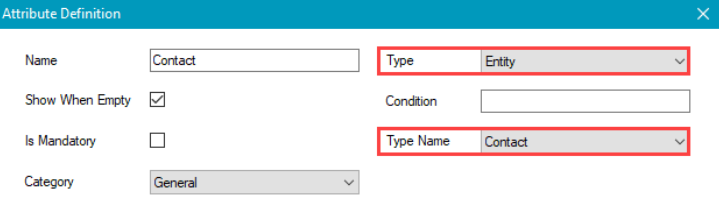
This allows the user to select a contact record.
List
Selecting the 'List' type displays the List section.
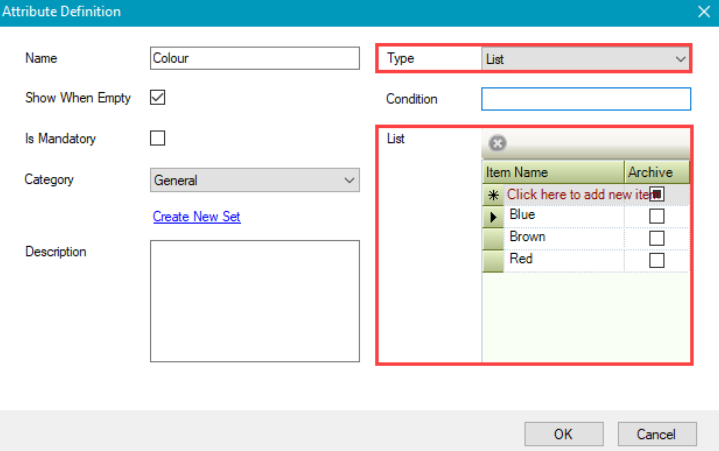
This allows you to add defined options for the user to select from a drop-down list.
Reference Data
Selecting the 'ReferenceData' type displays the Type Name field, where you can select from available reference data items to display.
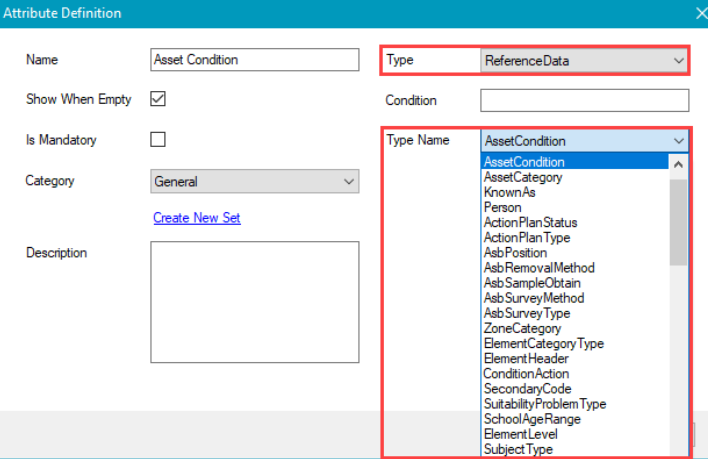
Refer to Reference Data for information on defining reference data items.
Sublist
-
Select the 'Sub List' type to display the Sub List section.
This allows you to add defined options for the user to select from the drop-down list.
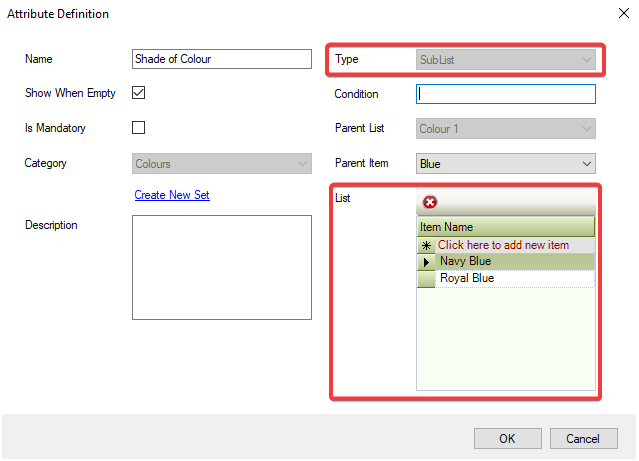
This allows you to add defined options for the user to select from the drop-down list.
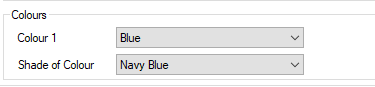
A Sublist can only be added to a List.
There are no additional fields for Date, True\False or Yes\No types.
-
Click OK.