
The Applications module allows the recording and management of applications against physical locations or assets. The Applications module can be used to manage any type of application (for example: garage requests or allotment waiting lists).
Select from the following to help you manage application records:
Adding or Editing an Application Record
To add or edit an application record:
Do one of the following:
-
Navigate to Functions > Applications > New Application
-
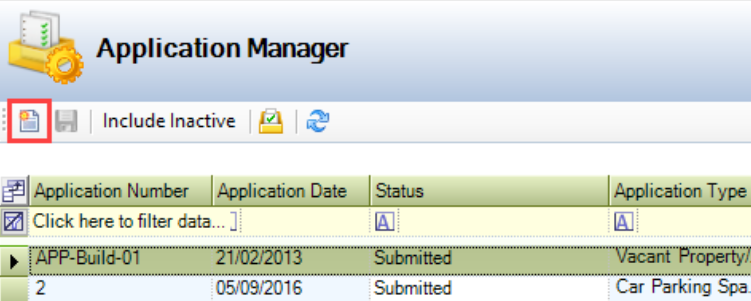
Click the New Application button in Application Manager.
-
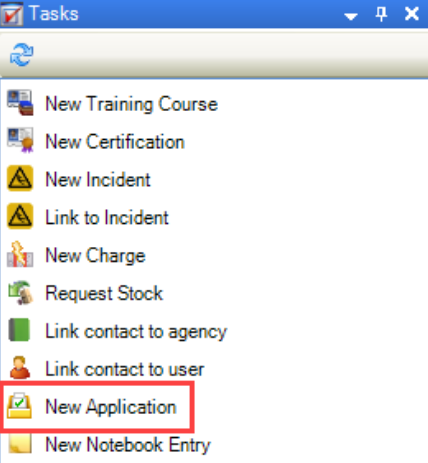
Click the New Application option in the Tasks panel of a contact record.
-
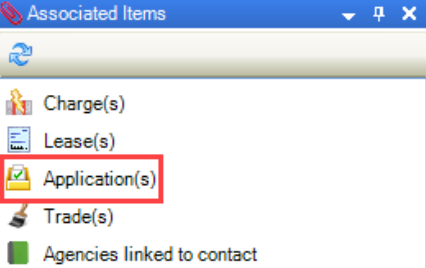
Click the Application(s) option in the Associated Items panel of a contact record and double-click an existing record to edit it.
-
Search for and open an existing application
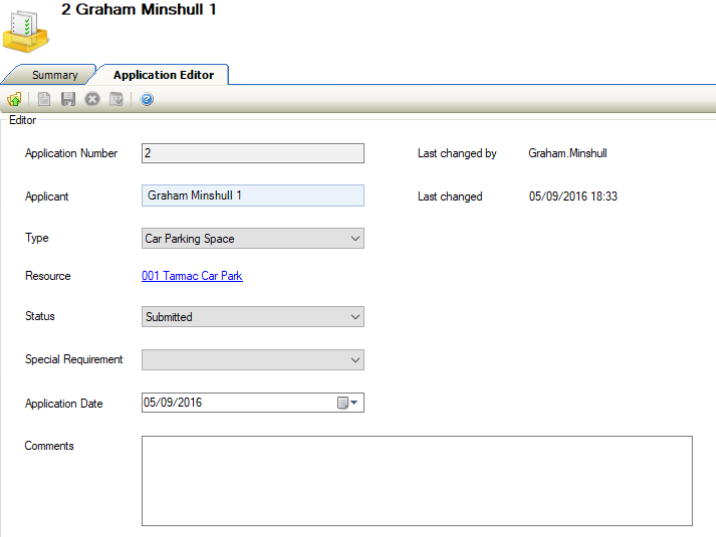
The Application Editor is displayed.
-
Enter or edit the relevant details.
The fields on the Application Editor are described in the following table:
|
This field… |
Holds this information... |
|---|---|
|
Application Number |
The application number. This is populated automatically depending on the Application Auto Unique Number setting in System Options (accessed by navigating to Tools > System Options and then clicking the System Options button). |
|
Applicant |
The contact who is making the application. Enter the contact's name and select from the drop-down, or click the New button adjacent to the field to add a new contact record. Refer to Adding or Editing a Contact for further information. This field is mandatory. |
|
Type |
The type of application. These can be defined in Application Type Reference Data (accessed by navigating to Functions > Applications > Application). |
|
Resource |
The asset(s) and/or location(s) that the application is being made against.
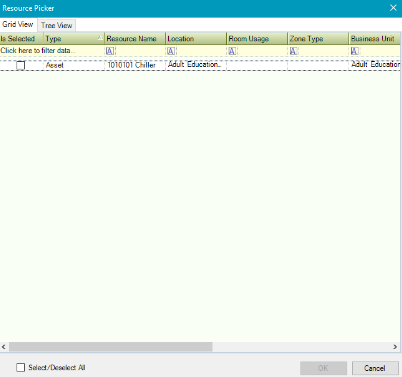
The Application Resource check box must be selected in the asset or location record in order to be displayed on the Resource Picker window. |
|
Status |
The status of the application. These can be defined in Application Status Reference Data (accessed by navigating to Functions > Applications > Application). |
|
Special Requirement |
Any non-standard requirements of the application. These can be defined in Application Special Requirement Reference Data (accessed by navigating to Functions > Applications > Application). |
|
Application Date |
The date the application was submitted by the applicant. |
|
Comments |
Any comments on the application. |
|
Last changed by |
The user who last changed the record. This is edited on saving and cannot be edited. |
|
Last changed |
The date and time that the record changed. This is edited on saving and cannot be edited. |
-
Click Save.
Record an Event Against an Application
Events and re-occurring events can be recorded against applications, which will provide reminders and calendar events relating to the application.
To create a new event or schedule of events:
-
Search for and open the relevant application record.
-
Click the New Application Schedule option in the Tasks panel.
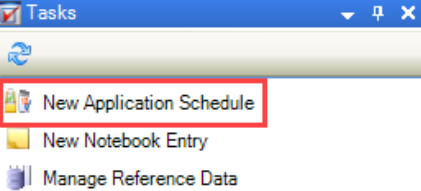
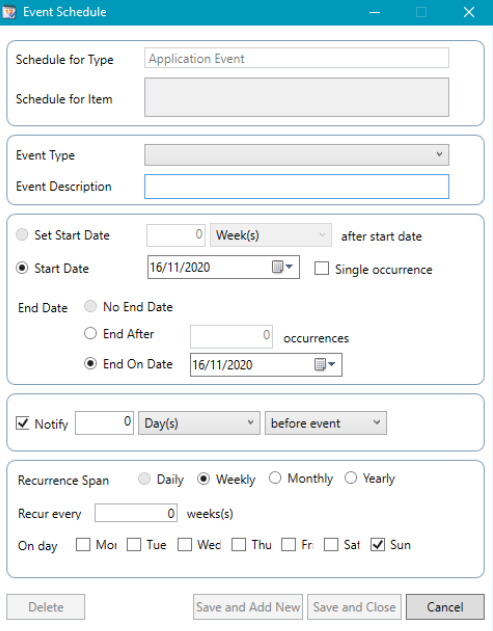
The Event Schedule window is displayed.
-
Enter or edit the relevant details.
The fields on the Event Schedule window are described in the following table:
|
This field… |
Holds this information... |
|---|---|
|
Schedule for Type |
This defaults to Application Event. |
|
Schedule for Item |
This field is not relevant for this event type. |
|
Event Type |
The type of event. These can be defined in Application Event Type Reference Data (accessed by navigating to Functions > Applications > Application). |
|
Event Description |
A description of the event. |
|
Set Start Date |
This field is not available for application events. |
|
Start Date |
The start date. |
|
Single Occurrence |
Whether the event is a one-off occurrence. |
|
End Date |
The end date. Select whether there is no end date, whether the event is to end after a specific number of occurrences, or whether to end on a specific date. |
|
Notify |
Whether a notification is required for the event(s).
|
|
Recurrence Span |
The frequency that the event recurs. |
-
Click Save and Add New or Save and Close.
Using the Application Manager
The Application Manager allows you to review all applications that have been created (both current and archived) and update the status accordingly.

It can be accessed by navigating to Functions > Applications > Application Manager.
Use the Application Manager to:
-
Change the status of applications by selecting from the relevant drop-down.
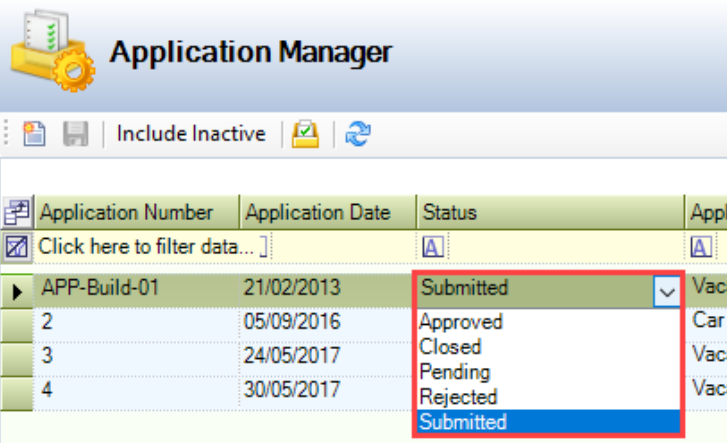
You need to click Save to confirm the changes.
-
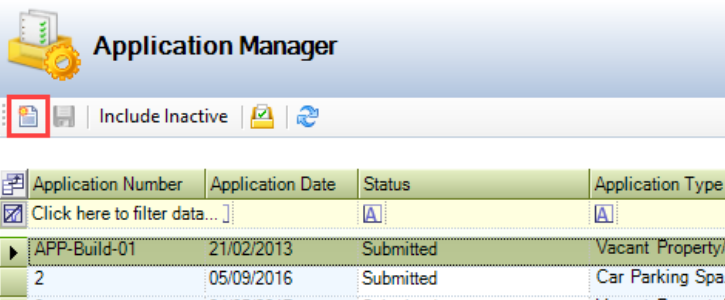
Add a new record by clicking the New Application button.
-
Refer to Adding or Editing an Application Record for further information on adding new application records.
-
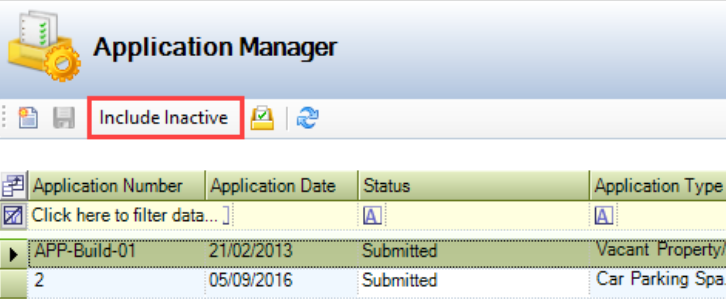
Select whether to display all records or only active ones using the Include Inactive/Exclude Inactive toggle.
-
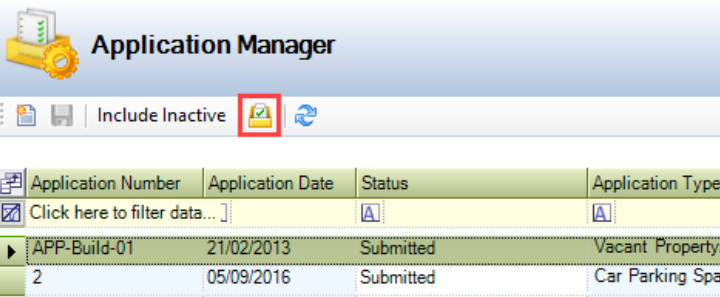
Open a record by double-clicking it, or selecting it and clicking the View button.
Related Topics
Click the links below to navigate to the following related topics: