
An asset is defined as an item of plant or equipment that are in the main, moveable units. Typically, assets differ from components in that they do not usually describe the building structure or fabric.
An asset system is defined as a collection of assets that makes up a system (for example: a boiler (asset) + pipes (asset) + a thermostat (asset) + radiators (asset) = central heating system (asset system).
Adding or editing an Asset or Asset System
To add or edit an asset or asset system, do one of the following:
-
Navigate to Functions > Asset > New Asset.
-
Search for and open an existing asset, then click the Click to edit details button in the Summary tab.
-
Click the New Asset option in the Tasks panel of a location record.
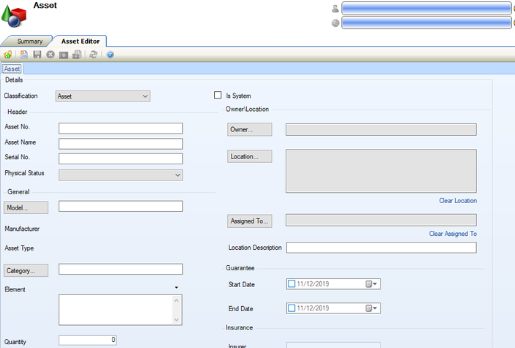
The Asset Editor (or Asset System Editor if an existing asset system is opened) is displayed.
-
Enter or edit the details as required.
The fields on the Asset Editor are described in the following table:
|
This field… |
Holds this information... |
|---|---|
|
Classification |
Whether the item is an asset or component. |
|
Is System |
Whether the record is a header for the asset system. This allows you to record child assets, components, systems and composites against the asset system. Selecting this check box enables the Asset Details section at the top of the screen, and renames the screen to Asset System Editor. Refer to Adding Child Assets to an Asset System for further information. |
|
Asset No. |
A unique reference number for the asset. |
|
Asset Name |
The name of the asset. |
|
Serial No. |
The asset's serial number. |
|
Physical Status |
The condition of the asset. These can be defined in Physical Status Reference Data (accessed by navigating to Functions > Core > Reference Data > Core). |
|
Model |
The model of asset. These can be defined in Models Reference Data (accessed by navigating to Functions > Asset > Asset). |
|
Manufacturer |
The asset's manufacturer. This is populated automatically based on the model. |
|
Asset Type |
The asset type. This is populated automatically based on the model. |
|
Category |
The asset's category. These can be defined in Categories Reference Data (accessed by navigating to Functions > Asset > Asset). |
|
Element |
The asset's element. These can be defined in Element List Reference Data (accessed by navigating to Functions > Asset > Asset). |
|
Quantity |
The number of assets. |
|
Installation Date |
The date that the asset was installed. |
|
Life Expectancy |
The life expectancy of the asset. |
|
Life Remaining |
The remaining lifespan of the asset. This is calculated automatically based on the Installation Date and Life Expectancy fields. |
|
Booking Resource |
Whether the asset can be selected in the Resource Booking editor. |
|
Application Resource |
Whether the asset is an application resource. |
|
Owner |
The owning business unit. |
|
Location |
The location of the asset.
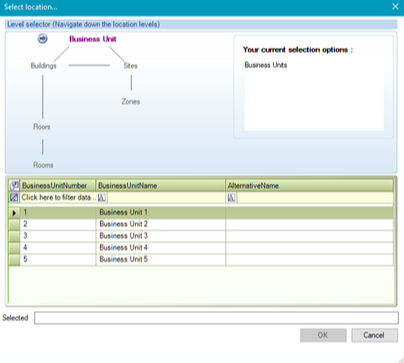
Use the level selector to select the relevant room, floor, zone, building, site or business unit. |
|
Assigned To |
The agency or contact that the asset is assigned to. |
|
Location Description |
Specific details of the asset's location. |
|
Start Date |
The start date of the guarantee. |
|
End Date |
The end date of the guarantee. |
|
Insurer |
The name of the insurer. Refer to Adding or Editing an Agency record to set up an Insurer |
|
Policy Ref Number |
The policy reference number. |
|
Expiry Date |
The expiry date of the insurance. |
|
Remarks |
Any comments regarding the asset. |
-
Click Save.
Adding Child Items to an Asset System
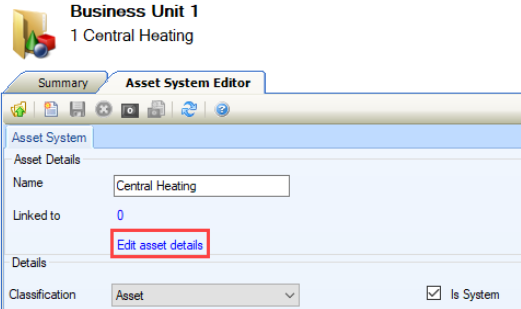
Asset systems are those that have the Is System check box selected in the Asset Editor. This enables the Asset Details section at the top of the screen and renames the screen to Asset System Editor.
To add child items to the asset system:
-
Click the Edit Asset Details link in the Asset Details section.
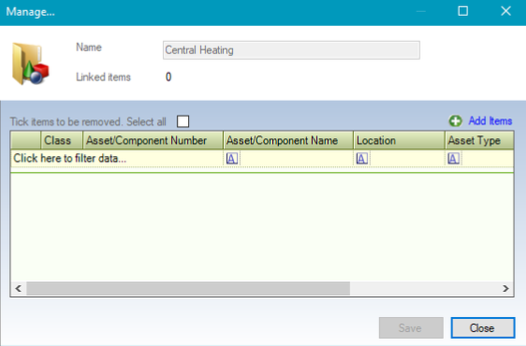
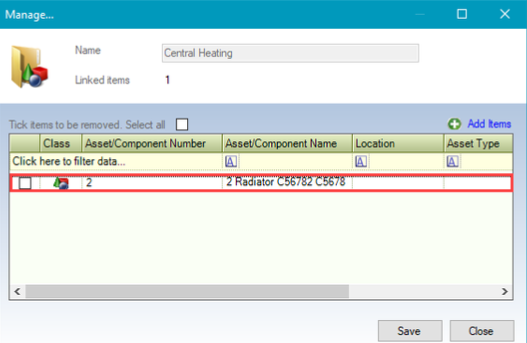
The Manage window is displayed.
-
Click the Add Items button.
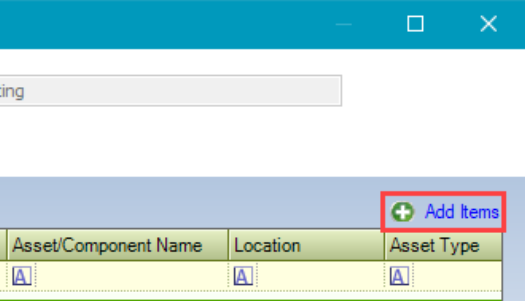
The Select Items window is displayed.
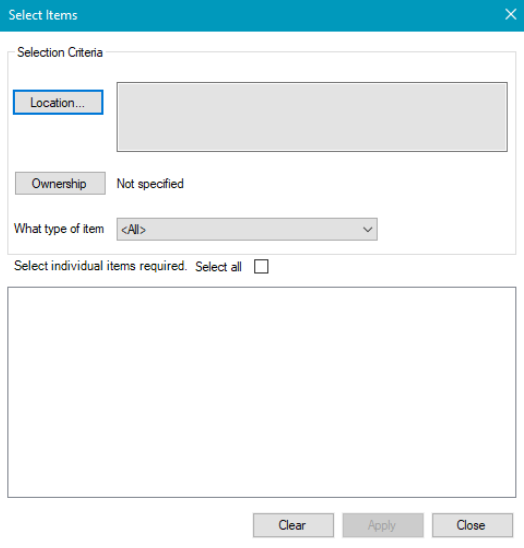
-
Click the Location button and use the Level selector to select the location of the asset system or asset.
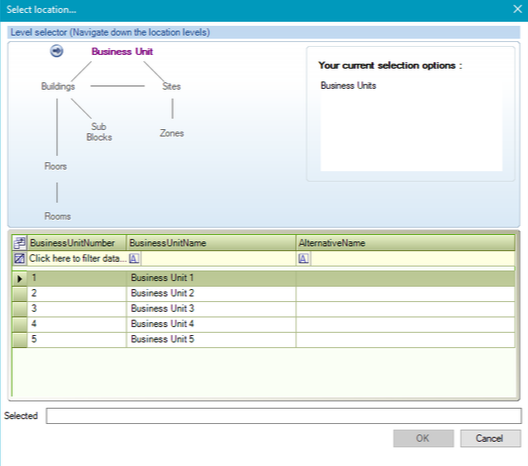
Alternatively, click the Ownership button and select the relevant business unit.
-
If required, select from the What type of item list if you want to filter the list of items by whether they are assets, components, or trees.
-
Select the relevant items, or click the Select All button to select all items.
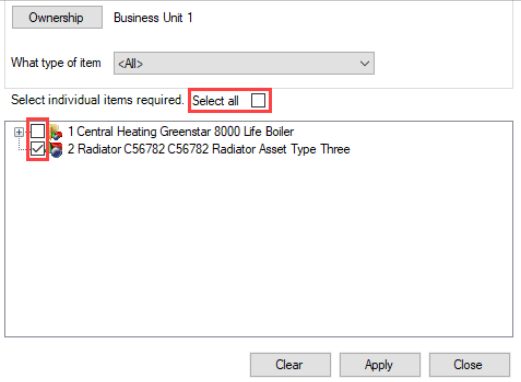
It is not possible to link the System to itself.
-
Click Apply and then Close to return to the Manage window, which is updated with the new item(s).
-
Click Save.
The Linked to field is then updated.
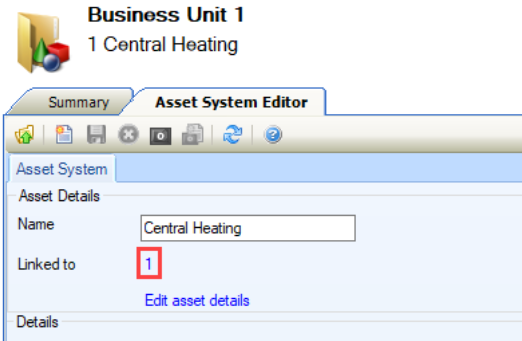
You can click the linked number adjacent to this field to display the relevant items on the Child Items List screen.
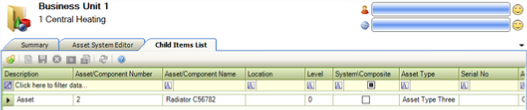
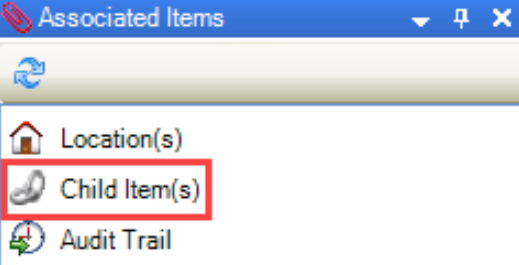
To access this screen, you can also click the Child Item(s) option in the Associated Items panel.
Related Topics
Click the links below to navigate to the following related topics: