
Correspondence in K2 is used to capture information such as property visits, supplier emails, or phone call conversations.
Select from the following to display information on managing correspondence:
Adding or Editing a Correspondence
To add or edit a correspondence record:
Do one of the following:
-
Navigate to Business Continuity > Correspondence > New Correspondence to add a correspondence record.
-
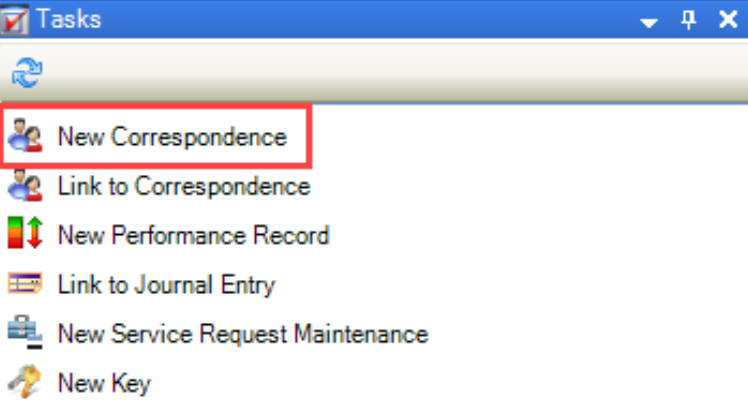
Click the New Correspondence option in the Tasks panel of a business unit or project record to create a correspondence linked to that record.
-
Click the Correspondence(s) option in the Associated Items panel of a business unit or project record and then double-click an existing record to open it
-
Search for and open a correspondence record
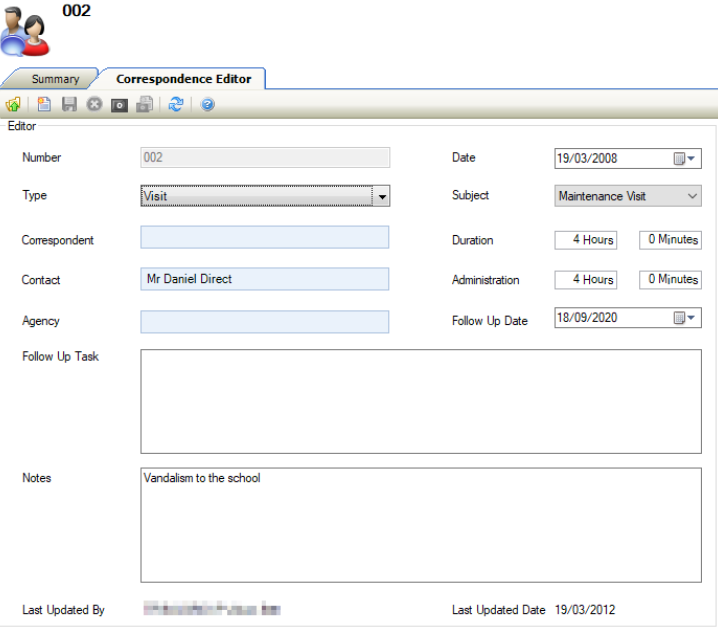
The Correspondence Editor is displayed.
-
Enter or edit the relevant details.
The fields on the Correspondence Editor are described in the following table:
|
This field… |
Holds this information... |
|---|---|
|
Number |
The correspondence number. This may be populated automatically depending on the Correspondence Auto Unique Numbering system option (accessed by navigating to Tools > System Options and then clicking the System Options button). |
|
Type |
The type of correspondence (for example: a visit). These can be defined in Correspondence Type Reference Data (accessed by navigating to Business Continuity > Correspondence > Correspondence). |
|
Correspondent |
The correspondent. Enter part of a contact's name and then select from the drop-down list. |
|
Contact |
The contact.
|
|
Agency |
The agency that the contact is employed by or contracted to.
|
|
Date |
The date of the correspondence. |
|
Subject |
The subject of the correspondence (for example: inspection). These can be defined in Correspondence Subject Reference Data (accessed by navigating to Business Continuity > Correspondence > Correspondence). |
|
Duration |
The hours and minutes that the correspondence lasted. |
|
Administration |
The hours and minutes taken by the contact or agency (for example: to prepare for a visit or answer an email). |
|
Follow Up Date |
When to follow up the correspondence. |
|
Follow Up Task |
The action to take to follow up. |
|
Notes |
Any notes on the correspondence. |
|
Last Updated By |
The user who last updated the record. This is populated automatically and cannot be edited. |
|
Last Updated Date |
The date and time the record was last updated. This is populated automatically and cannot be edited. |
-
Click Save.
Other Tasks/Associated Items
Link a Correspondence to a Business Unit
To link a correspondence to a business unit:
-
Open the relevant correspondence record.
-
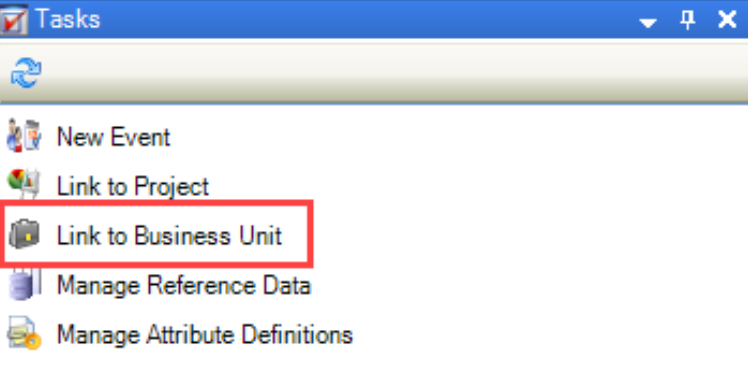
Click the Link to Business Unit option in the Tasks panel.
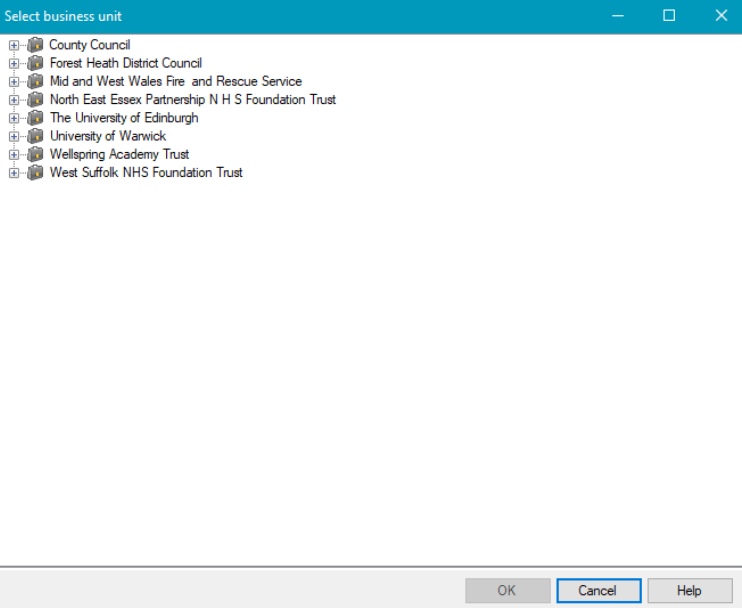
The Select business unit window is displayed.
-
Select the relevant project and then click OK.
Link a Correspondence to a Project
To link a correspondence to a project:
-
Open the relevant correspondence record.
-
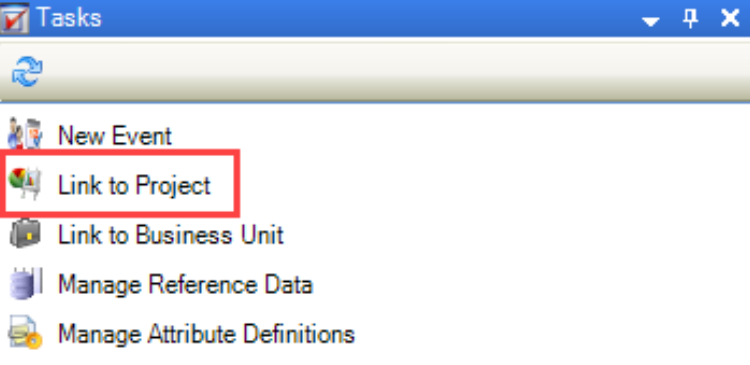
Click the Link to Project option in the Tasks panel.
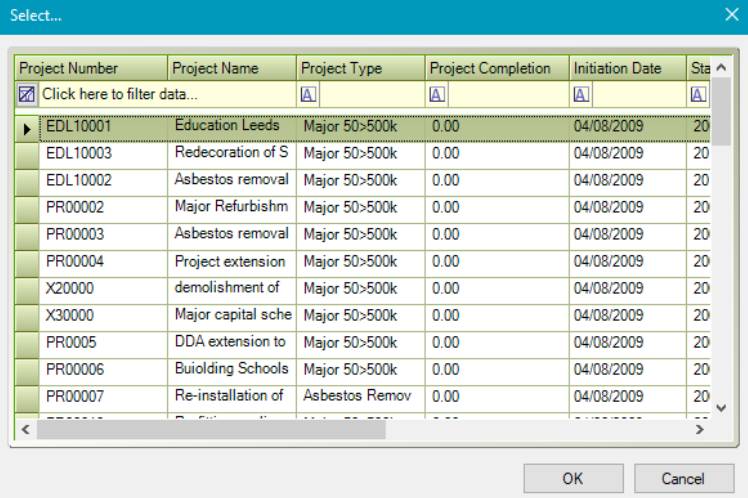
The Select window is displayed.
-
Select the relevant project and then click OK.
Adding or Editing a Correspondence Event
To record a correspondence event:
-
Open the relevant correspondence record.
-
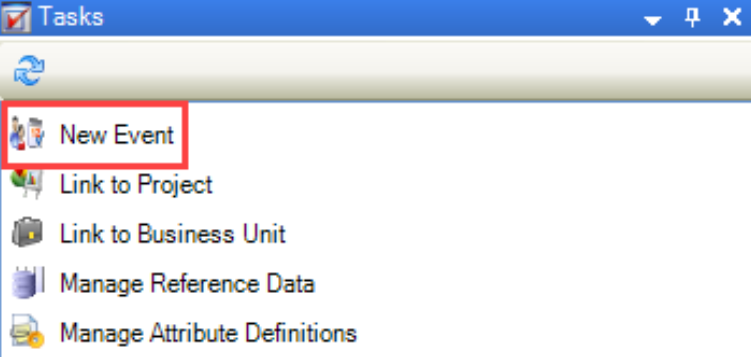
Click the New Event option in the Tasks panel.
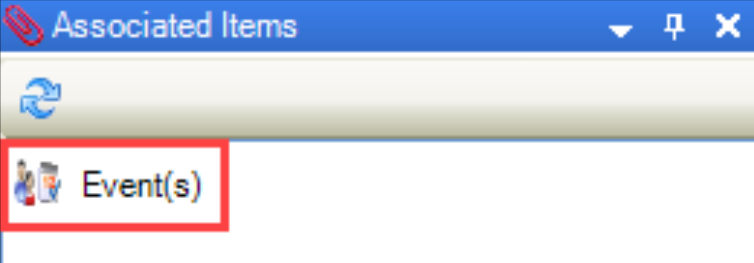
Alternatively, click the Event(s) option in the Associated Items panel and then double-click an existing record to open it.
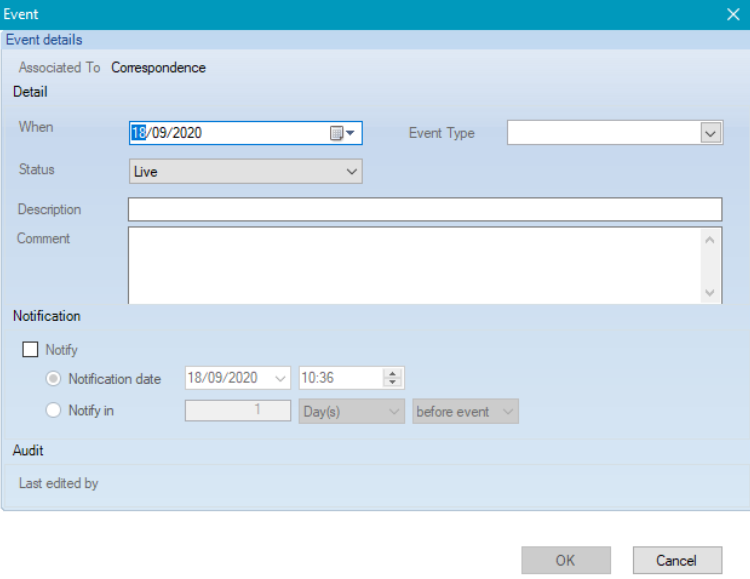
The Event window is displayed.
-
Enter the relevant details.
The fields on the Event window are described in the following table:
|
This field… |
Holds this information... |
|---|---|
|
When |
The date of the event. |
|
Status |
The status of the event. Select from the drop-down list |
|
Event Type |
The type of event. These can be defined in Correspondence Event Type Reference Data (accessed by navigating to Business Continuity > Incident > Incident). |
|
Description |
A description of the event. |
|
Comment |
Any comments on the event. |
|
Notify |
Whether to send the user a notification of the event. Selecting this check box enables the remaining Notification fields, where you can select when to send the notification. |
|
Last edited by |
The user who last edited the event. This cannot be edited. |
-
Click OK.
Related Topics
Click the links below to navigate to the following related topics: