
You can add a linked database to Workflow Manager, where you can build triggers and workflows.
You can manage databases in the following ways:
Attaching a Database
To attach a database in Workflow Manager:
-
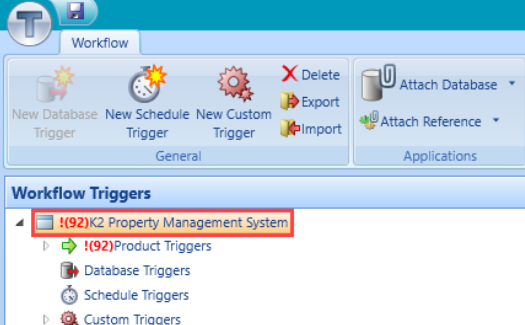
Select the parent-level item in the Workflow Triggers section of the workflow screen.
-
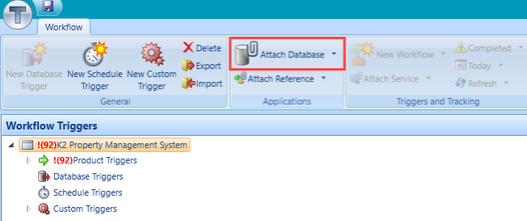
Click the Attach Database button.
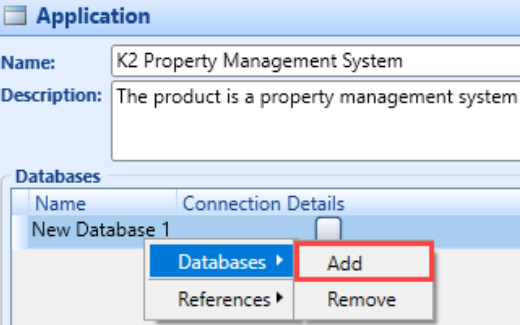
Alternatively, right-click the relevant database (located in the Databases section of the Application panel), click Databases then click Add to add a database.
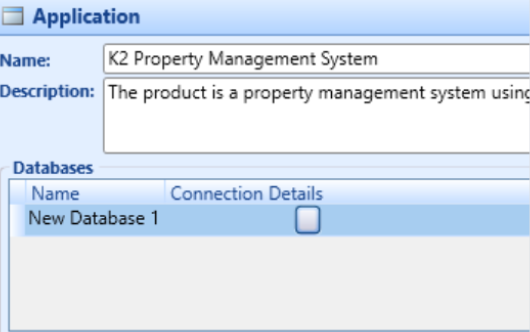
A new database item is added to the Databases section of the Application section.
-
Click the Connection Details button adjacent to the database item.
The Build Connection window is displayed.
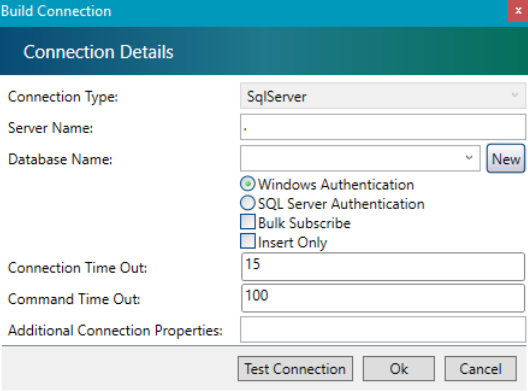
The fields on the Build Connection window are described in the following table:
|
This field… |
Holds this information... |
|---|---|
|
Connection Type |
The database connection type (for example SqlServer). |
|
Server Name |
The database server name. |
|
Database Name |
The database name. Select from the drop-down list. |
|
Windows Authentication |
Whether to use Microsoft Windows Authentication. |
|
SQL Server Authentication |
Whether to use SQL (Structured Query Language) Server Authentication. |
|
Bulk Subscribe |
Whether to bulk subscribe. |
|
Insert Only |
Whether to apply insert only. |
|
User Name |
The SQL Server account user name. |
|
Password |
The SQL Server account password. |
|
Connection Time Out |
The connection time out to the database. |
|
Command Time Out |
The command time out to the database. |
|
Additional Connection Properties |
The additional connection properties. |
-
Click Test Connection.
-
Click OK.
The database connection is added.
Removing a Database
Use caution when deleting a database. All associated workflows are deleted when a database is removed.
To remove a database in Workflow Manager:
-
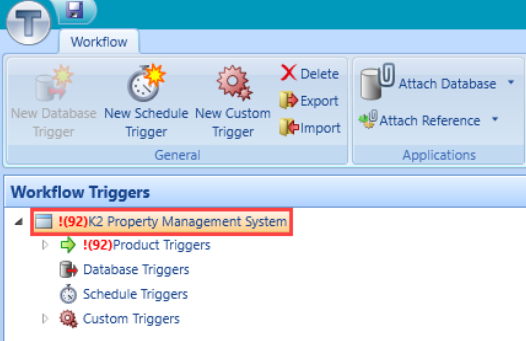
Select the parent-level item in the Workflow Triggers section of the workflow screen.
-
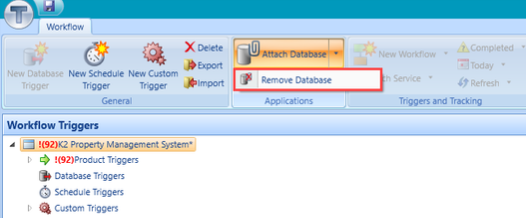
Click the arrow adjacent to the Attach Database button and click Remove Database.
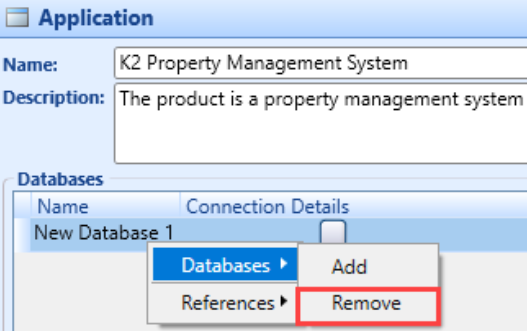
Alternatively, right-click the relevant database (located in the Databases section of the Application panel), click Databases then click Remove to remove a database.
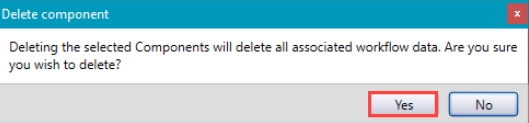
A confirmation message is displayed.
-
Click Yes.
Use caution when deleting a database. All associated workflows are deleted when a database is removed.
The database connection is removed.