Within K2 it is possible to Submit a Valuation for authorisation, authorise or reject a valuation and, once authorised, unauthorise a valuation.
Before using the authorisation process, the Authorisation Matrix and the relevant Authorisation Roles must be set up. If the use of the Rolling Valuation Programme and the Closing of the Valuation Financial Year are required, all valuations must be authorised.
A notification denoting that a valuation has been submitted is generated in the Notifications List for all users who have the required authorisation level.
Select from the following to manage valuation authorisations:
Using Authorisation Manager to Authorise or Reject Valuations in Bulk
You can use Authorisation Manager to authorise or reject valuation submissions in bulk.
To action multiple valuations:
-
Navigate to Estates > Valuation > Valuation Authorisation Manager.
The Valuation Authorisation Manager screen is displayed.

-
Use the Financial Year drop-down and Include Authorised button to amend the results as required.
The Financial Year drop-down only contains valuation financial years that have not been closed. Refer to Valuation Close Financial Year for information on closing valuation financial years.
-
Select the relevant record(s) and then click the Authorise the selected valuation(s) or Reject the selected valuation(s) button.
You can select multiple records using Shift-click (for a series of records), Ctrl-click (for individual records), or Ctrl-A (for all records).
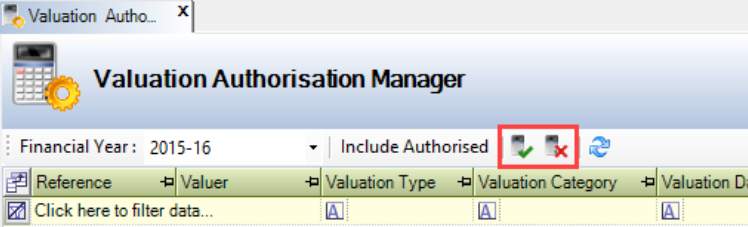
The valuation is then authorised or rejected.
Using the Validation Record to Authorise, Reject, and Unauthorise an Individual Record
To action an individual record:
-
Do one of the following:
-
Click the Validation button in the notification on the Notifications List
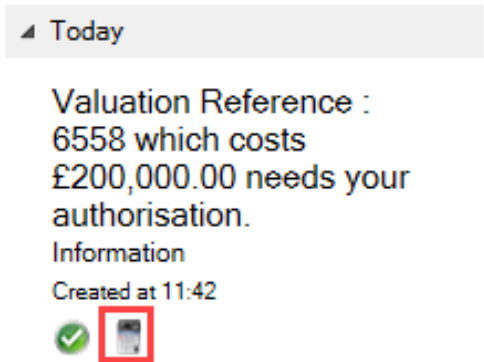
Clicking the green tick on the notification does not authorise the validation. It only dismisses the notification.
-
Search for and open the relevant validation record
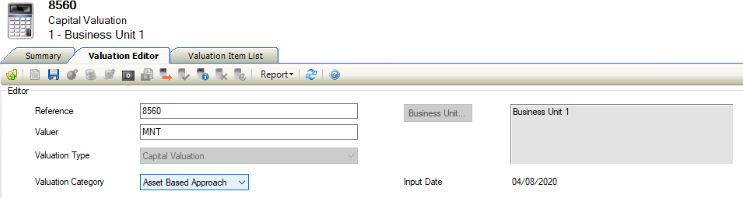
The Validation Editor is displayed.
-
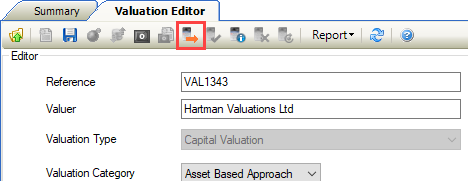
Click one of the action buttons on the menu.
The action buttons on the Validation Editor are described in the following table:
|
This button… |
Does this... |
|---|---|
|
Authorise |
Authorises the valuation and generates a notification in the Notification List. 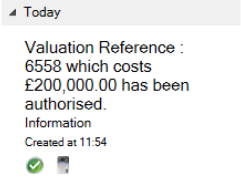
|
|
Valuation Information |
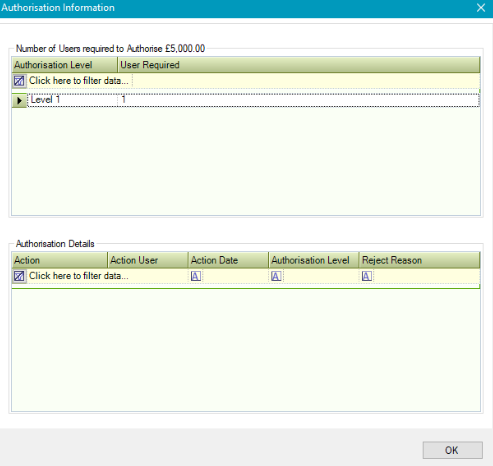
Displays the Authorisation Information window, which details the Action, Action User, Action Date, the Authorisation Level applicable and the Reject Reason (where relevant). 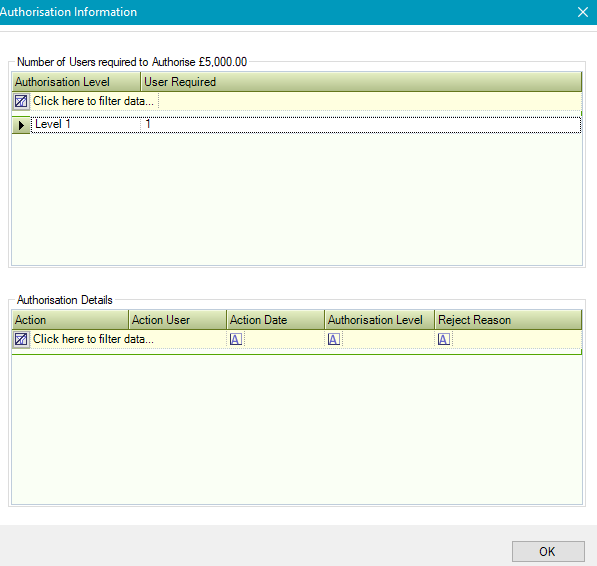
|
|
Reject |
Rejects the valuation and does the following:
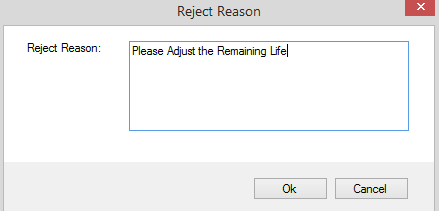
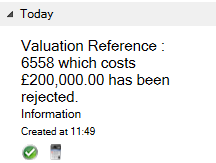
|
|
Unauthorise |
Reverses the authorisation of the valuation. This re-enables the Submit for Authorisation button and allows the valuation record to be edited. |
Viewing Authorisation Information
You can access authorisation information by clicking the Authorisation Information button on the Valuation Editor.
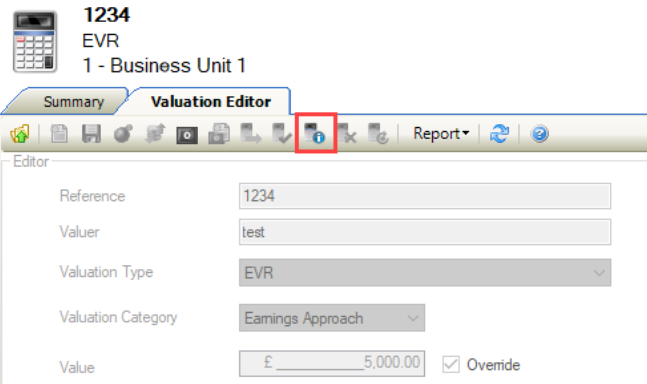
This displays the Authorisation Information window, which displays information on the outcome of the authorisation submission.