
Select from the following to help configure the valuation functionality:
System Settings
-
Create Financial Asset Transaction From Valuation - automatically creates a Financial Asset Transaction against an individual Valuation Item/Calculation
-
Default Demolition Fees - the default demolition fee for a valuation insurance calculation, as a percentage
-
Default Factor - the default factor for a CV-EUV-DRC valuation. The value must be between 0 and 999.99
-
Default Professional Fees - the default professional fee for a valuation insurance calculation, as a percentage
-
Default Validation Multiplier - the default valuation multiplier for insurance valuations. The value must be between 0 and 999.99
-
Default Valuation Rent Years - the default number of years for a valuation insurance calculation. The value must be between 0 and 999.99
The Authorisation Matrix enables multiple levels of authorisation based on the overall value of the valuation. To configure the Authorisation Matrix for valuations:
-
Navigate to Tools > System Options and then click Financial Options.
-
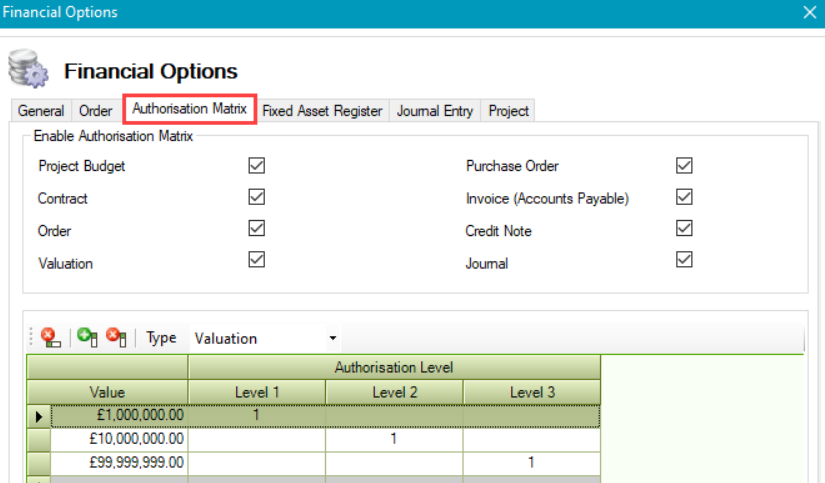
Select the Authorisation Matrix tab and enable the Valuation Authorisation Matrix in the top part of the screen.
-
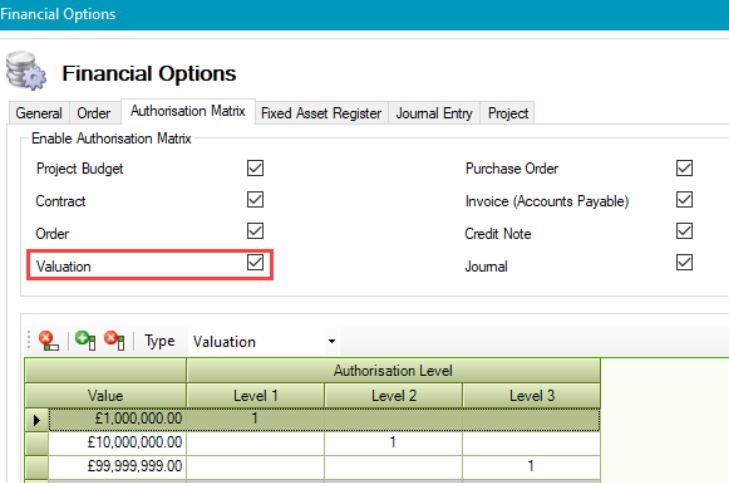
Select the Valuation check box, if not already selected.
-
Select Valuation from the Type drop-down, and then use the adjacent buttons to manage valuation levels.
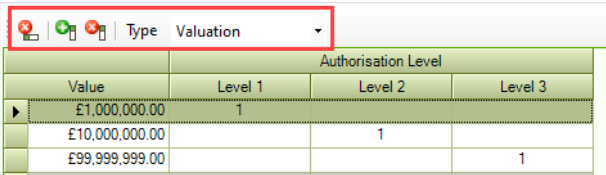
The buttons on the Financial Options screen are described in the following table:
|
This button… |
Does this... |
|---|---|

|
Removes the selected row. |

|
Adds a new authorisation level. |

|
Removes the selected authorisation level. |
-
Enter the number of authorisations required for each value.
There must be at least one level and value specified.
-
Click OK