Projects are used to plan and deliver programmes of work (for example: the planning of upgrades and major repair works to buildings and assets). Projects can be set up with a scope of work, defined tasks and budgetary information. This allows strategic decision-makers and project managers alike to manage a project from its initial stages to completion and target resources effectively.
Use K2 Portal to:
Opening a Project
To open a project, do one of the following:
-
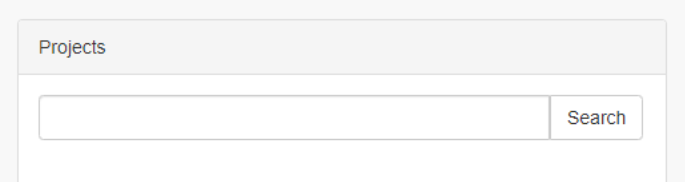
Search for a project using the Projects search bar on the Dashboard.
-
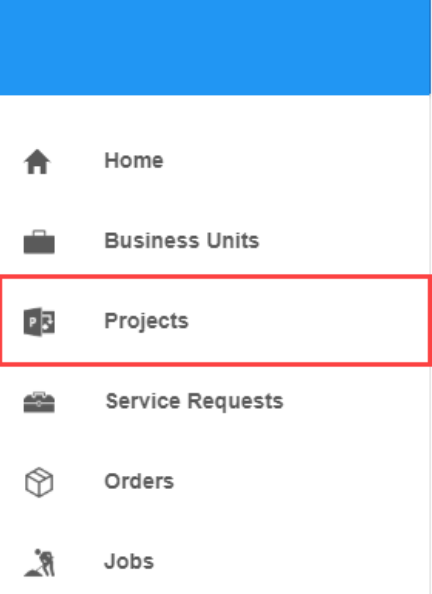
Click the Projects button in the left-hand panel.
-
Click the Projects button at the bottom of the location record.
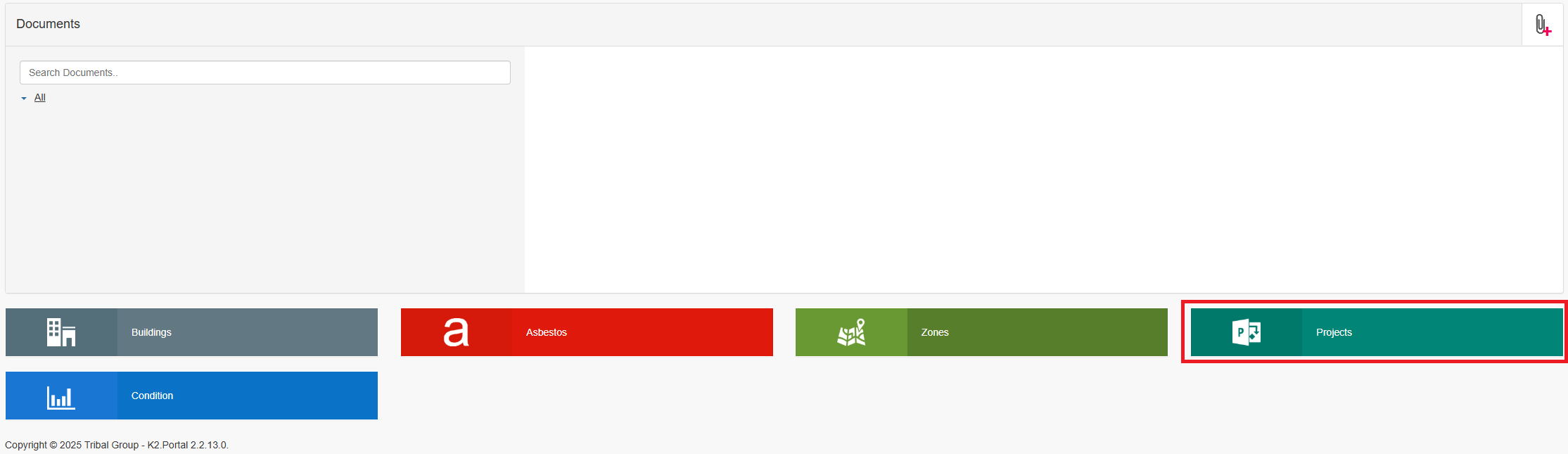
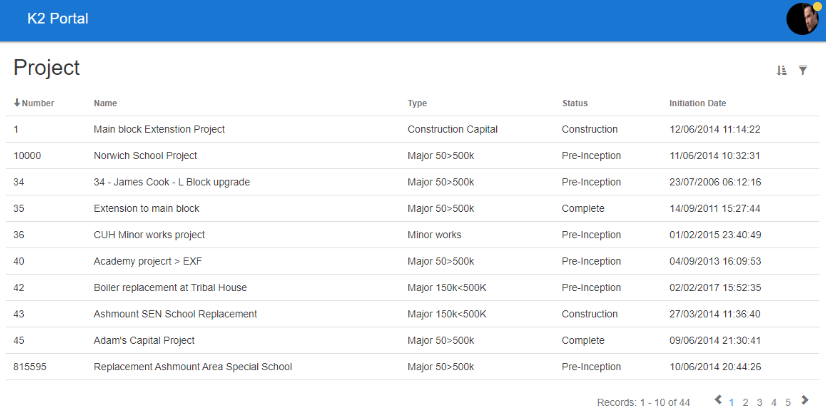
The Project grid is displayed.
-
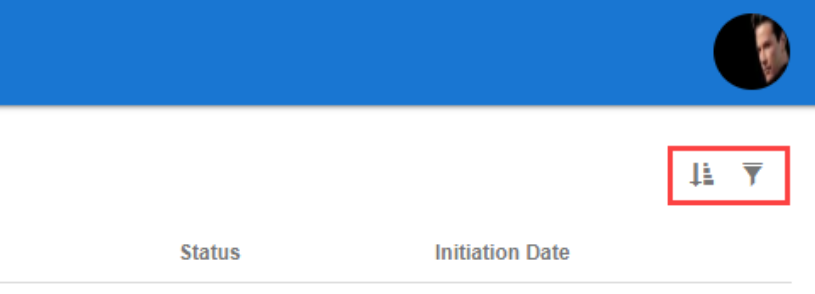
Locate and click the relevant project. If required, use the sort and filter options in the top right-hand corner of the screen to sort or narrow the results.
-
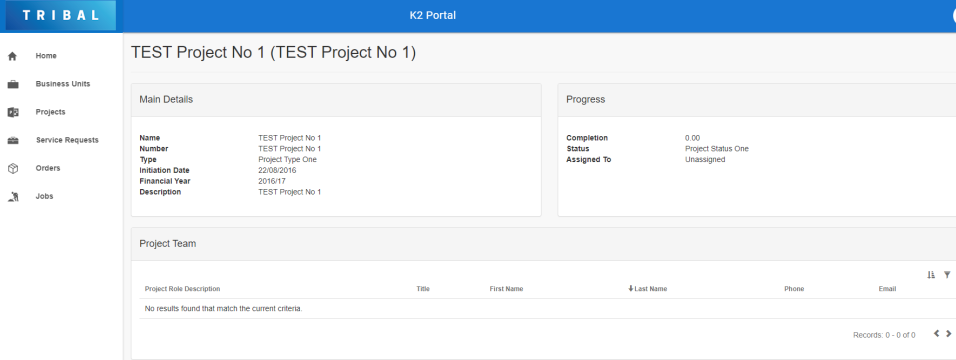
The Project Details screen is displayed.
Viewing the Project Team
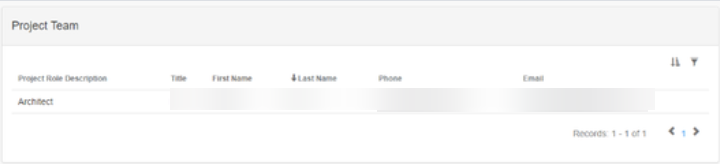
Use the Project Team panel to view all the people linked to the project.
Viewing Project Items
A project can be linked to the following items:
|
|
-
Once an item is linked to the project from K2, it is displayed in the Project Items panel.
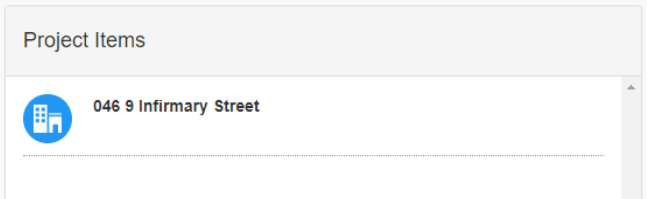
-
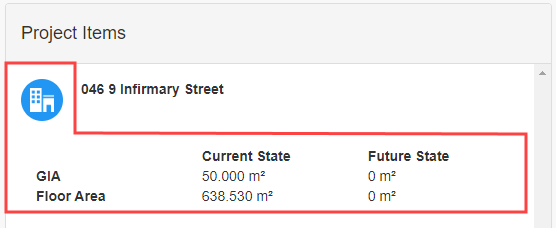
Clicking on a project item icon displays further details on the current state and future state of the linked item.
Managing the Project Forecast
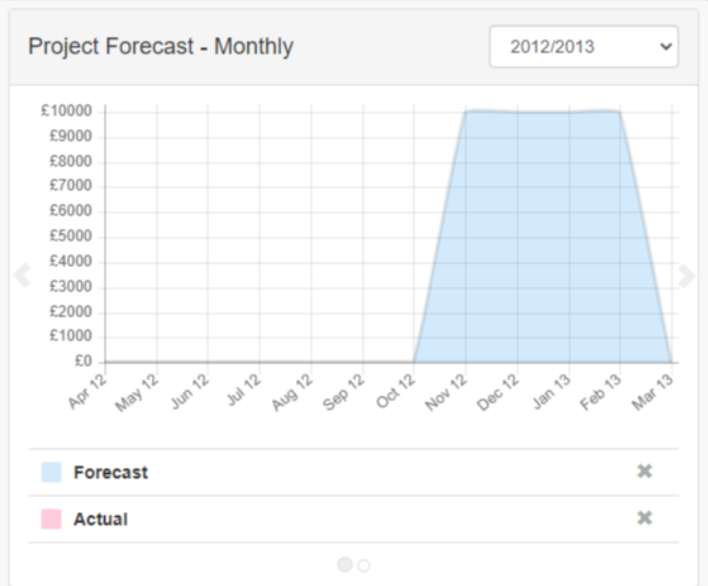
There are two versions of the project forecast panel:
-
A graph which displays the month and year on the x-axis and the forecast value on the y-axis.
-
The Financial Year can be changed by using the drop-down top right of the chart.
-
Use this panel to do the following:
-
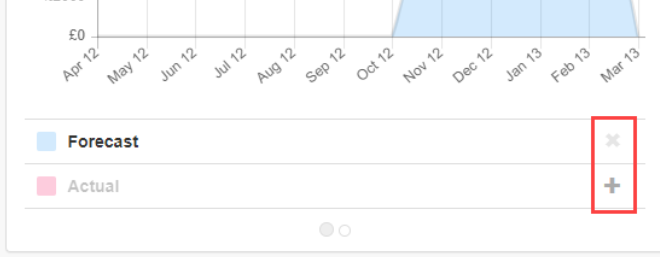
You can show or hide the Forecast or Actual plots by clicking the x button next to the plot name at the bottom of the graph. Clicking the + button next to the plot name will reinstate it.
-
-
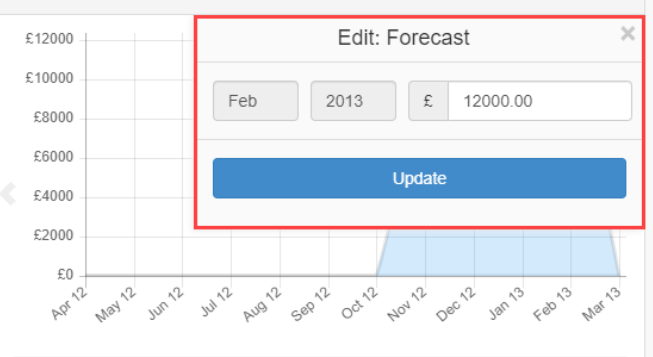
Edit the graph (provided you have the Projects Forecast full permission). With this, you can click on a plot point to display a window where you can enter a new forecast value.
Forecast amounts can only be added within the date ranges defined in the Project Plan.
-
Clicking the Update button immediately displays the new value on the graph.
-
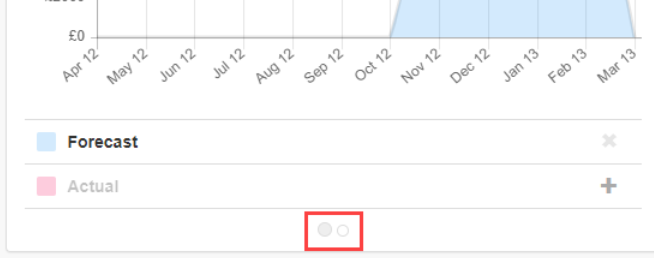
View a year-by-year view of the graph by clicking the toggle buttons at the bottom of the panel.
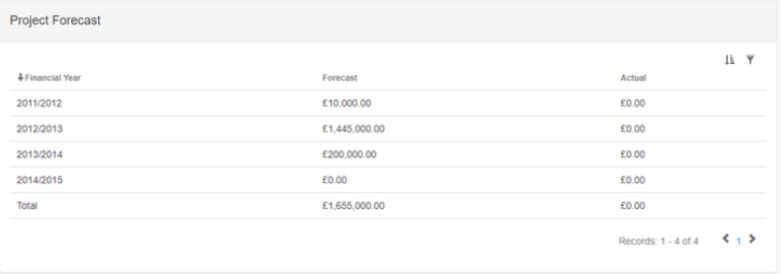
-
A table displaying the same data that is in the graph.
Managing the Project Plan
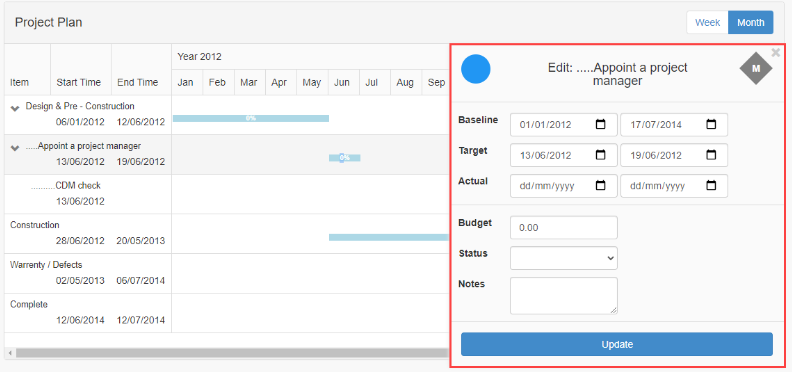
The Project Plan panel displays project plan items and checklist items.
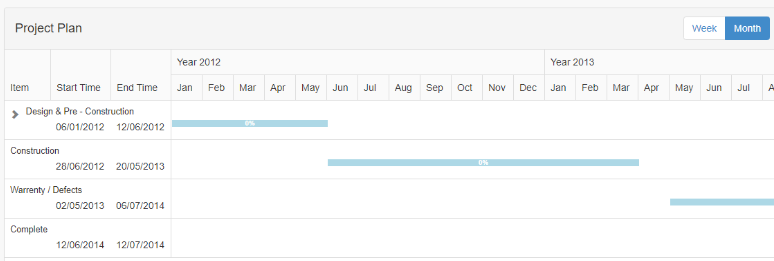
Each plan item is displayed in a separate row. A milestone plan item is displayed as a diamond on the target date specified for the milestone, while a non-milestone plan item is displayed as a progress bar displaying the progress of the plan item within the row.

The default view displayed is a weekly view but can be changed to a monthly view by clicking the Month button in the top right-hand corner of the panel.
The ProjectPlan full permission is required to edit project plans. With this permission, clicking on a plan item row displays the item editor where you can enter or edit the baseline, target, actual start and end dates, budget, status and notes
-
Clicking the Update button saves the changes and updates K2.
Viewing Budget Details
The Budget Detail panel displays the authorised budget(s) allocated to the project.
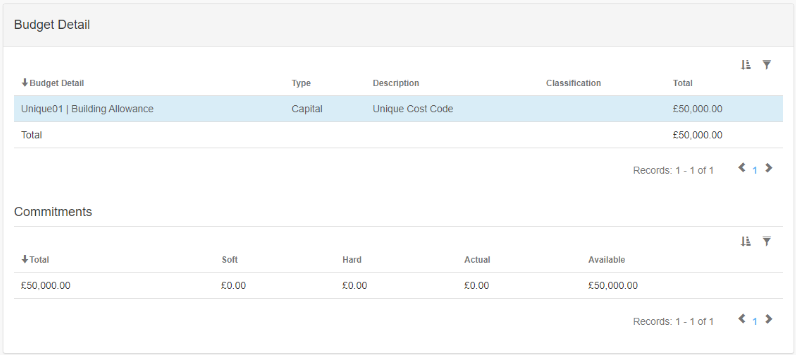
The fields on the Budget Detail panel are described in the following table:
|
This field… |
Holds this information... |
|---|---|
|
Budget Detail |
The budget detail. Depending on the K2 setup, the cost centre and account code details may also be displayed. |
|
Type |
Whether the budget type is capital or revenue. |
|
Description |
The cost centre description. |
|
Classification |
The cost centre classification. |
|
Total |
The total budget allocated to the project. |
The Commitments section displays the soft, hard and actual commitments of the selected budget.
The fields in the Commitments section are described in the following table:
|
This field… |
Holds this information... |
|---|---|
|
Total |
The total budget allocated to the project. |
|
Soft |
The sum of all unauthorised orders linked to the project's contracts. |
|
Hard |
The sum of all authorised orders, minus the value of related authorised invoices linked to the project's contracts. |
|
Actual |
The sum of all authorised invoices, minus the value of related authorised credit notes, raised for orders linked to the project's contracts. |
|
Available |
The available funds. This is the total figure, minus the soft, hard and actual figures. |
The Commitments section and the Hard and Soft fields may be renamed by a K2 administrator.
Attaching Documents to the Project
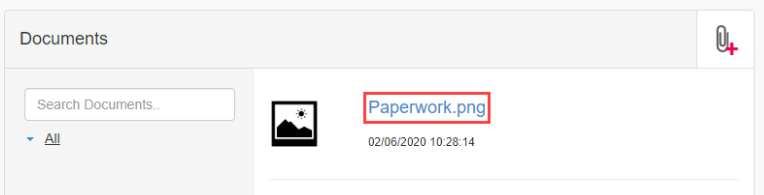
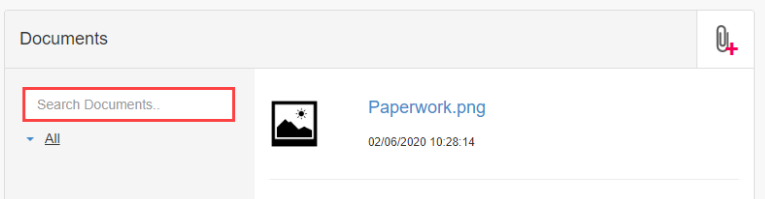
The Documents panel lists all documents attached to the record.
The document protection level set against their user record limits the user's view of documents. There are three levels – Public, Restricted and Confidential. If a user is set to 'Restricted', they cannot view confidential documents.
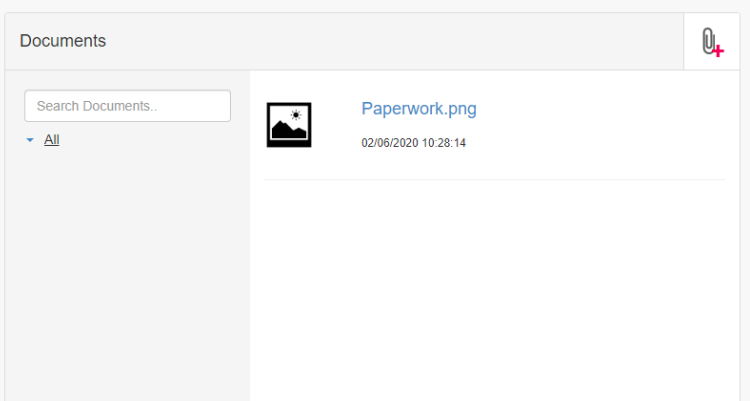
Use the panel to do the following:
-
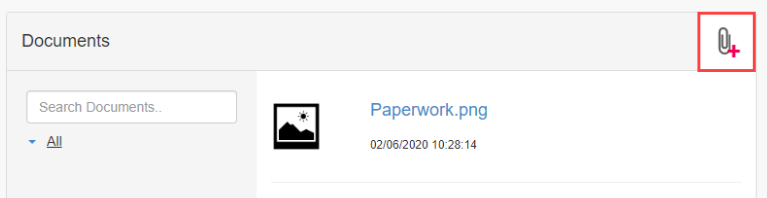
Click the Add Document button to upload a new document.
-
Use the Search Documents field to locate an existing document.
-
Click a document file name link to open the file.