
A business unit is the overall function and purpose of a business or organisation (for example a school). It consists of both physical and logical elements. An organisational hierarchy defines departments and divisions. These different departments may be separated by physical location, in different buildings or areas.
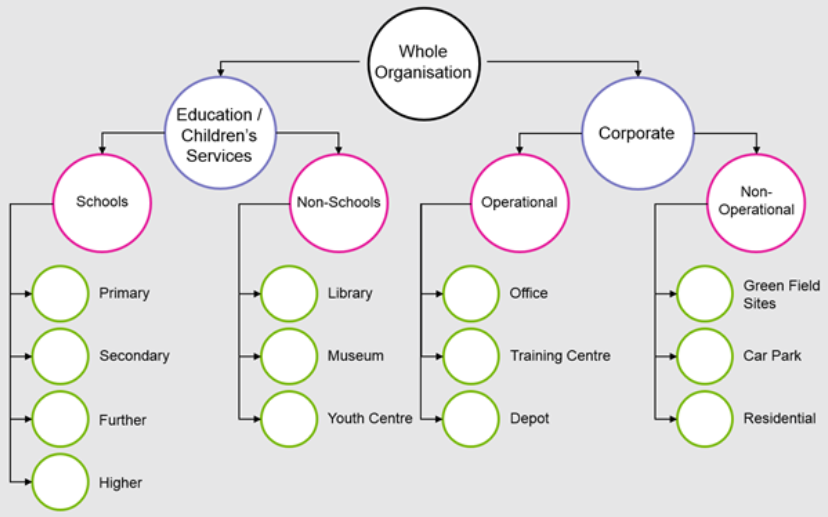
Business units can be broken down further into the following hierarchy of physical structures.
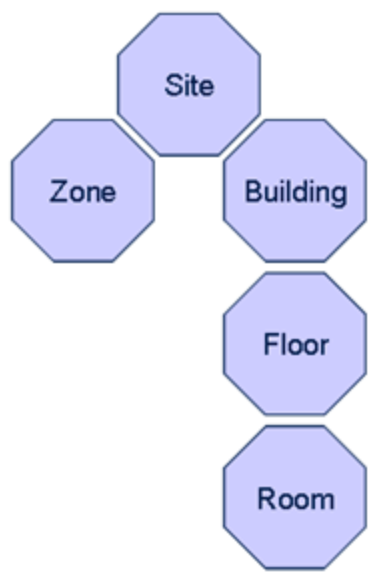
-
Select from the following to manage business unit records:
Opening a Business Unit Record
To open a business unit record, do one of the following:
-
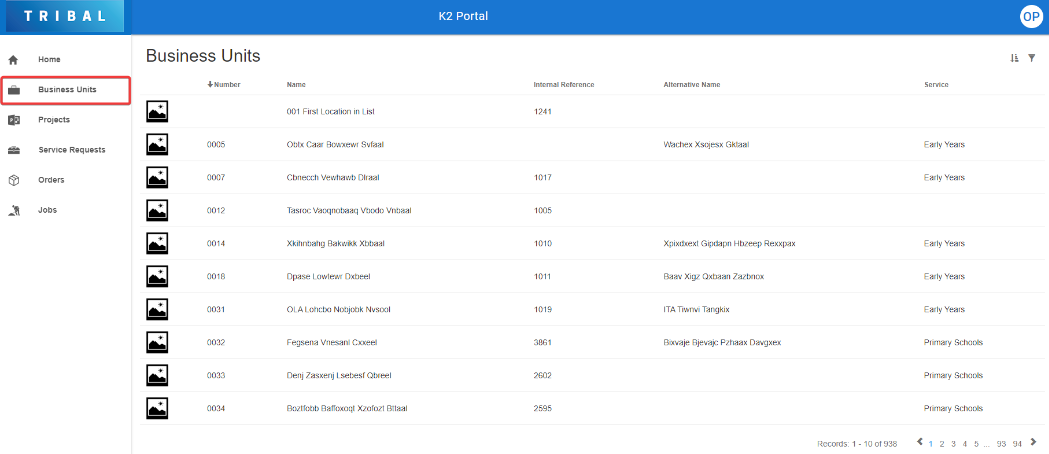
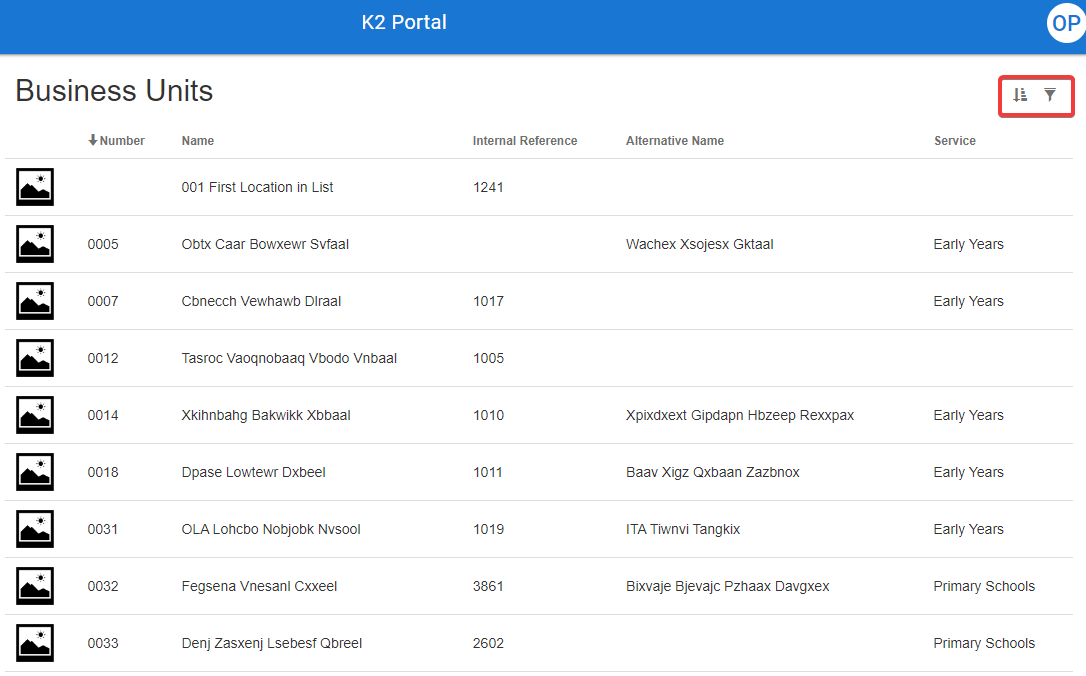
Click the Business Units button in the left-hand panel to view all business units.
-
Search for a business unit in the Business Units panel on the Dashboard to locate a specific business unit.
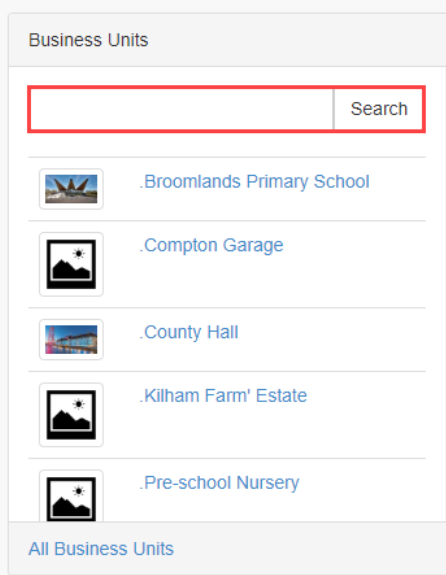
The Business Units screen is displayed with the relevant results.
-
Locate and click the relevant record to open it. If required, use the sort and filter options in the top right-hand corner of the screen to sort or narrow the results.
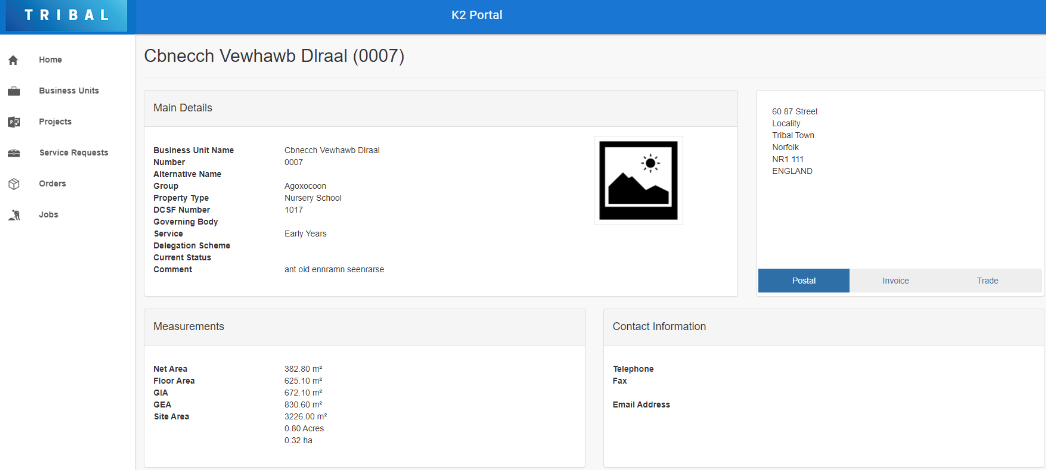
The business unit details screen is displayed. Refer to Viewing Business Unit Details for further information.
Viewing Reports
You can use the Reports panel to generate reports related to the selected record by clicking on the relevant header. These are set in PDF format by default.
Reports can also be displayed by selecting one of the following formats from the drop-down:
-
CSV
-
Excel
-
Word
-
XML
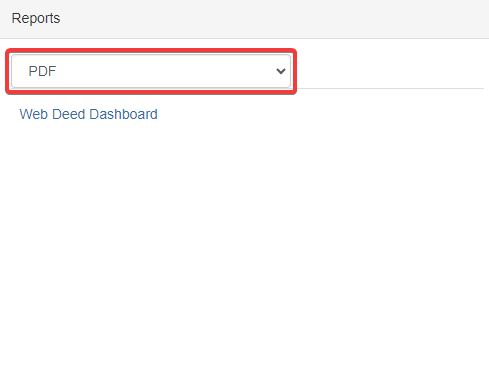
The reports that are available to generate are defined in the Portal Report Publisher in K2 (accessed by navigating to Report > Publishing > Portal Report Publisher).
Recording Data Accuracy
If the Enable Portal RCI Event option in Portal Options (accessed by navigating to Tools > System Options and then clicking the Portal Options button) is set to True, the Data Accuracy panel is displayed. Live issues are marked with a flag, while resolved issues are marked with a tick.
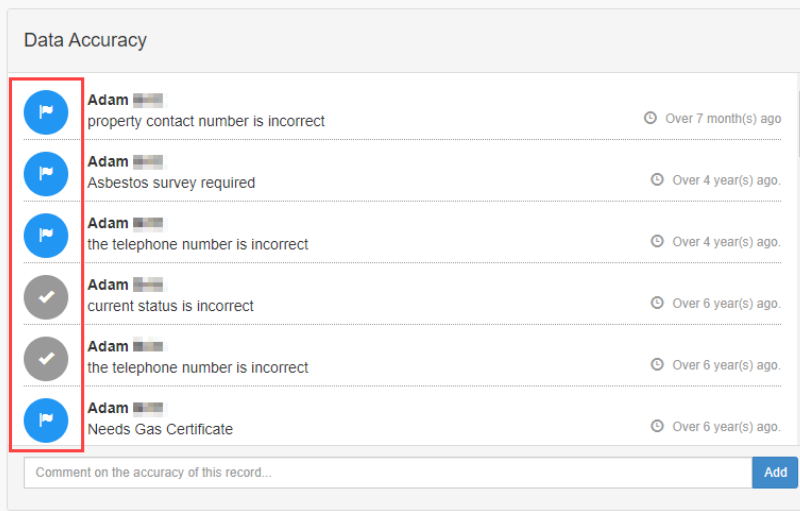
You can raise potential data inaccuracies by entering a comment and clicking the Add button.
This creates a record in the Record Confidence Indicator in K2 with an Application Name of 'Portal'.
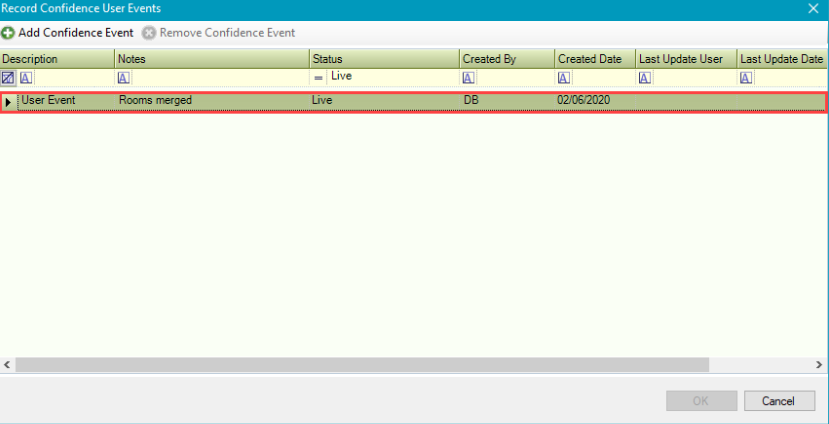
It also reduces the user confidence level by one-sixth.
Managing Documents
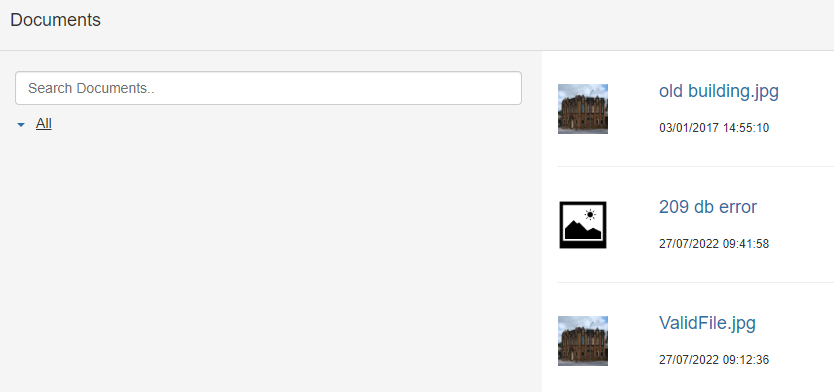
The Documents panel lists all documents attached to the record.
The user's view of documents is limited by the document protection level set against their user record. There are three levels – Public, Restricted and Confidential. If a user is set to 'Restricted' then they cannot view confidential documents.
-
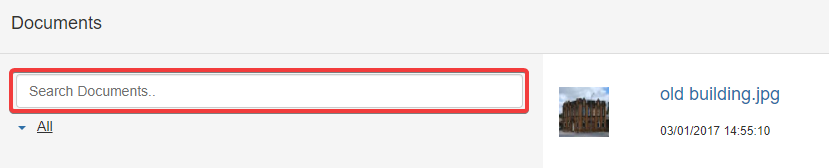
Use the Search Documents field to locate an existing document.
-
Click a document file name link to open the file.
Viewing Condition Details
Condition records can be opened from any location record.
To open a condition record:
-
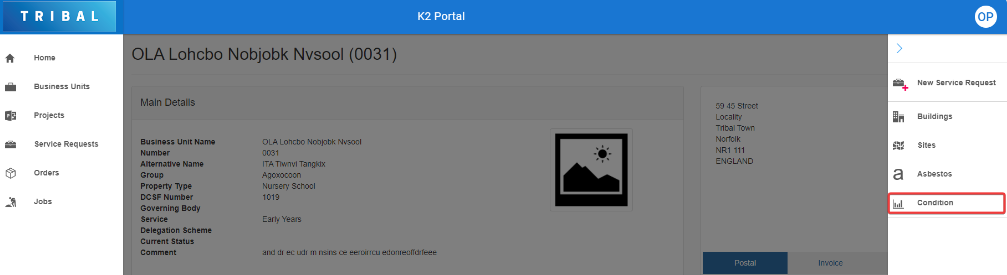
Click the Condition button in the right-hand panel when a location record is open.
Or
-
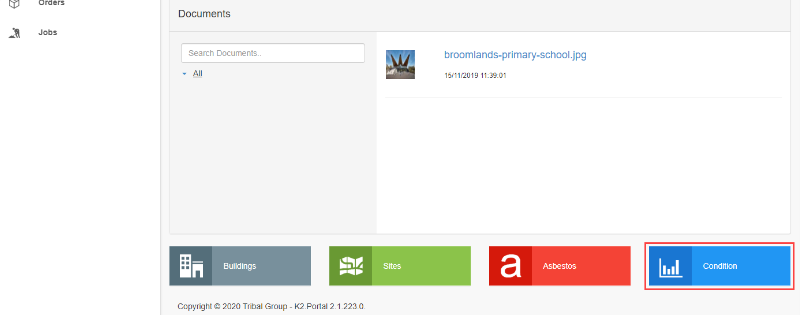
Click the Condition button at the bottom of the location record.
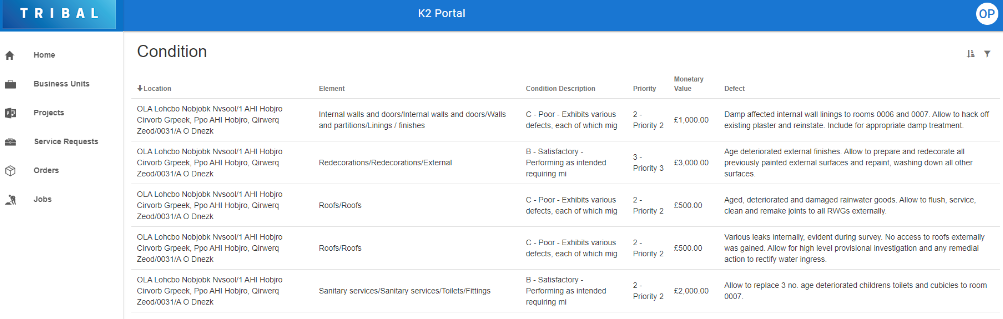
The Condition screen is displayed, which lists all of the condition records for the selected location.
-
Search for and select the relevant Condition Record.
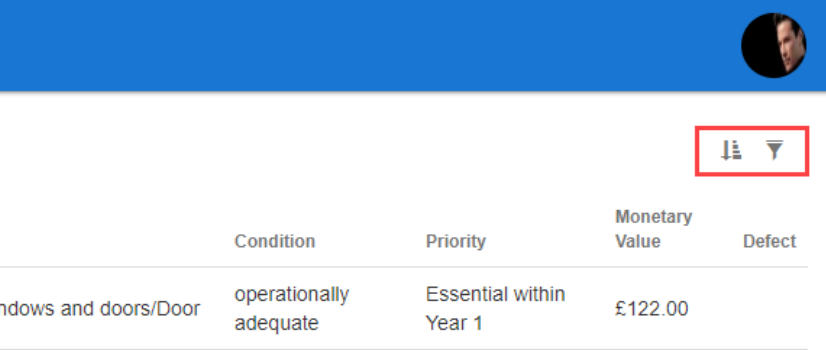
If required, use the sort and filter options in the top right-hand corner of the screen to sort or narrow the results.
-
Check the Condition Details screen is displayed.
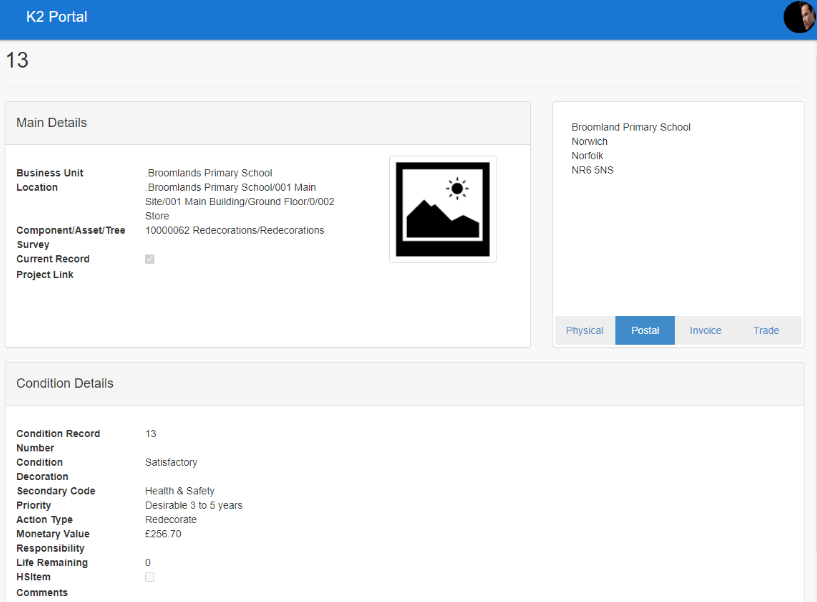
The fields on the Condition Details screen are described in the following table:
|
This field… |
Holds this information... |
|---|---|
|
Business Unit |
The business unit to which the item belongs. |
|
Location |
The location of the item. |
|
Component/Asset/Tree |
The component, asset or tree to which the condition relates. |
|
Survey |
The survey to which the condition relates. |
|
Current Record |
Whether this is a current condition record. |
|
Project Link |
A project reference which has been manually entered into K2. |
|
Physical |
The physical address of where the condition item is located. |
|
Postal |
The postal address of where the condition item is located. |
|
Invoice |
The invoice address of where the condition item is located. |
|
Trade |
The trade address of where the condition item is located. |
|
Condition Record Number |
The record number for the condition. |
|
Condition |
The condition status of the item surveyed. |
|
Decoration |
The condition status of the decoration. |
|
Secondary Code |
An additional code to further define the priority of the condition record. |
|
Priority |
The priority of the item being surveyed. |
|
Action Type |
The action required for the condition item. |
|
Monetary Value |
The value of the condition item. |
|
Responsibility |
The party responsible for the condition of the item. |
|
Life Remaining |
The number of years remaining that the item has in its current condition. |
|
HSItem |
Whether the item is a health and safety item. |
|
Comments |
Any comments on the condition item? |
Related Topics
Click the links below to navigate to the following related topics: