
Navigating to Tools > System Options displays the Options screen.
You need a role with the SystemOption permission to access this screen.
To view or edit settings:
-
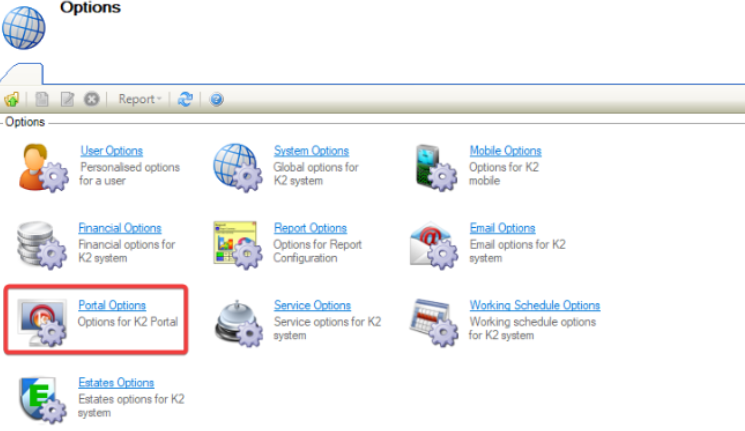
Click on Portal Options.
General
-
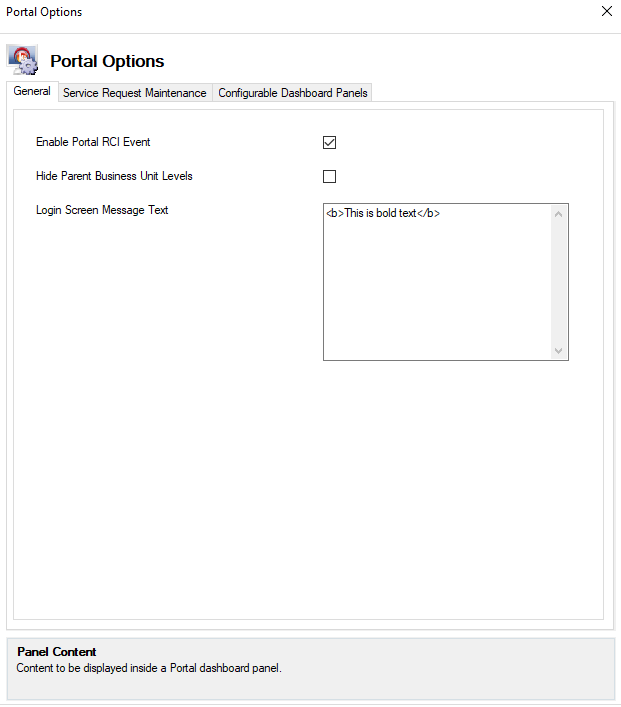
Check that the Portal Options field is displayed and defaults to General on opening.
-
Check that the Enable Portal RCI Event has been selected by default.
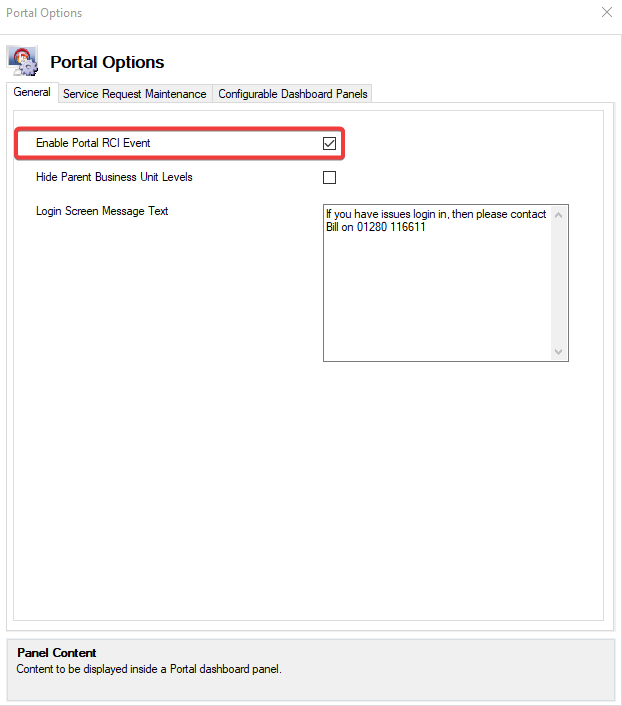
The fields on the General tab are described in the following table:
|
This field… |
Holds this information... |
|---|---|
|
Enable Portal RCI Event |
If selected, enables RCI events to be displayed in the Portal under Data Accuracy. |
|
Hide Parent Business Unit Levels |
If selected, will hide Parent Business Unit levels that are not mapped to the user within the Business Unit tree. Only mapped Business Units will return in the MVC Portal. |
|
Login Screen Message Text |
If selected, will enable the user to create a login message, limited to 200 characters. 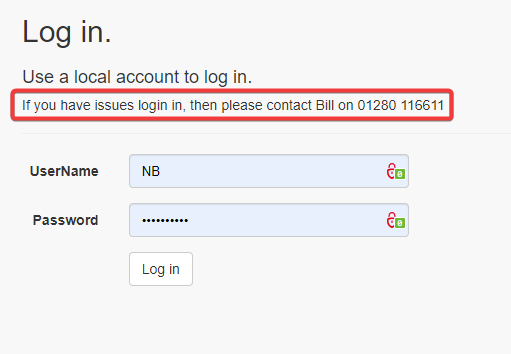
Screen Message is blank, no message will be displayed on the login screen. |
Service Request Maintenance
-
Click on the Service Request Maintenance tab.
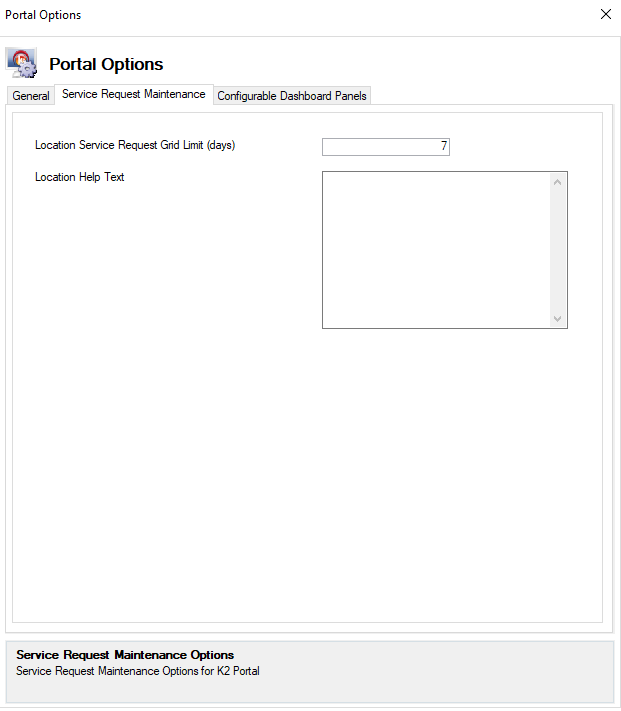
The fields on the Service Request Maintenance Options tab are described in the following table:
|
This field… |
Holds this information... |
|---|---|
|
Location Service Request Grid Limit (Days) |
The number of days before and after the current date that Service Requests are displayed in the Portal against a location. The limit can be set from 1 to 30 days. |
|
Location Help Text |
Help text added to inform users how to search for Service Request Locations in the Portal when raising a new request. If left blank, no help is shown. |
Configurable Dashboard Panels
-
Refer to Using the Dashboard then Custom Panels
-
Click on the Configurable Dashboard Panels tab.
These panels are not enabled by default.
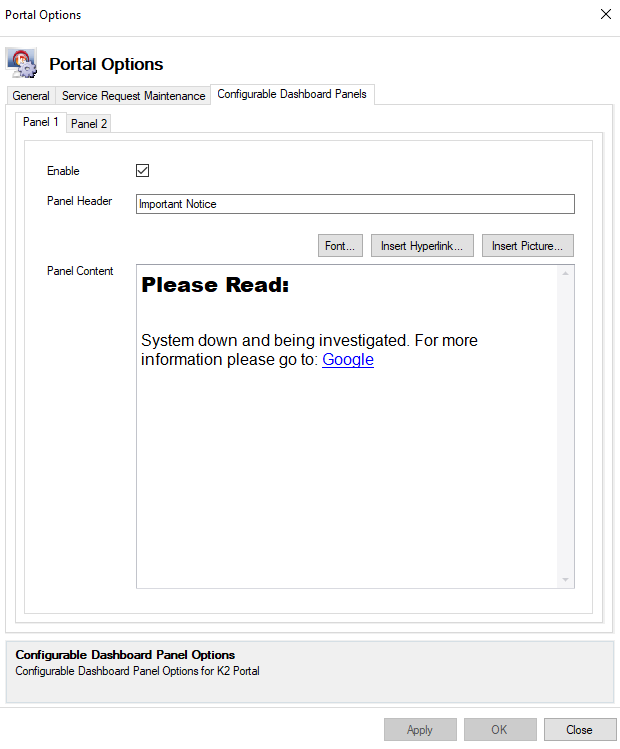
The fields on the Configurable Dashboard Panel Options tab are described in the following table:
|
This field… |
Holds this information... |
|---|---|
|
Enable |
If selected this enables Panel Content to be displayed. |
|
Panel Header |
Name used for the panel. |
|
Font |
Font field is displayed. Font, Font Style, Font Size, Colour, and Underline Style can be selected from the drop downs. 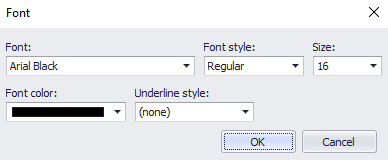
|
|
Insert HyperLink |
Insert HyperLink field is displayed. Text to display and address can be added. 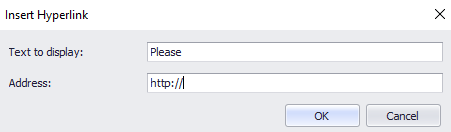
|
|
Insert Picture |
Picture can be selected and displayed on the panel.
|
|
Panel Content |
Displays the panel content selected. |