
To view or edit settings:
Either
Navigating to Tools > System Options displays the Options screen.
Or
Navigate to Tools.
You need a role with the UserOption permission to access this screen.
-
Click on User Options.
The User Options field is displayed and defaults to Options on opening.
Values displayed in regular font are system defaults, while values displayed in bold are not the default value.
-
Click on one of the following icons to categorise the user options.
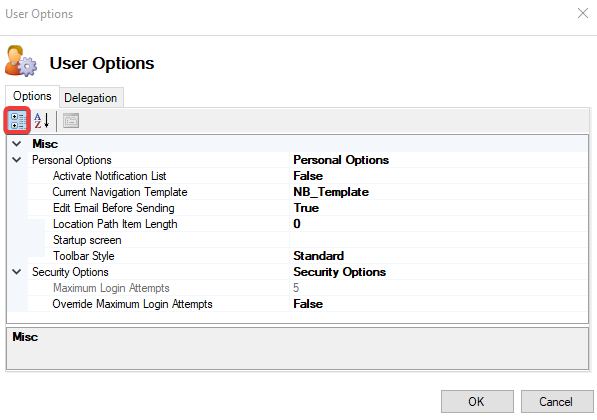
Misc
|
This field… |
Holds this information... |
|---|---|
|
Admin Options |
Displays options stored against each user which can only be changed by a system administrator. Admin Options only appear if the user has the System Administrator Permission Role assigned 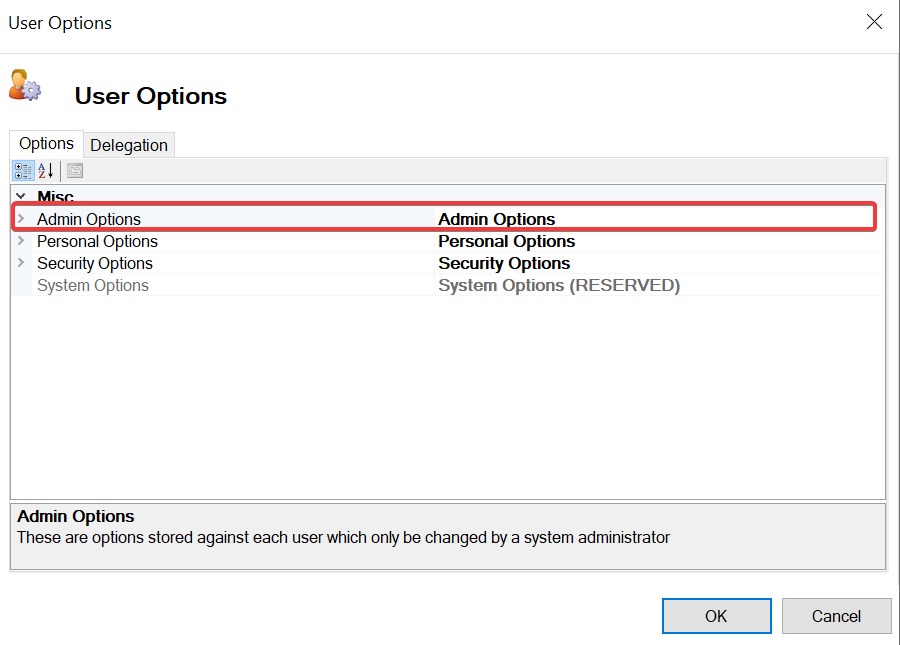
|
|
Personal Options |
Displays options that each user can change to personalise the application. 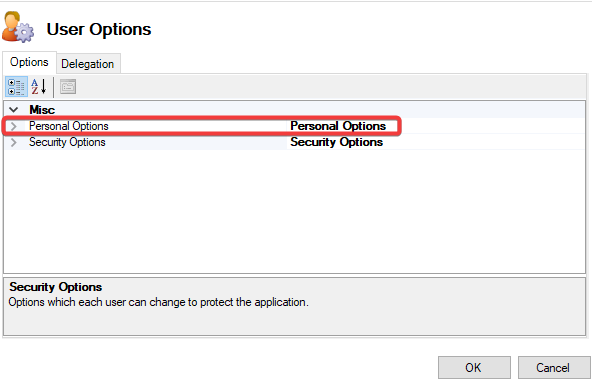
|
|
Security Options |
Displays options that each user can change to protect the application. 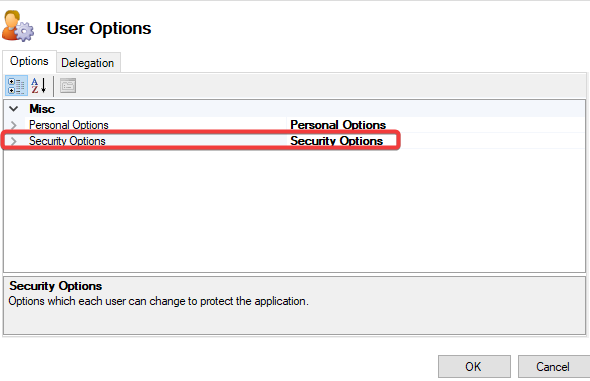
|
Admin Options
Admin Options only appear if the user has the System Administrator Permission Role assigned
|
This field… |
Holds this information... |
|---|---|
|
Is Offline User |
When true, user can work offline and uses a local data store. 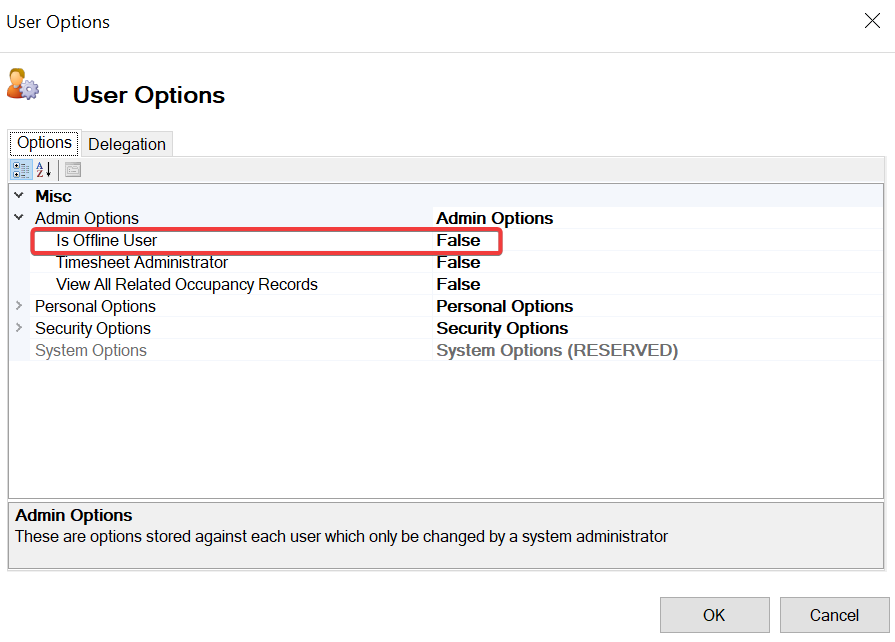
|
|
Timesheet Administrator |
When true, it allows a user to record timesheets for all direct labour operatives. 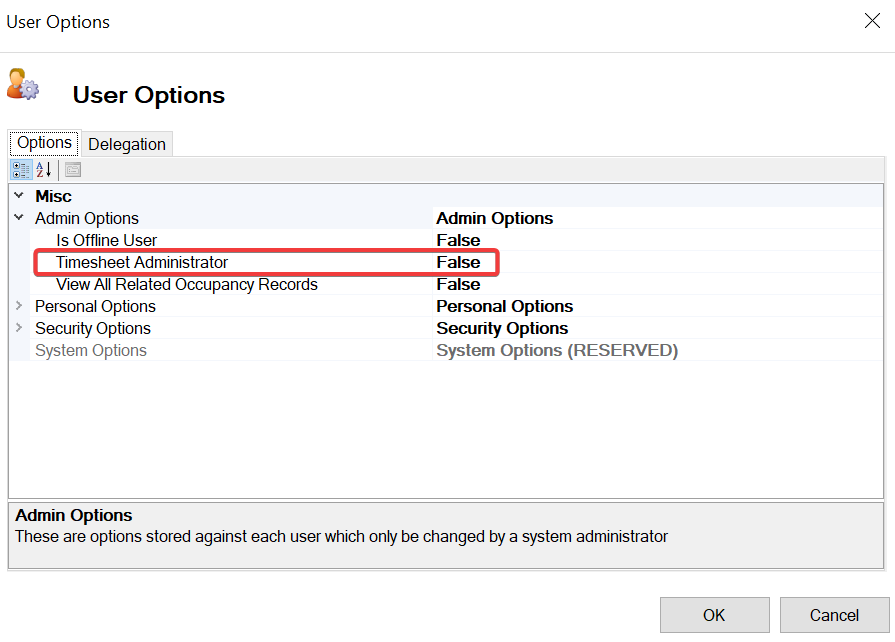
|
|
View All Related Occupancy Records |
When true, allows the user to see all locations that have related occupancy records against them, regardless of whether or not the user is directly linked to them. 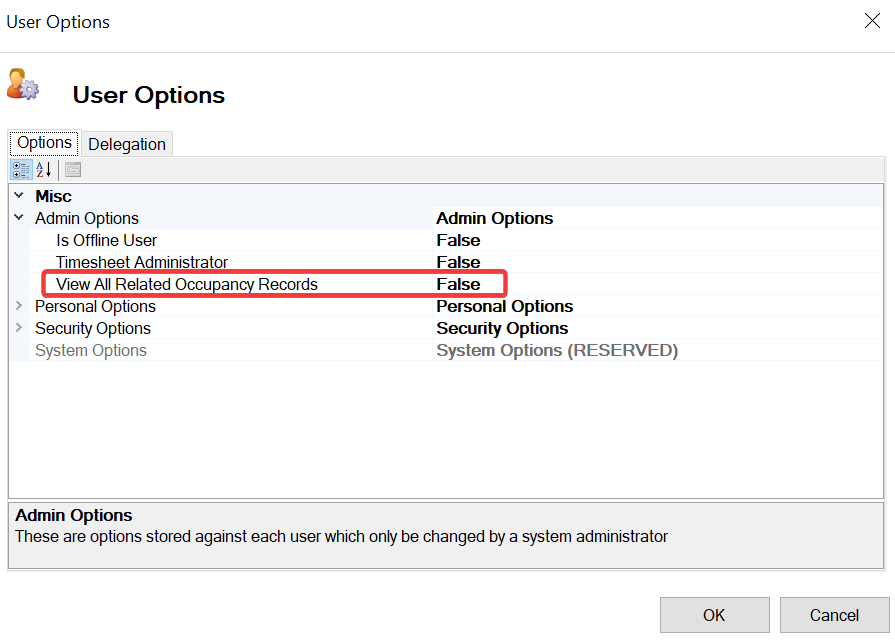
|
Personal Options
|
This field… |
Holds this information... |
|---|---|
|
Activate Notification List |
When true, displays all notifications and reminders. 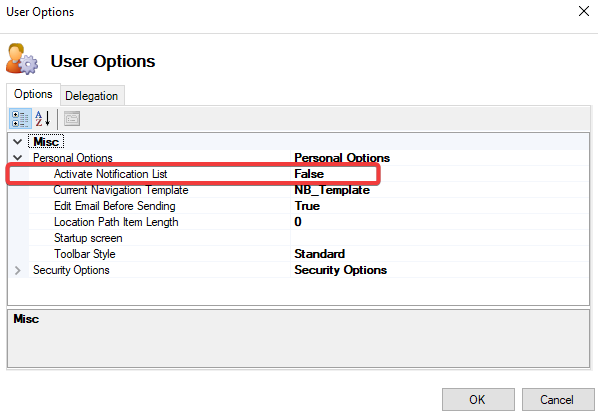
|
|
Current Navigation Template |
Displays the preferred configuration template. 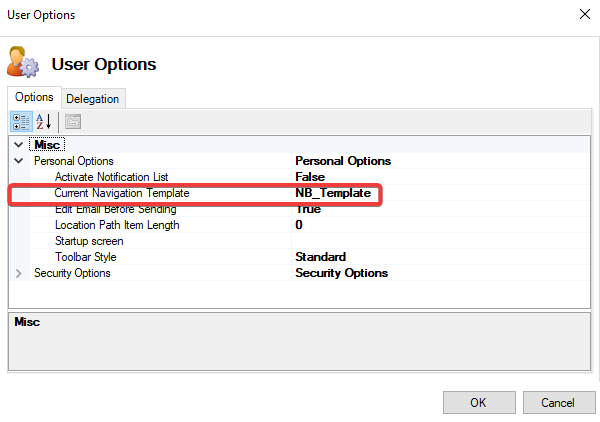
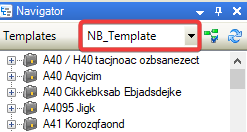
This only applies to main navigator tree when application starts up. |
|
Edit Email Before Sending |
When true, allows user to edit emails before sending. 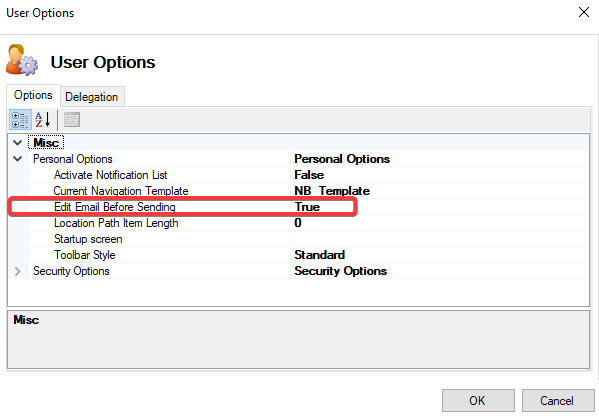
|
|
Location Path Item Length |
Sets the maximum text length for each item in the location path displayed in the Navigation bar at the top of the main screen. 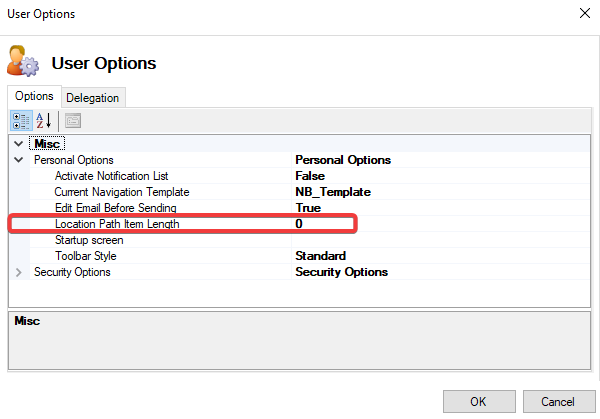

|
|
Start Up Screen |
Displays the initial screen/environment when user logs into application. 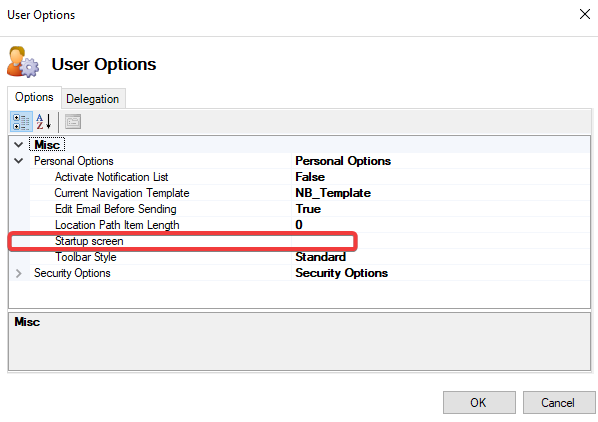
Where default is blank, main welcome screen is displayed. |
|
Tool Bar Style |
When set, displays the standard windows menu bar or the Office 2007 style. 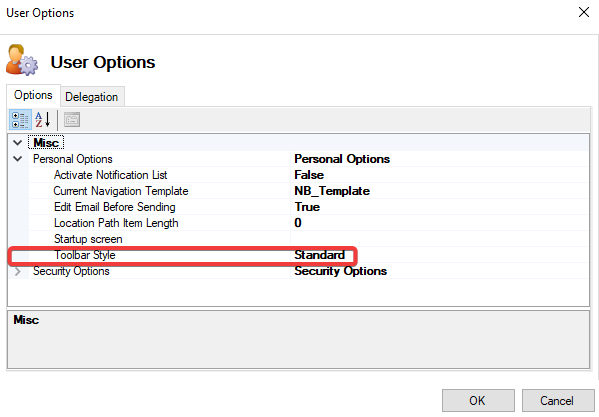

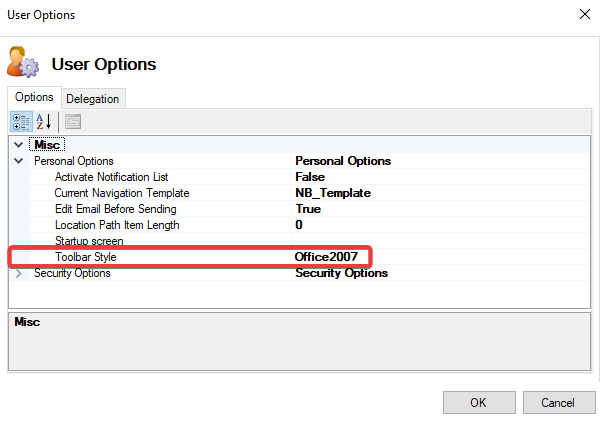

This will take effect when you next login. |
Security Options
|
This field |
Holds this information... |
|---|---|
|
Maximum Login Attempts |
The number of login attempts per user before their account becomes disabled. 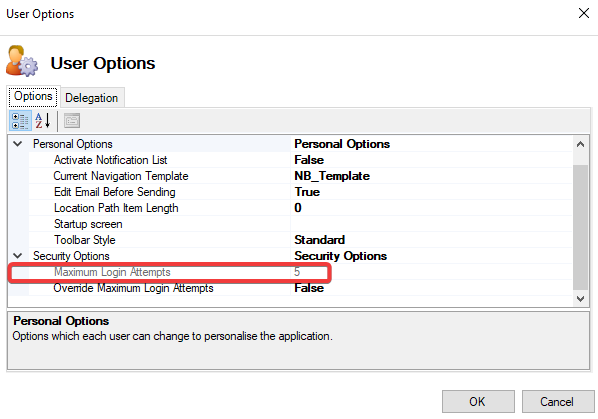
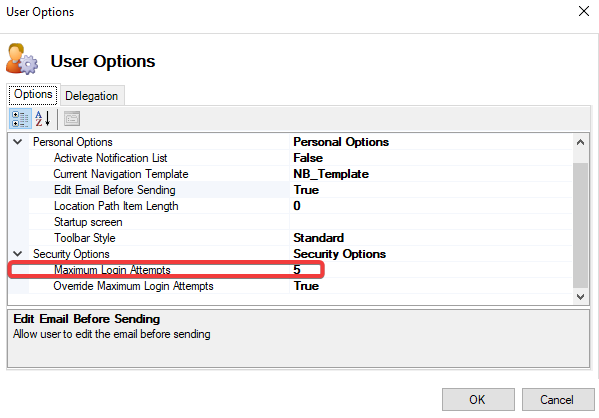
When Override Maximum Login Attempts is set to false, the Maximum Login Attempts is read-only. |
|
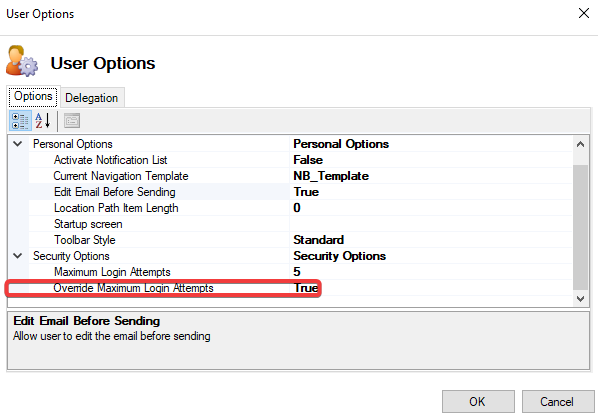
Override Maximum Login Attempts |
When set to true, overrides the maximum login attempts required to log into K2. 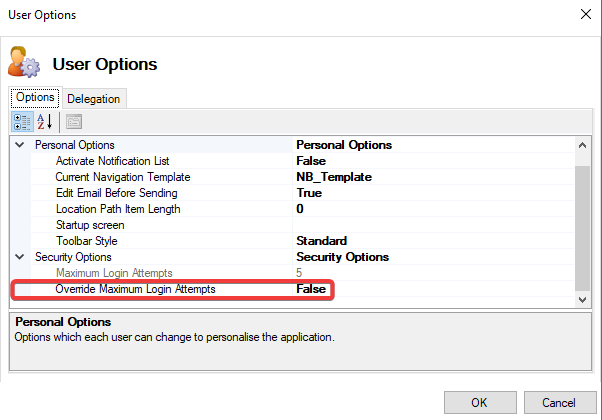
|
Delegation
-
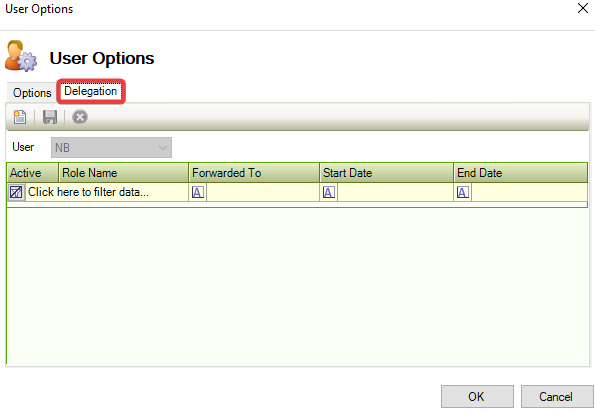
Click on the Delegation tab.
-
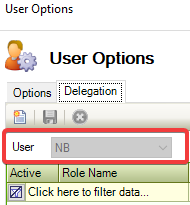
Check that User details are displayed and cannot be edited.
-
Click on the New icon.
The Notification Delegation field is displayed.
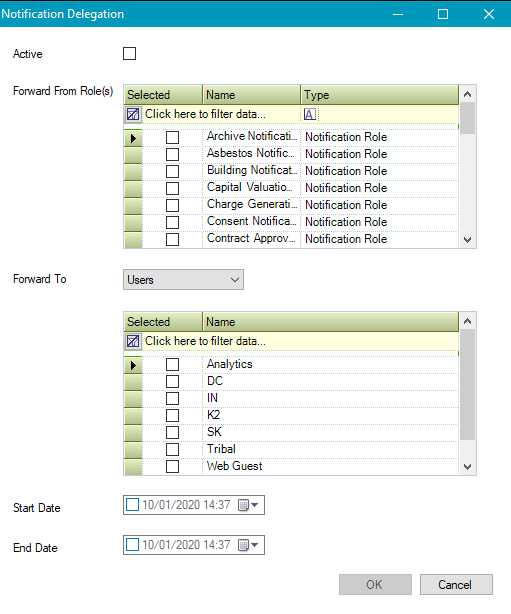
Enter or edit the relevant details.
-
Click OK on the Notification Delegation window, and then on the User Options window.