
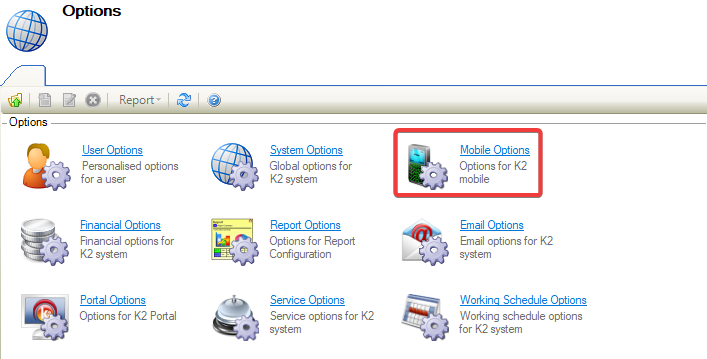
Navigating to Tools > System Options displays the Options screen.
You need a role with the SystemOption permission to access this screen.
To view or edit settings:
Refer to Configuring Mobile then Mobile Options
-
Click on Mobile Options
-
The Mobile Options field is displayed and defaults to Options on opening.
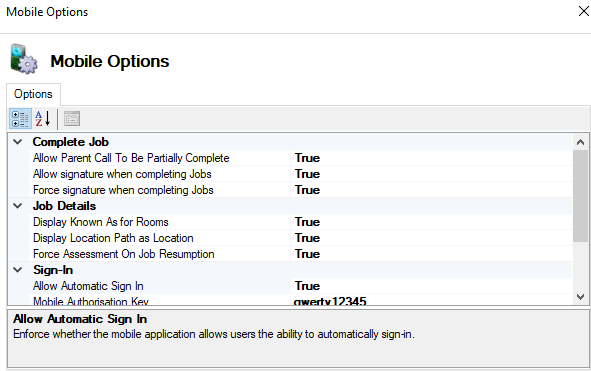
Values displayed in regular font are system defaults, while values displayed in bold are not the default value.
-
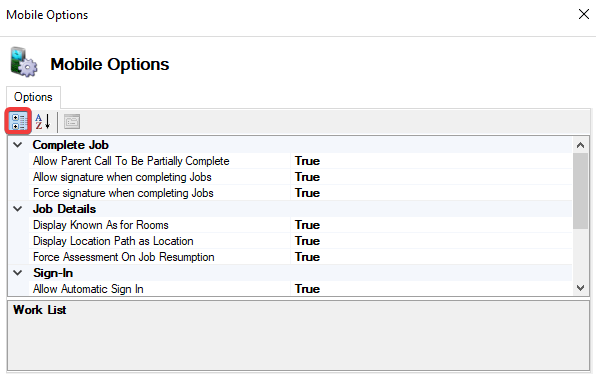
Click on one of the following icons.
-
Categorises the list of Mobile Options.
-
-
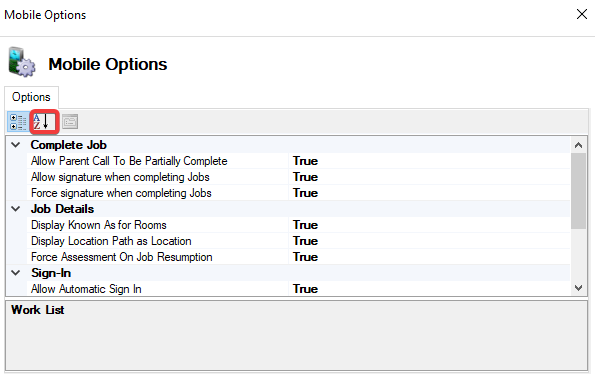
Click on one of the following icons.
-
Sets the Mobile Options into alphabetical order.
-
The fields for Mobile Options are described in the following table:
|
This field… |
Holds this information... |
|---|---|
|
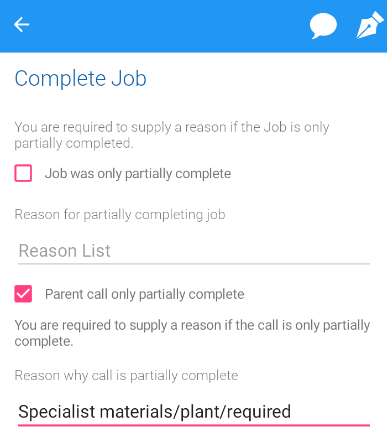
Allow Parent Call to be partially complete. |
Allows the mobile application to set a Jobs parent call to be partially complete. 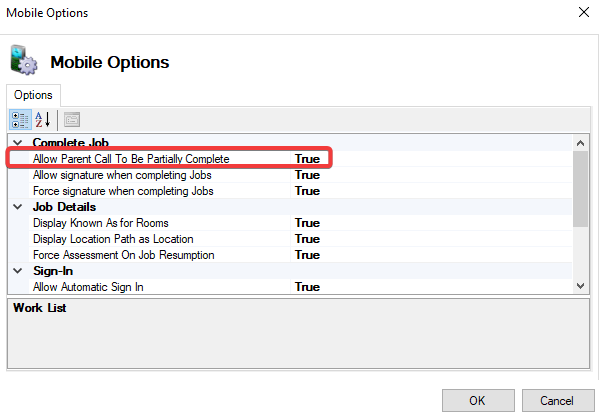
|
|
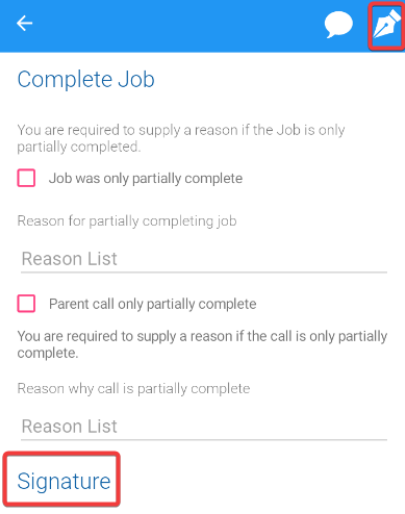
Allow signature when completing jobs. |
When True, a signature can be input during job completion. 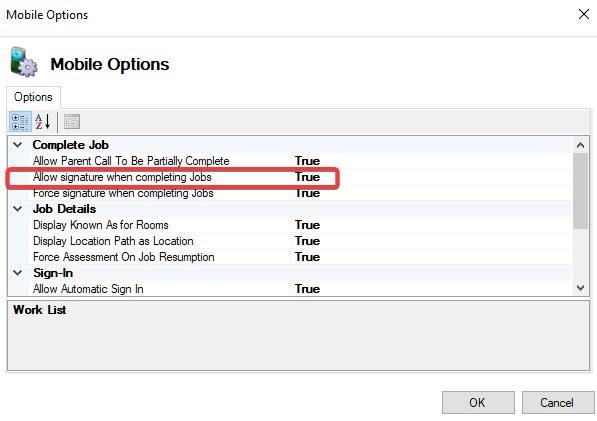
|
|
Force signature when completing jobs. |
When true, a signature must be input during Job completion. Once a signature has been added, the Complete button will appear. 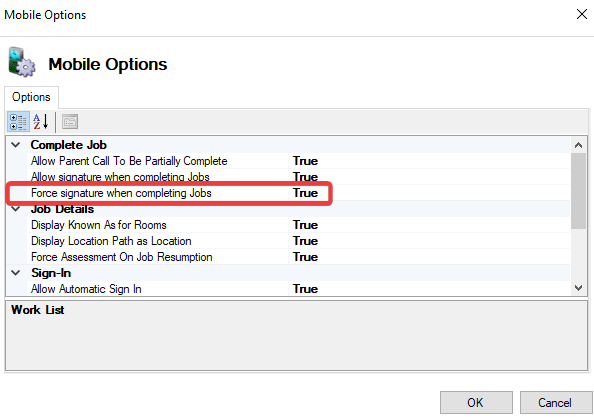
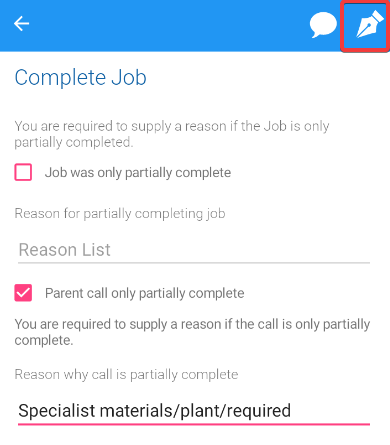
This option can only be enabled when Allow Signature has been set to true. |
|
Display Known As for Rooms. |
When set to True, the Known as Field will display in the Address for all jobs linked to rooms. 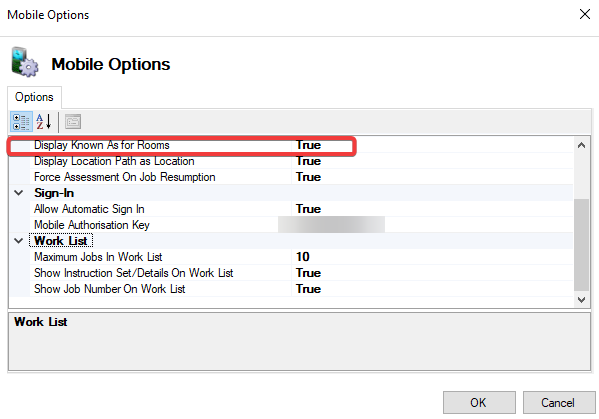
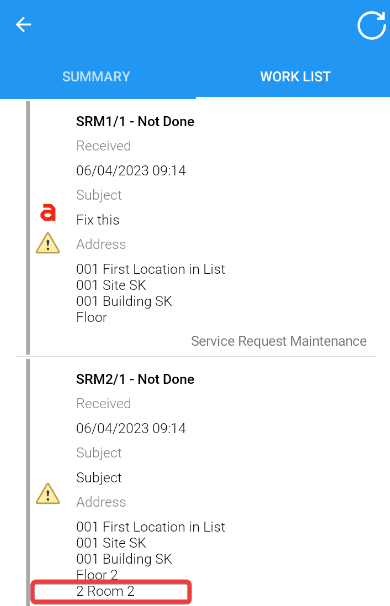
|
|
Display Location Path as Location. |
Both Location Path and Location Address will be displayed with Location Path taking precedence when set to True. 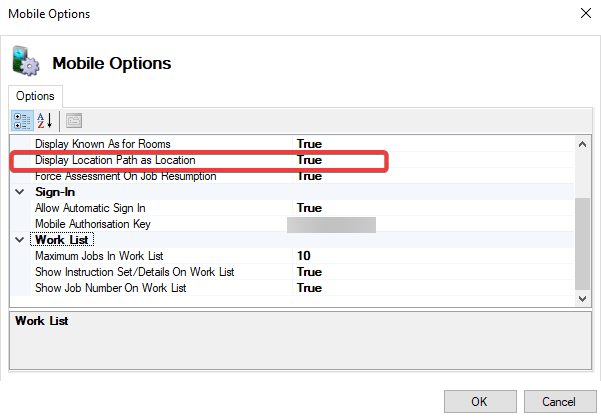
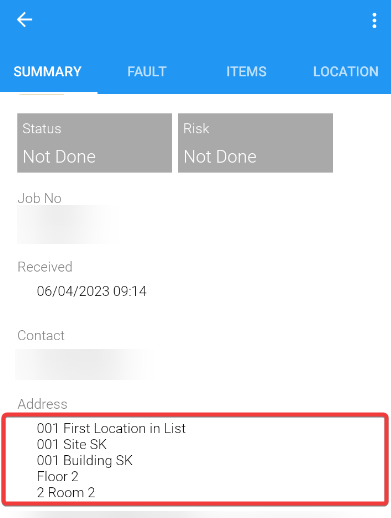
Location Address will be displayed where Display Location Path as Location has been set to False. |
|
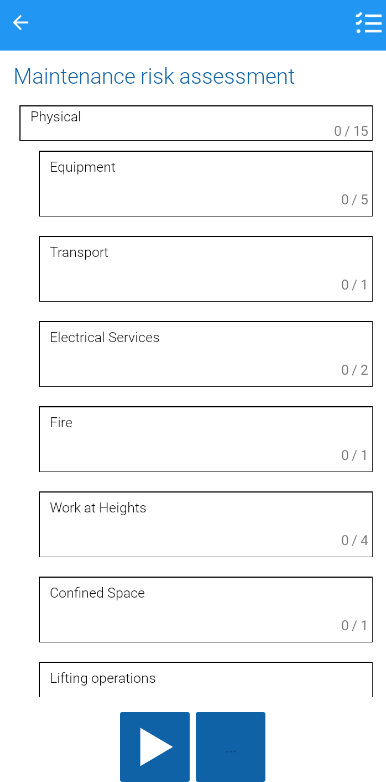
Force Assessment on Job Resumption. |
Enforce whether a new link risk assessment is required when a job is resumed from Left Site and Paused states. 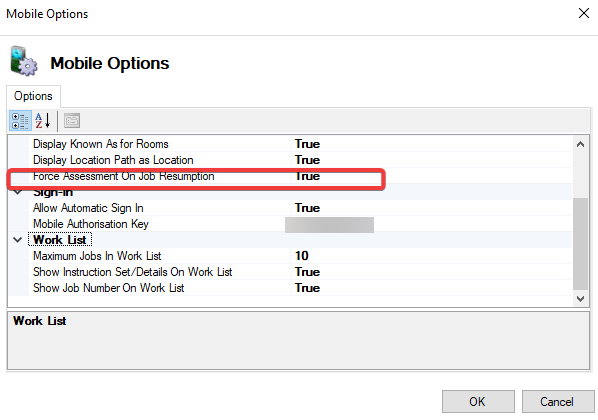
|
|
Allow Automatic Sign In. |
Enforce whether the mobile application allows users the ability to automatically sign-in. 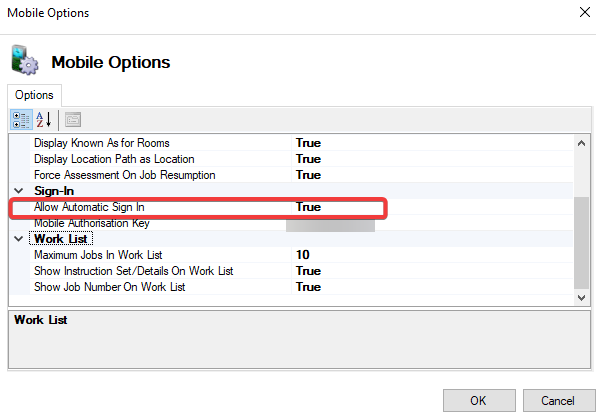
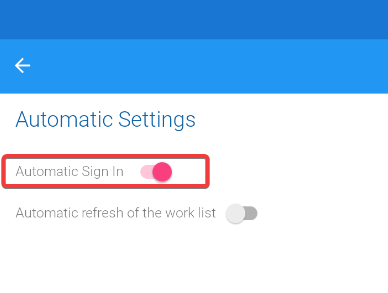
The user must configure Automatic Sign In from settings on the application. This option governs whether automatic sign in displays. |
|
Mobile Authorisation Key. |
Authorisation key that is used to securely communicate with the server. 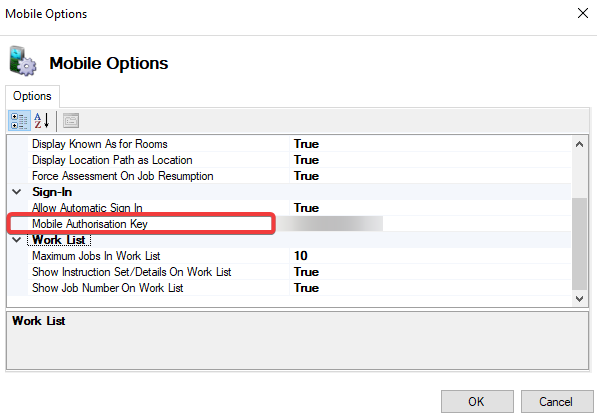
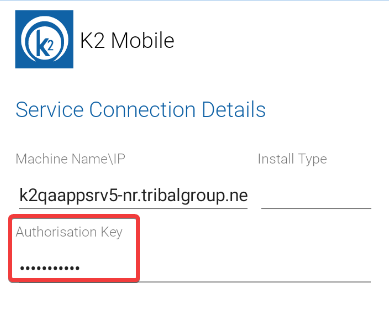
It is recommended that the key contains letters and numbers and is between 10 and 36 characters. |
|
Maximum Jobs in Work List. |
The maximum number of jobs allowed in the phone work list. 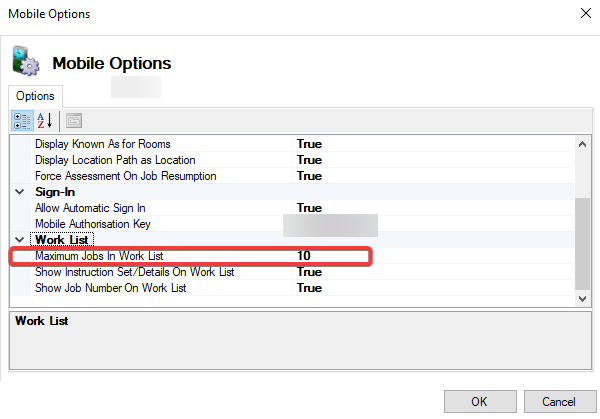
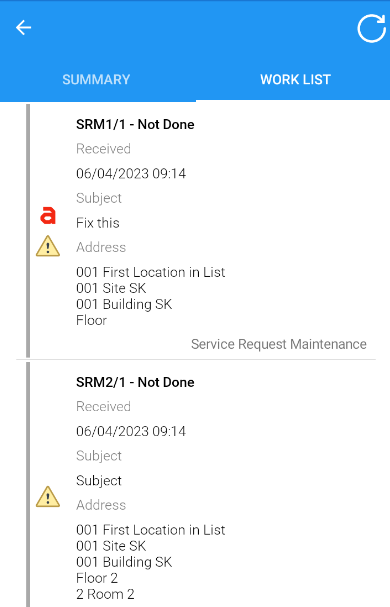
When over 10 jobs are assigned, the additional Jobs will only appear once existing Jobs are cleared from the queue. |
|
Show Instruction Set/Details on Work List. |
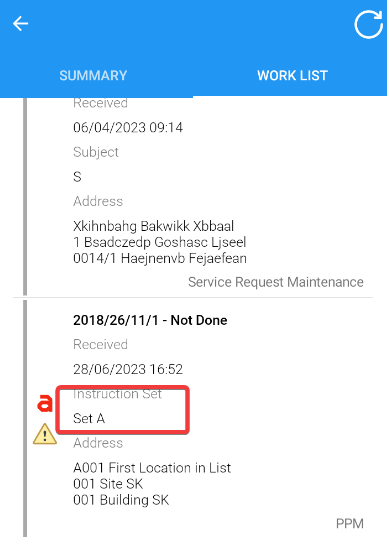
Show instruction set for PPM, or subject for service request maintenance on work list. 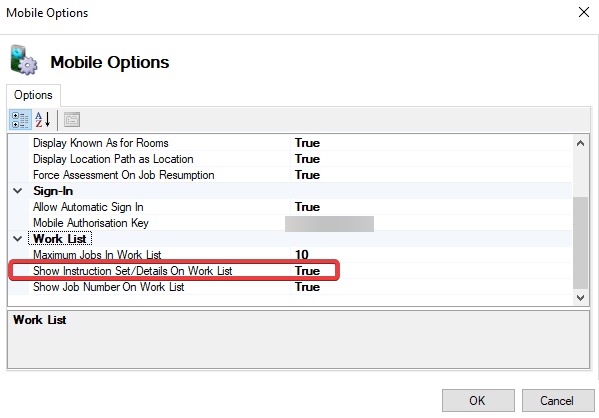
|
|
Show Job Number on Work List. |
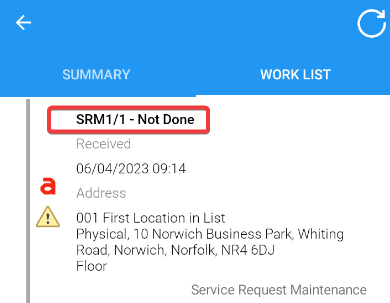
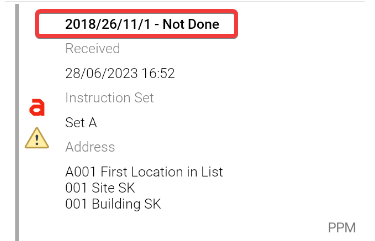
When set to True, the job number will be displayed on each item in the work list. 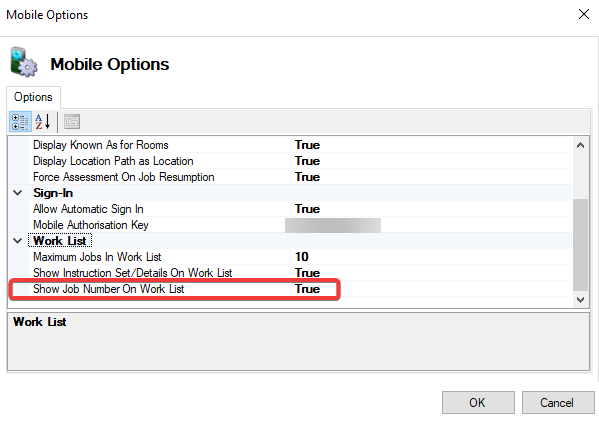
|