
The Jobs reference data window can be accessed by navigating to Maintenance > Job, or by clicking Manage Job Reference Data in the Tasks panel of a Job record.
You must have a role with the JobReferenceData permission to access this window.
Refer to Managing Reference Data for further information on using reference data screens.
The following reference data is available:
Assignment Status
Use this reference data to define the assignment status.
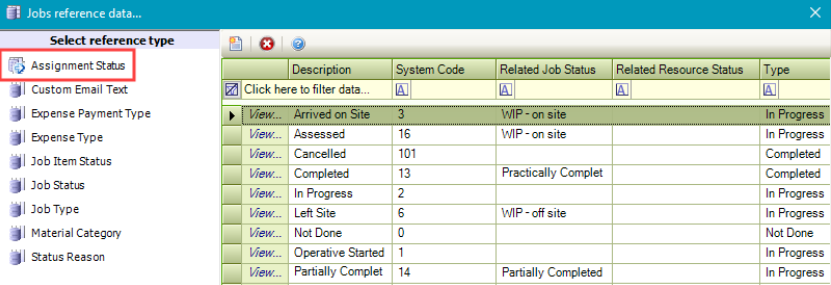
The fields on the Assignment Status reference data are described in the following table:
|
This field… |
Holds this information... |
|---|---|
|
Description |
A description of the status. This field is mandatory. |
|
System Code |
The unique system code. This field is mandatory. |
|
Related Job Status |
The related job status. These can be defined in Job Status |
|
Related Resource Status |
The related resource status. These can be defined in Resource Status (accessed by navigating to Functions > Core > Reference Data > Core). |
|
Type |
The type of assignment status. |
|
Previous Step |
The previous status of the assignment (for example: the status preceding 'Arrived' is 'En Route'). |
|
Update Timesheets |
Whether to update timesheets associated with Service Level Agreements (SLA). |
|
Milestones |
Whether this assignment is considered a milestone. Note: You can use milestones to record key events. |
|
Create Time Recording |
Whether to add a timesheet record. |
Custom Email Text
Use this reference data to define the format of an automatically generated email for jobs.
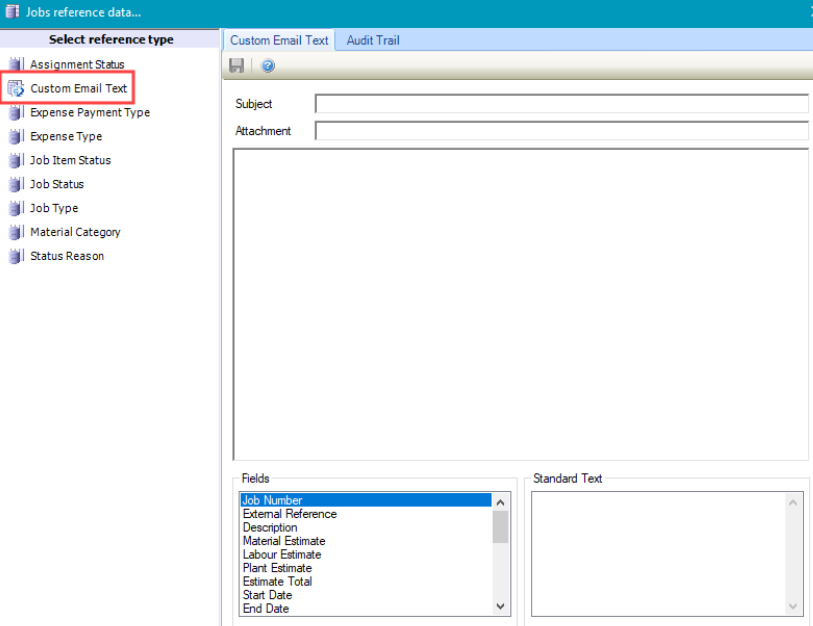
The fields on the Custom Email Text reference data are described in the following table:
|
This field… |
Holds this information... |
|---|---|
|
Subject |
The standard subject text for the email (for example: Property help call confirmation). |
|
Attachment |
The file path of an attachment. |
|
Text box |
The body text for the email. |
|
Fields |
The list of data record fields. Fields can be dragged into the text box to populate the body text. |
|
Standard Text |
The standard email disclaimer text defined in the system settings. Fields can be dragged into the text box to populate the body text. |
Expense Payment Type
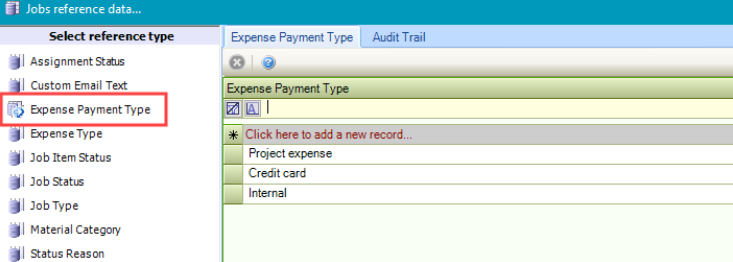
Use this reference data to define the expense payment type.
Expense Type
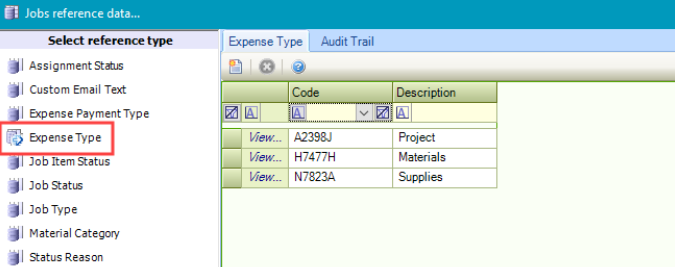
Use this reference data to define the expense type.
Job Item Status
Use this reference data to define the job item status.
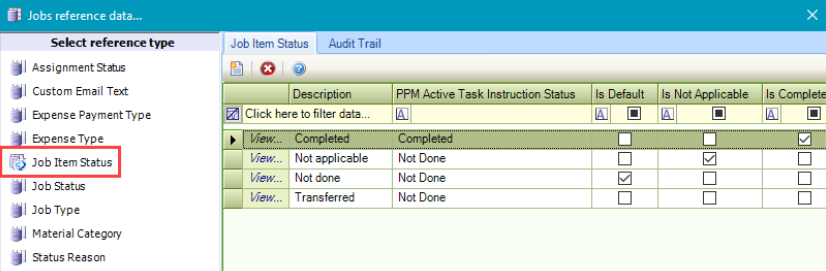
Only one type of each status (that is: Is Default, Is Not Applicable, Is Completed and Is Transferred) can be selected.
The fields on the Job Item Status reference data are described in the following table:
|
This field… |
Holds this information... |
|---|---|
|
Description |
The description of the status. This field is mandatory. |
|
PPM Active Task Instruction Status |
The PPM Active Task instruction status. Select from the drop-down list. These can be defined in Active Task Instruction Status (accessed by navigating to Maintenance > Planned Preventative Maintenance > PPM). |
|
Is Default |
Whether the status is default. |
|
Is Not Applicable |
Whether the status is not applicable. |
|
Is Completed |
Whether the status is a completed status. |
|
Is Transferred |
Whether the status is transferred. |
Job Status
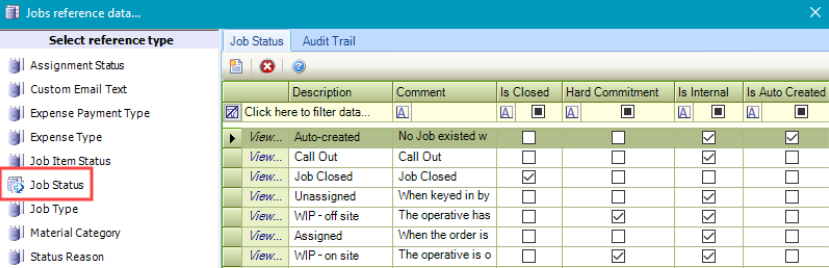
Use this reference data to define the job status.
Job Type
Use this reference data to define job types (for example: building repairs, heating repairs, and so on).
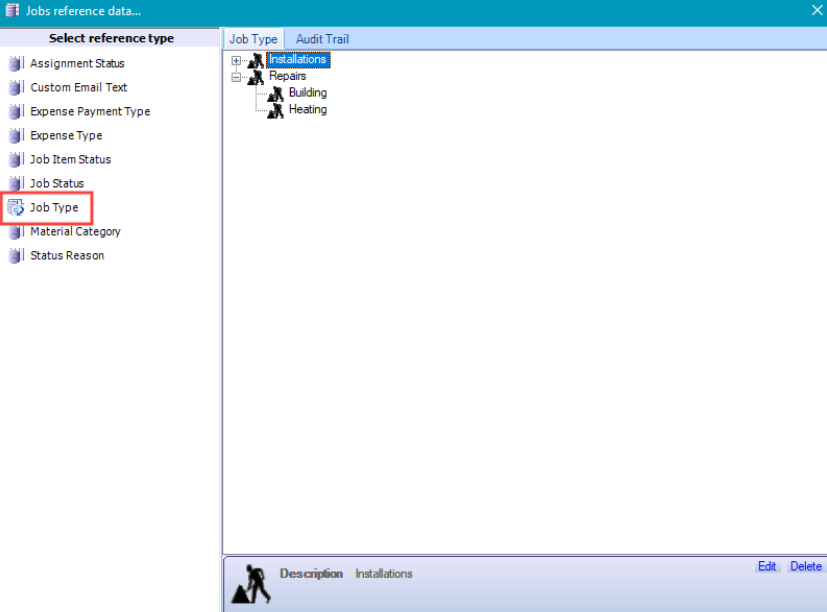
Right-click on an item or in a blank space to display a menu, which allows you to select from the following:
-
New - creates a new group or item
-
Modify - updates the selected group or item
-
Delete - deletes the selected group or item
-
Refresh - refreshes the Job Type list
Material Category
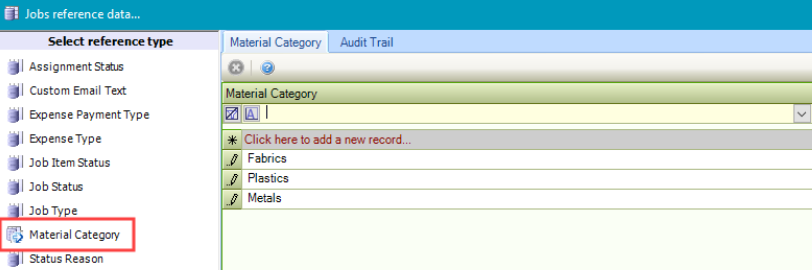
Use this reference data to define the material category.
Status Reason
Use this reference data to define the status reason.
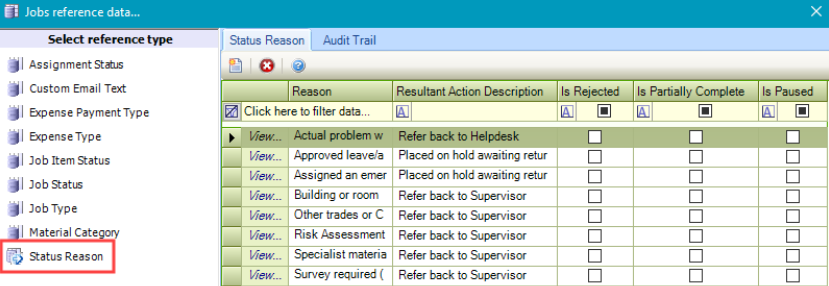
The fields on the Job Status Reason reference data are described in the following table:
|
This field… |
Holds this information... |
|---|---|
|
Reason |
The reason for the job status. This field is mandatory. |
|
Resultant Action Description |
The action resulting from the job. Select from the drop-down list |
|
Is Rejected |
Whether the status is classified as rejected. |
|
Is Partially Complete |
Whether the status is classified as partially complete. |
|
Is Paused |
Whether the status is classified as paused. |